Attendance Settings
Used to manage employee attendance settings, including showing seconds on the attendance times, face validation, and accuracy level.
The attendance settings have now been moved to make attendance management easier and more organized.
Previously, these settings were located under Settings > Company.
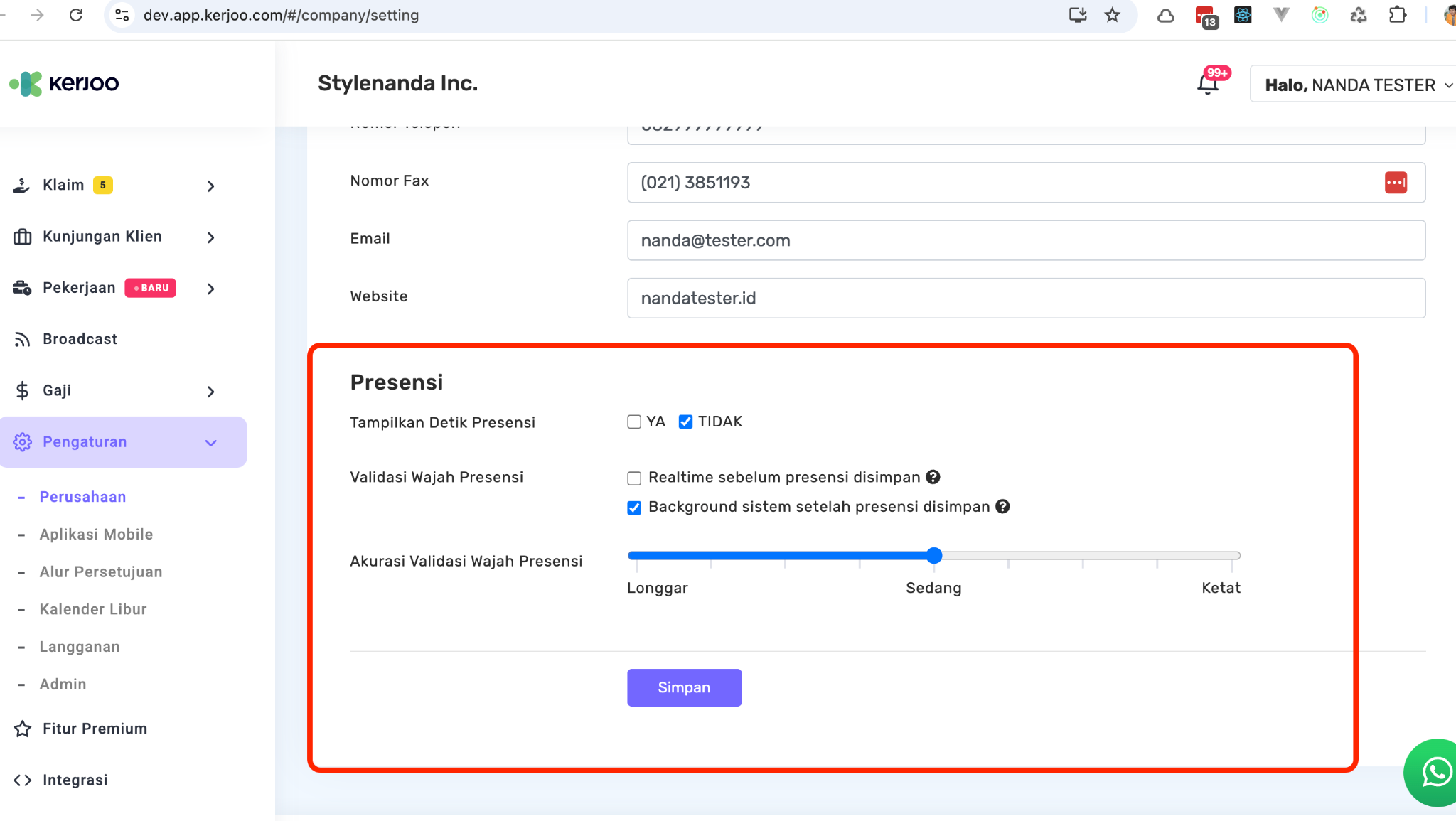
Now, attendance settings can be accessed through Attendance > Settings.
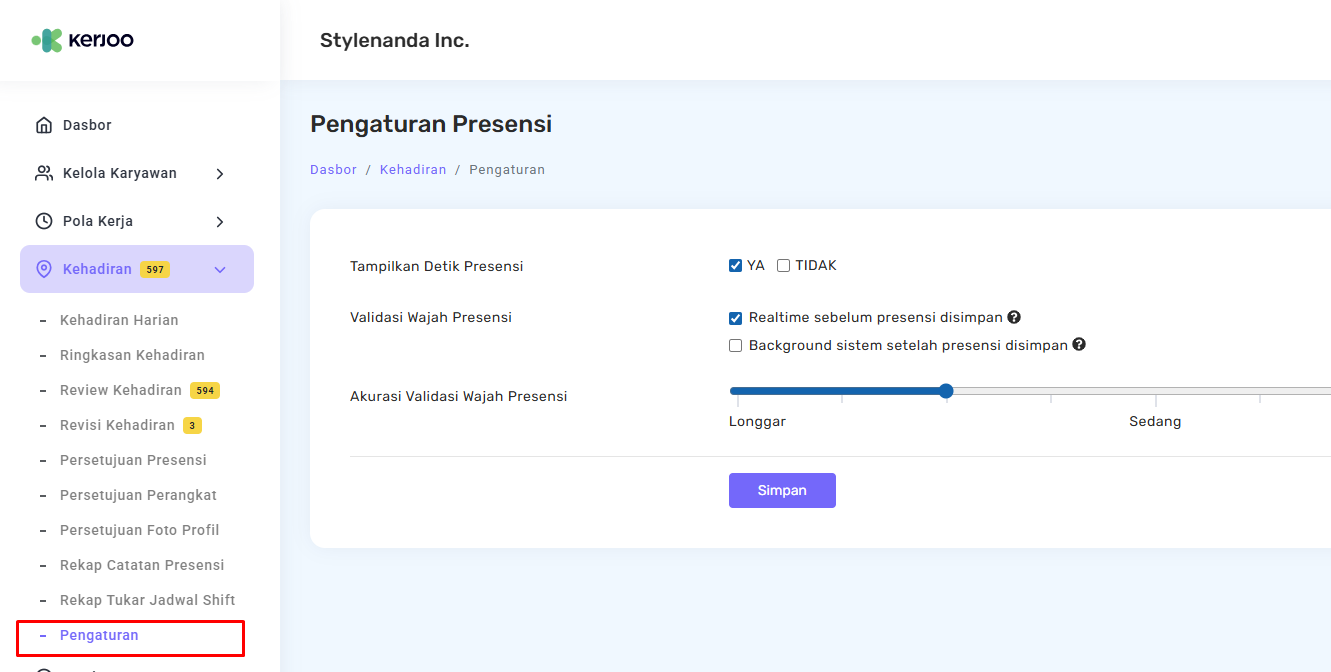
This update centralizes all attendance and presence-related configurations, making them easier for admins and HR teams to find and manage. Below are the things that Admins can manage in the Attendance Settings menu.
-
Used to manage employee attendance settings, including showing seconds on the attendance times, face validation, and accuracy level. The admin can also adjust settings to ensure the attendance process aligns with company needs.
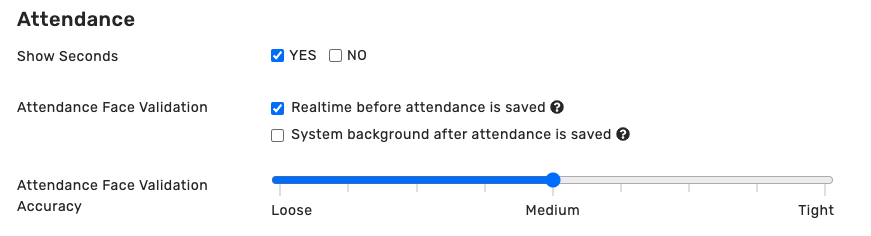
- Show Seconds — choose YES to display seconds in the attendance times, or NO if you don't want to display seconds.
- Attendance Face Validation
- Check Realtime before attendance is saved to make sure that face verification is performed before the attendance is recorded.
- Check System background after attendance is saved if you prefer the system to verify the face in the background after the attendance is recorded.
- Attendance Face Validation Accuracy — adjust the face recognition accuracy level as needed:
- Loose — flexible verification
- Medium — standard system validation
- Tight — higher accuracy and more sensitive to facial differences
-
After all the data has been updated, the admin can save the changes by clicking the Save
 button so the settings can be applied in the system.