Integration
The central configuration hub that allows companies to connect Kerjoo data and features with third-party applications.
Through this page, administrators can access API documentation, configure webhooks, and set up integrations with Slack, Telegram, Pintu Kerjoo, and Fingerspot.
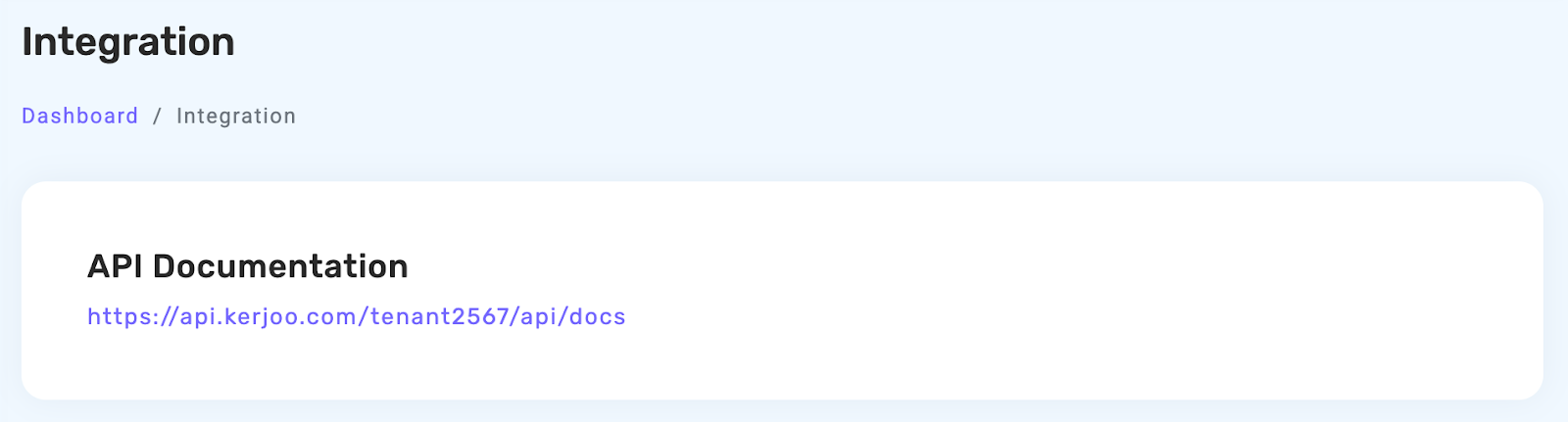
API documentation
Contains the API documentation for companies that want to integrate Kerjoo data with other platforms.
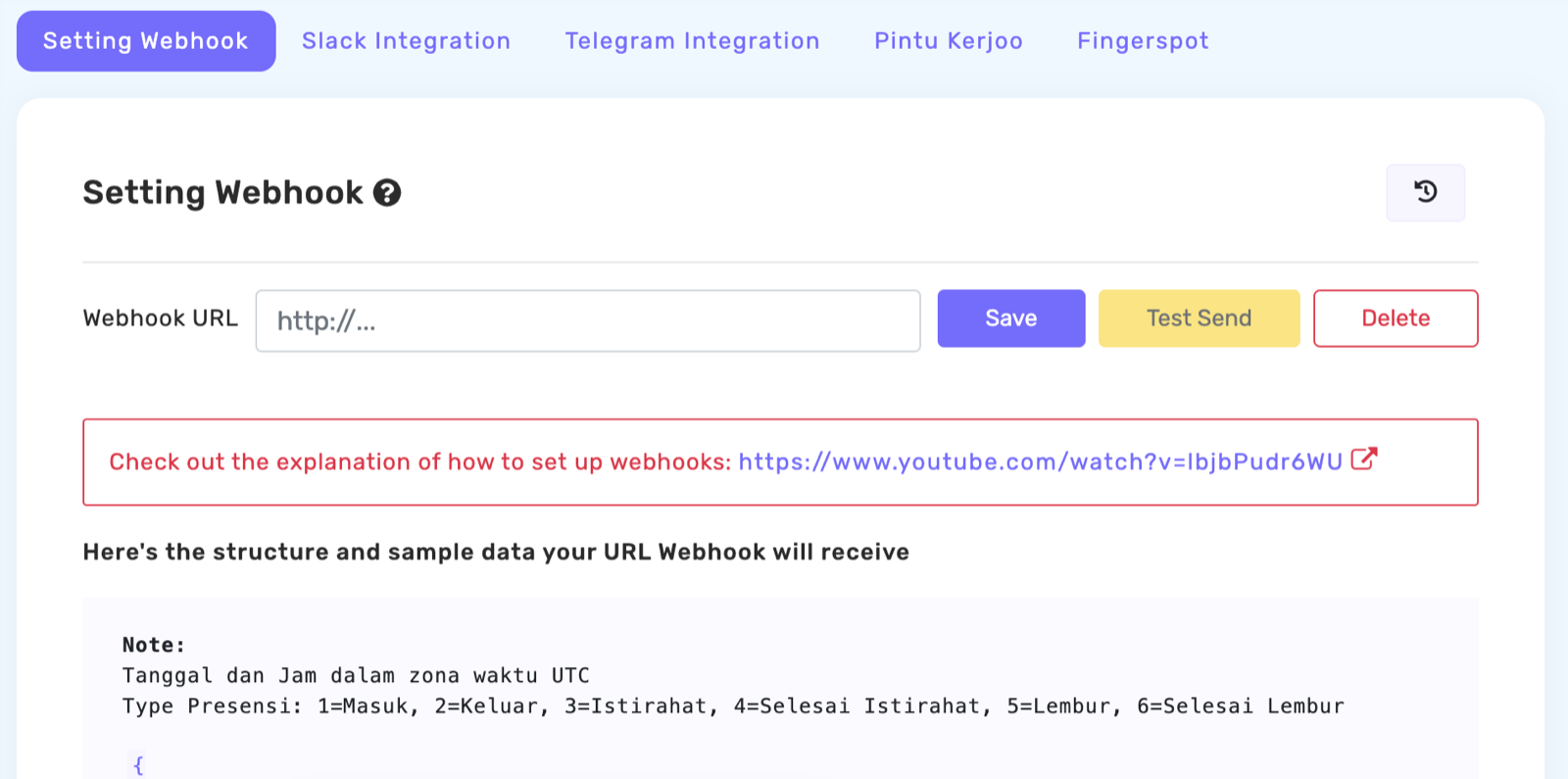
Webhook settings
Webhook Settings are used to specify the destination URL that will receive data and automatic notifications from the system whenever certain activities occur.
Slack integration
This feature enables the system to connect with Slack, allowing notifications — such as leave requests, time-off submissions, and other employee activities — to be delivered directly through Slack.
- On the Slack Integration page, click How to Integrate? to view the step-by-step guide.

- Follow the instructions until you obtain the Webhook URL from Slack.
- Adjust the Division settings if you want notifications to be sent only for specific divisions.

- Enable the required options, such as Show Attendance Notes, Show Attendance Location, and Enable Notifications.
- Enter the Webhook URL into the provided field, then click Save.
Once the integration is saved, Slack will automatically receive notifications whenever an employee submits a leave request, time-off request, or any other related activity.
Telegram integration
This feature enables the system to connect with Telegram, allowing notifications related to attendance, location data, and specific employee activities to be sent directly to your Telegram chat.
- In the How to Get the Chat ID section, follow the provided steps to obtain your Telegram Chat ID.

- Enter the acquired Chat ID into the designated field.

- Adjust the Division settings if you want notifications to be sent only for specific divisions.

- Enable the required options, such as Show Attendance Notes, Show Attendance Location, and Enable Notifications.
- Once all settings are configured, click Save
 to activate the integration.
After the integration is saved, Telegram will automatically send notifications based on the settings you have selected.
Tips for optimising admin notifications:
- Create a dedicated channel in Slack or an HR-specific group in Telegram to keep notifications organised.
- Add other administrators to the Slack channel or Telegram group so all responsible admins can view the notifications.
- If you are using Telegram, maximise the Kerjoo bot functionality by granting the bot permission to send messages in the group.
Pintu Kerjoo
Pintu Kerjoo is an alternative attendance device feature that allows companies to manage employee attendance through a single access point at the workplace.
This feature can be used without any additional installation fees and will continue to function even without an internet connection. This ensures that employees can still record their attendance, including situations where they do not carry their personal smartphones or when the office internet connection is unstable.
Full guide:
Account creation, app login, and employee data synchronisation are explained on the Pintu Kerjoo and Pintu Kerjoo Account pages.
Fingerspot integration
The Kerjoo system can be integrated with fingerprint machines — in this case, Fingerspot — to simplify and automate employee attendance recording. With this integration, attendance data from the device will be transferred directly into the system.
You can find the Fingerspot integration steps under Integration > Fingerspot Integration.

How to add a device
- Click the Add Device
 button located at the top-right corner of the table.
- Fill in the required fields:
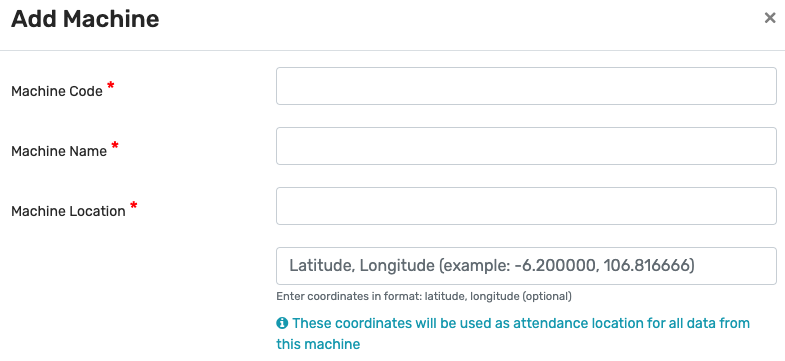
- Device Code — enter the unique code for the device.
- Device Name — provide a name based on the device's identity or label.
- Device Location — enter the address or a description of the location.
- Coordinates (optional) — enter the Latitude and Longitude format (e.g.
-6.200000, 106.816666) if you want attendance to be recorded based on a coordinate point.
- Once all the information is filled in, click Save.
Activation process:
After clicking Save, the newly added device will appear on the page with the initial status Inactive. To activate the device, payment is required. Please contact the Kerjoo Team to proceed with the payment and enable device activation.
