Performance Review (KPI)
Helps companies conduct employee performance reviews in a more structured way based on predefined review criteria.
With this feature, companies can objectively measure each employee's performance, provide more focused and constructive feedback, and use the review results as a basis for making employee development decisions.
Feature availability:
The Performance Review (KPI) feature is available for users on the PRO Plan. Make sure your company is subscribed to this plan to access and utilise all Performance Review features in Kerjoo.
Performance Review setup
To get started, open the Performance Review menu from the left sidebar, located directly below the Task menu.
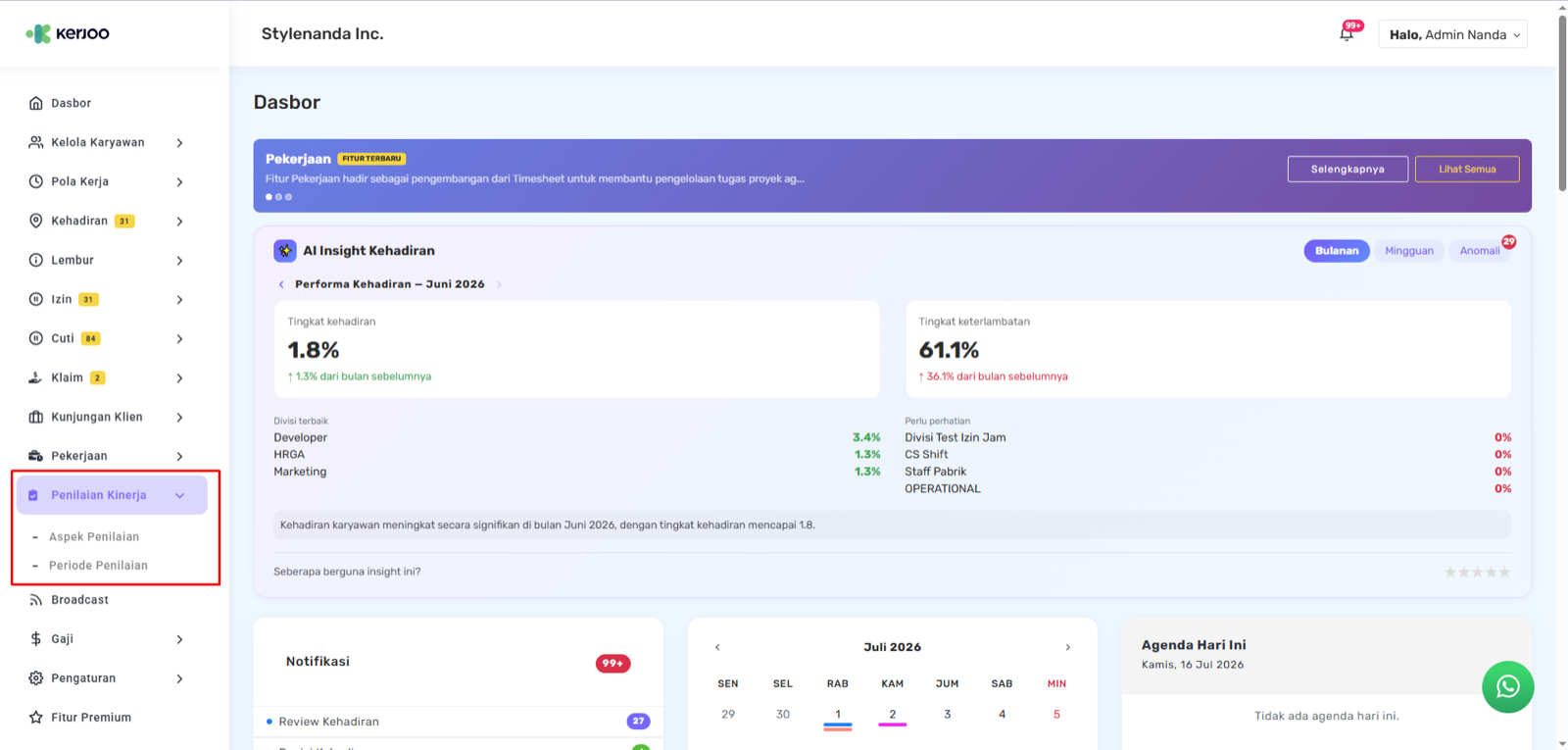
The Performance Review menu consists of two main submenus:
- Review Criteria — used to manage the criteria or indicators that will serve as the basis for employee performance reviews.
- Review Periods — used to create and configure review periods, including all related review settings.
Note:
Before starting the review process, ensure that both the Review Criteria and Review Periods have been properly set up according to your company's requirements.
How it works
- Prepare the Review Criteria as evaluation indicators.
- Create a Review Period along with its configuration.
- Reviewers carry out the review via the web or mobile app.
- Employees view their review results if enabled by the administrator.
Conducting reviews
The Performance Review process can be completed through either the Kerjoo Web App or Kerjoo Mobile, depending on the user's assigned role.
- If the Reviewer is a Supervisor, reviews can be completed using either the Kerjoo Web App or Kerjoo Mobile.
- If the Reviewer is not a Supervisor, they do not have access to the web application. In this case, reviews can only be completed through Kerjoo Mobile using the employee account assigned as the reviewer.
Conducting reviews via Kerjoo Mobile
Open the Performance Review menu
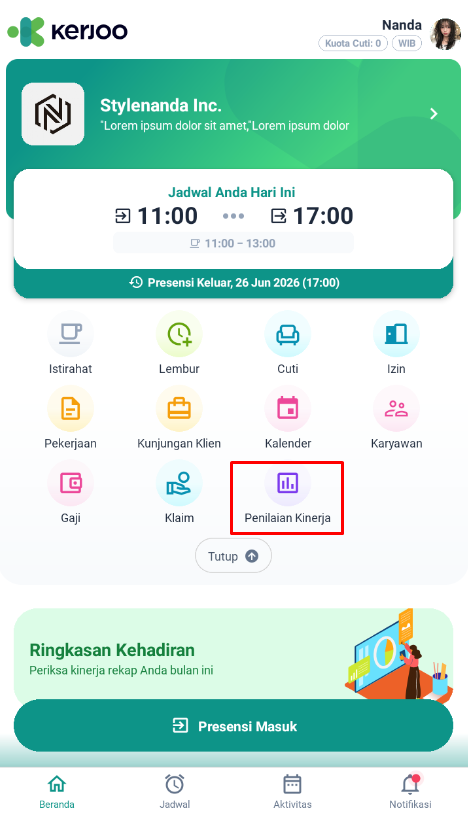
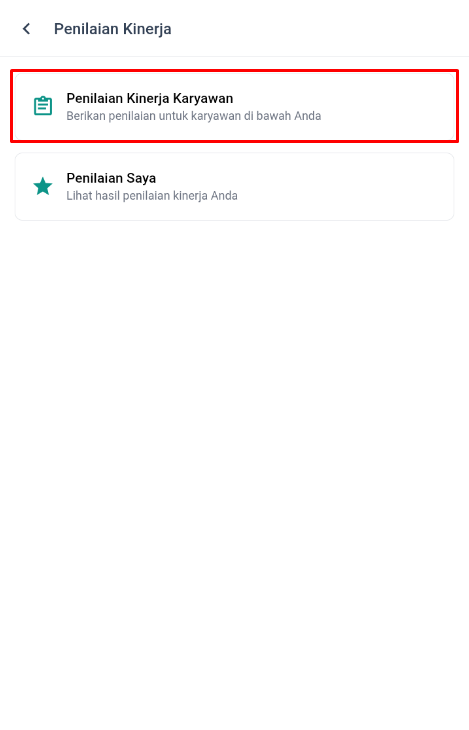
Open the Kerjoo Mobile app. From the Home page, tap Performance Review, then select Employee Performance Review.
Select a Review Period
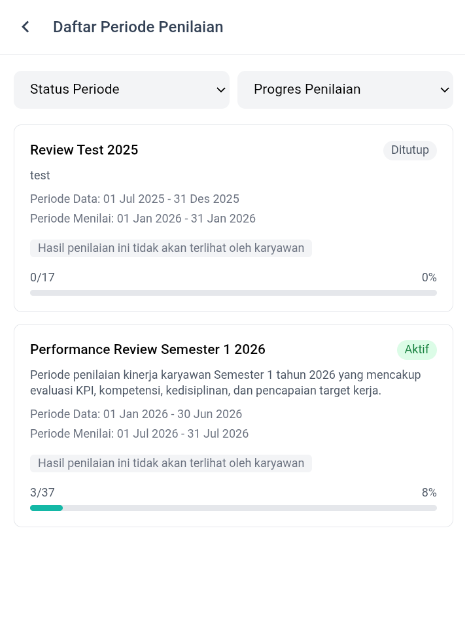
Choose a Review Period that is Active or has already entered its Review Period. The page displays the Data Period, Review Period, review status, and review progress.
Select an employee
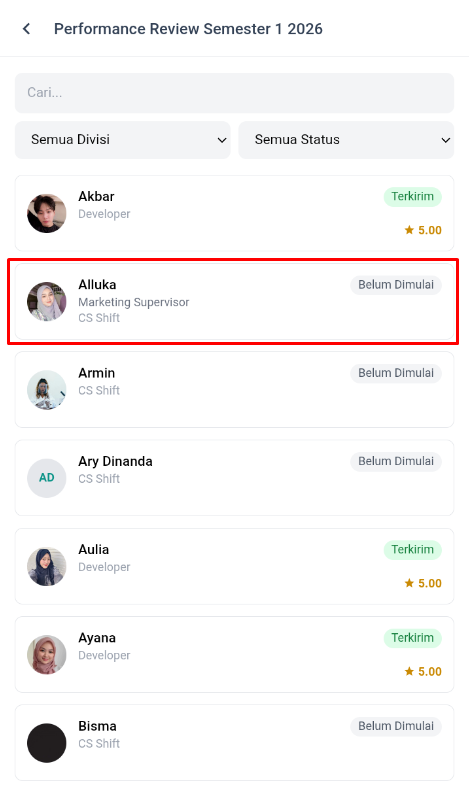
Choose the employee you want to review from the available list. Note that the employee list only includes employees assigned to the reviewer by the administrator.
Each employee's review status, such as Not Started or Submitted, is displayed to help reviewers monitor their review progress.
Review performance data and set goals
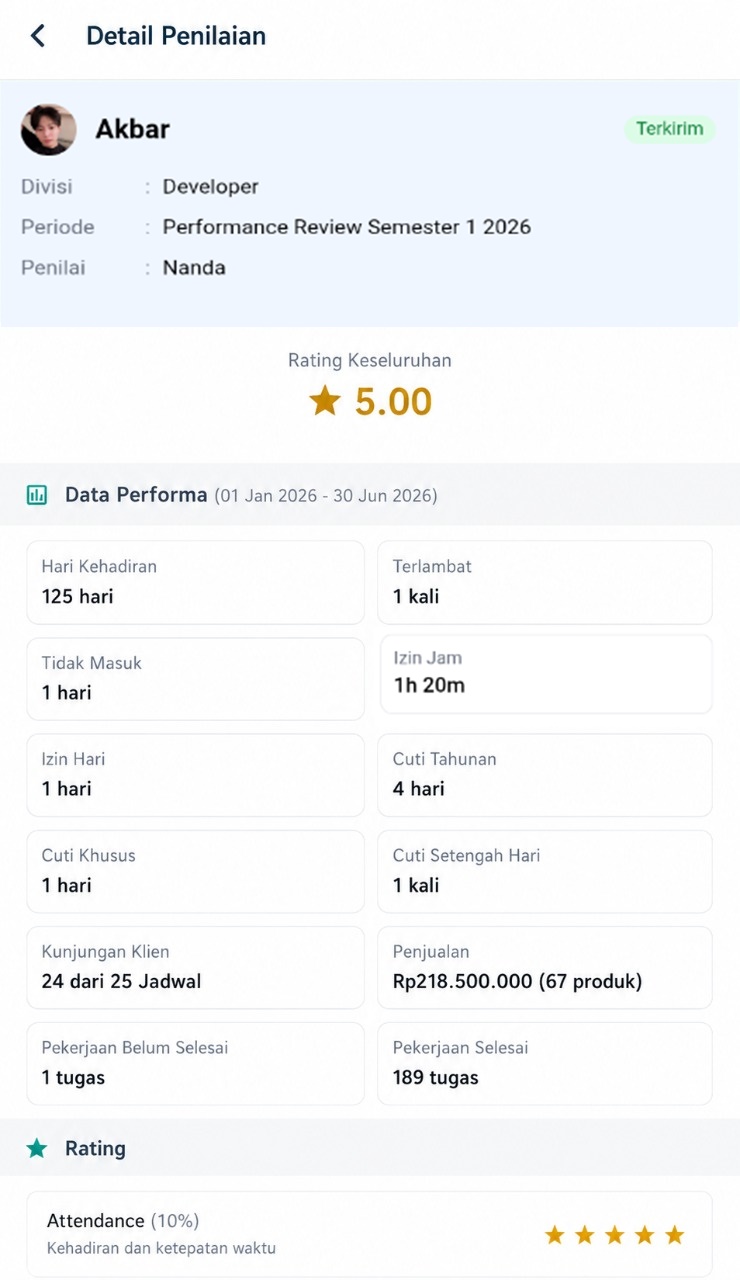
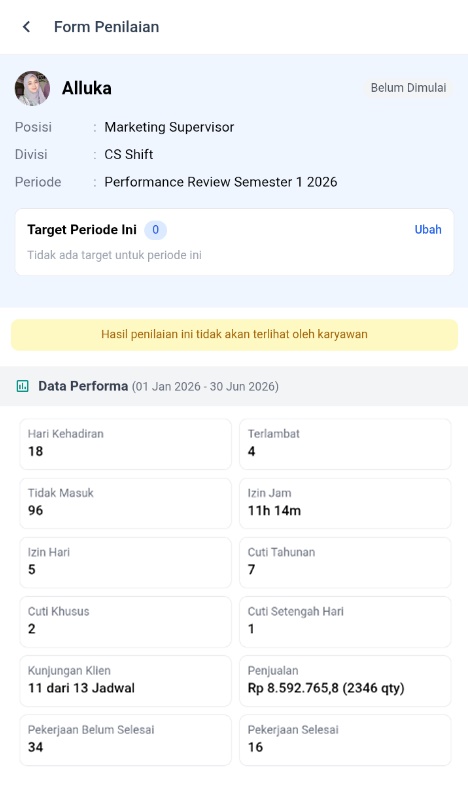
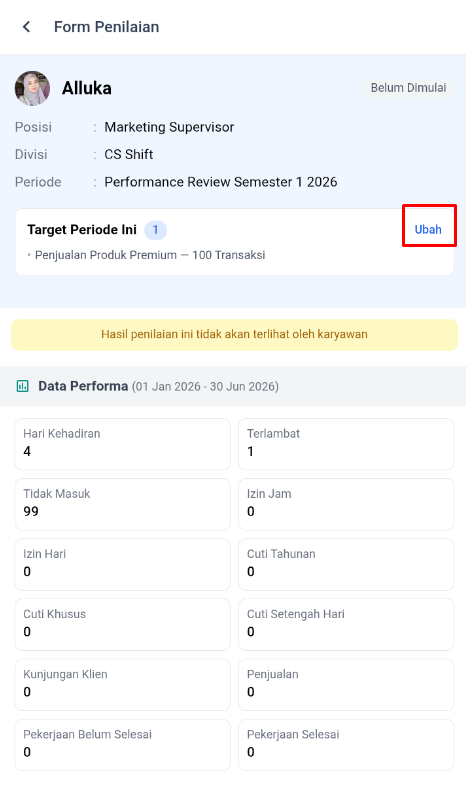
After selecting an employee, the Review Form will appear. This page displays the employee's Performance Data during the selected review period, providing useful information to support the review process.
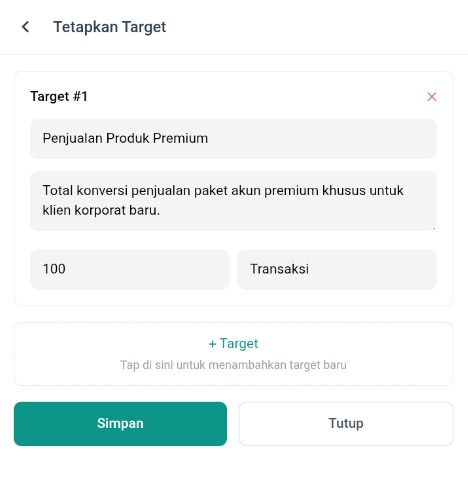
Reviewers can also set or update goals for the current review period by clicking Edit, then adding new goals or updating existing ones.
Submit ratings
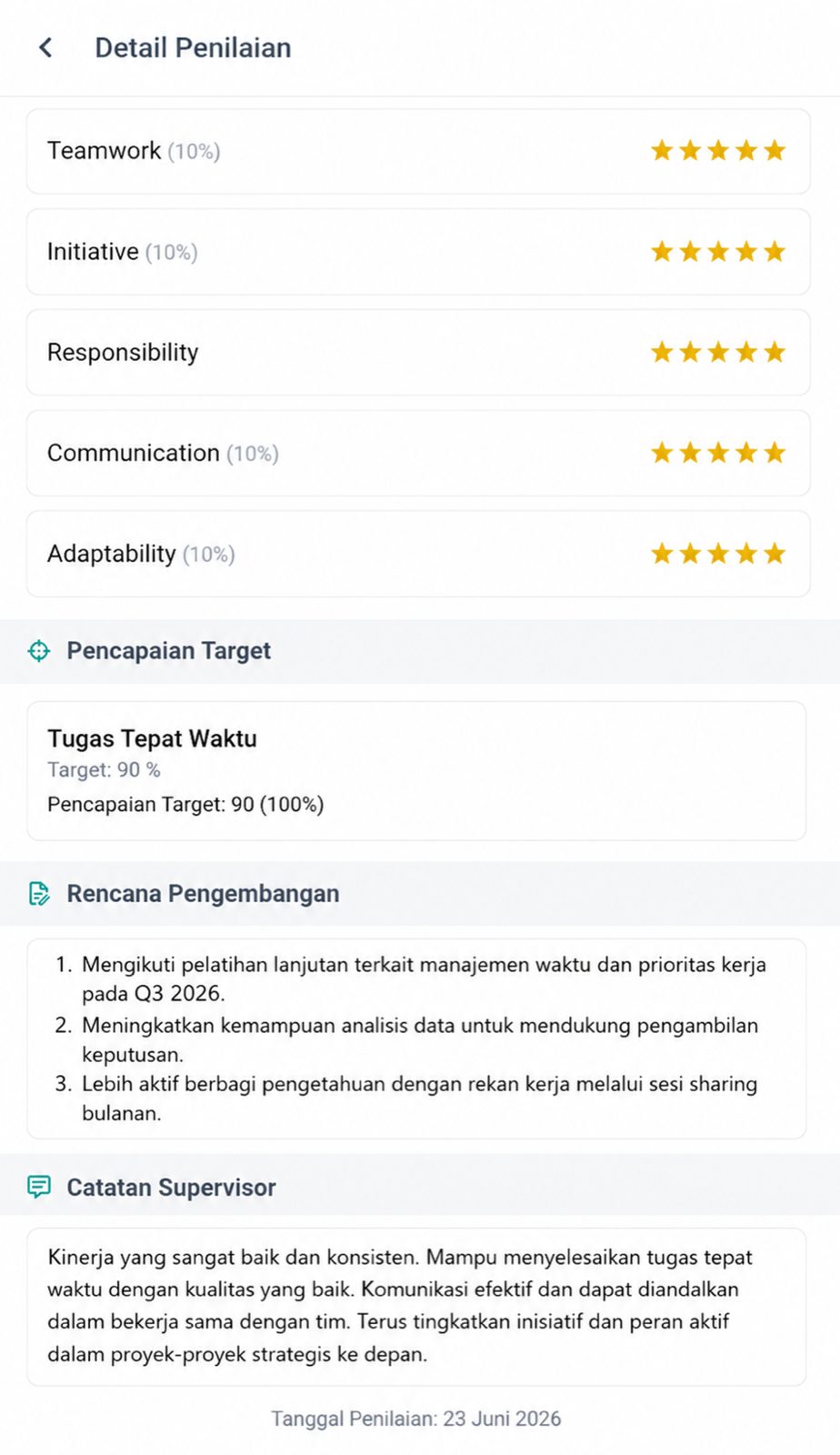
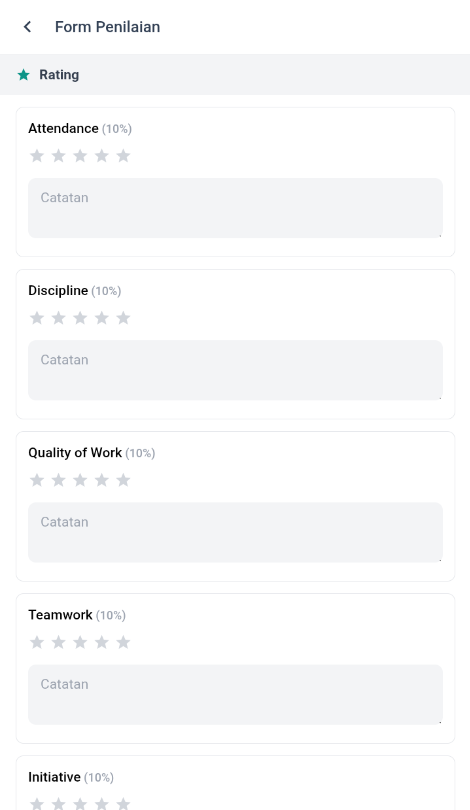
Under the Rating section, all selected Review Criteria and their corresponding weights will be displayed. Click the star (★) icon for each review criterion, add Notes if additional comments or feedback are required, then repeat until all review criteria have been rated.
Complete goal achievement and development plan
After submitting ratings, complete the following sections.
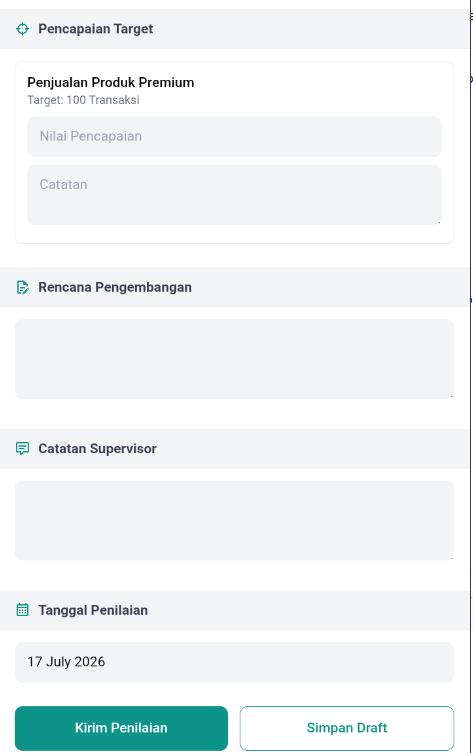
Goal Achievement — enter the employee's achievement level based on the assigned goals. Additional notes may also be provided if necessary.
Development Plan — provide recommendations or development plans that can help improve the employee's skills, competencies, or overall performance in the next review period.
Supervisor Notes — add any feedback or comments from the supervisor to support future evaluations and follow-up actions.
Set the review date
By default, the Review Date is automatically set to the current date. If necessary, the date can be modified with the following limitations: only previous dates (backdating) can be selected, and future dates cannot be selected.
After completing the review, choose one of the following options: click Save Draft to save the review and continue editing later, or click Submit Review to finalise and submit the review.
Note:
Make sure all Review Criteria have been completed before clicking Submit Review to ensure the evaluation is saved successfully.
Conducting reviews via the Web App
Reviewers can also complete Performance Reviews through the Kerjoo Web App.
Open a Review Period
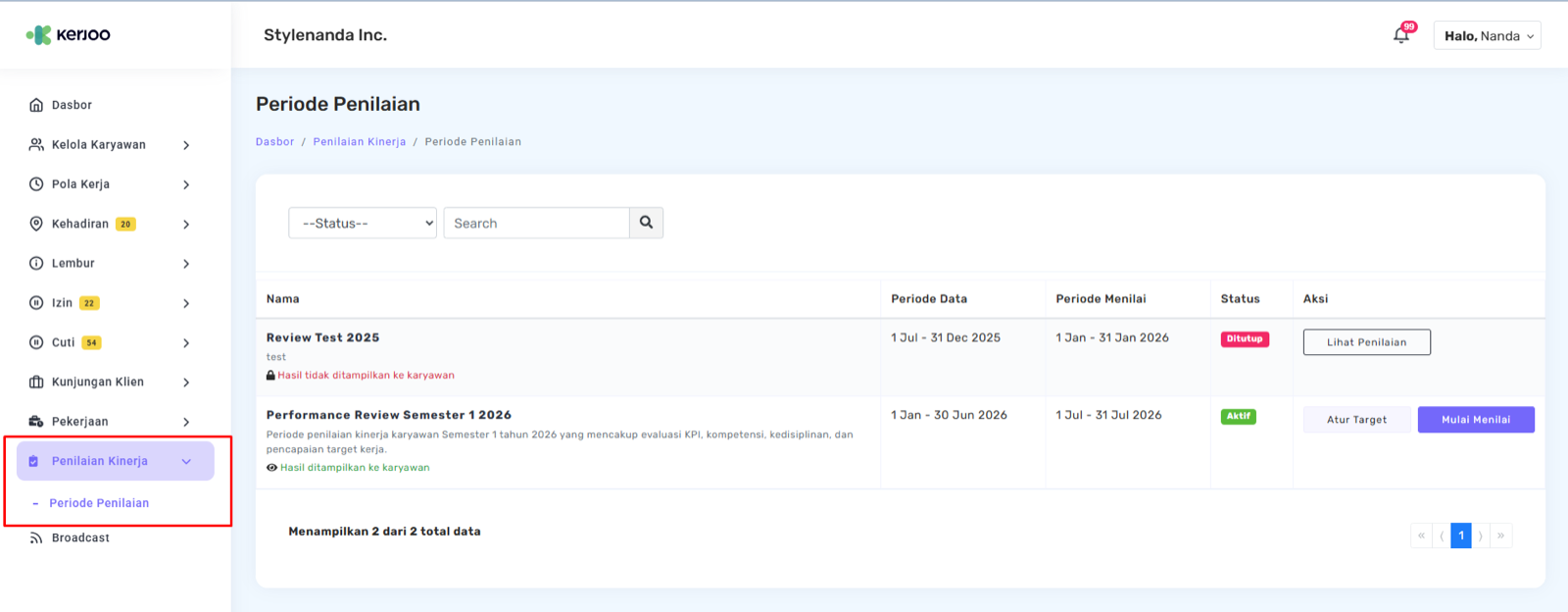
Sign in to the Kerjoo Web App using an account with Reviewer access. From the Dashboard, select Performance Review, then click Review Periods.
Select a Review Period
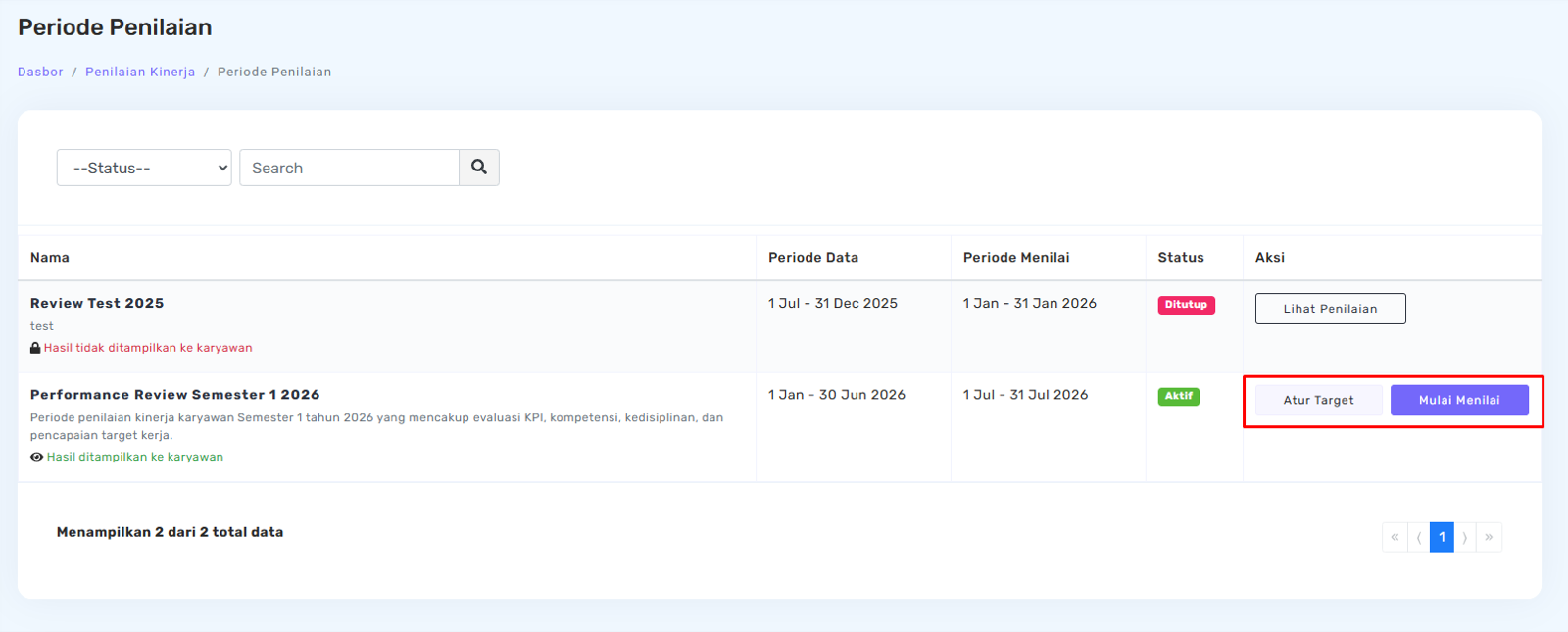
Choose a Review Period that is Active or has already entered its Review Period. The page displays the Data Period, Review Period, review status, and review progress.
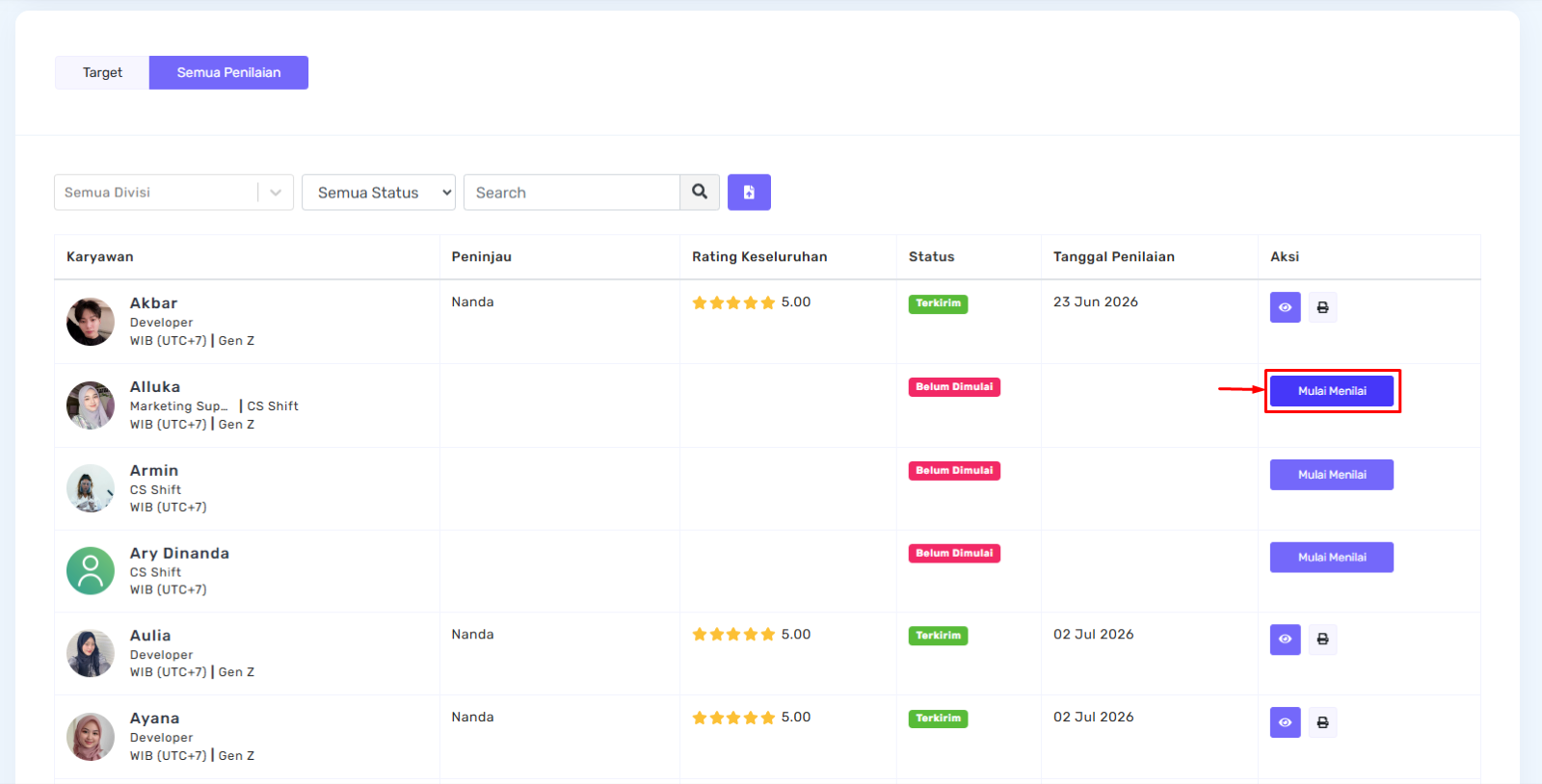
From this page, reviewers can also manage employee goals or begin reviewing employees directly from the Action column.
Manage goals
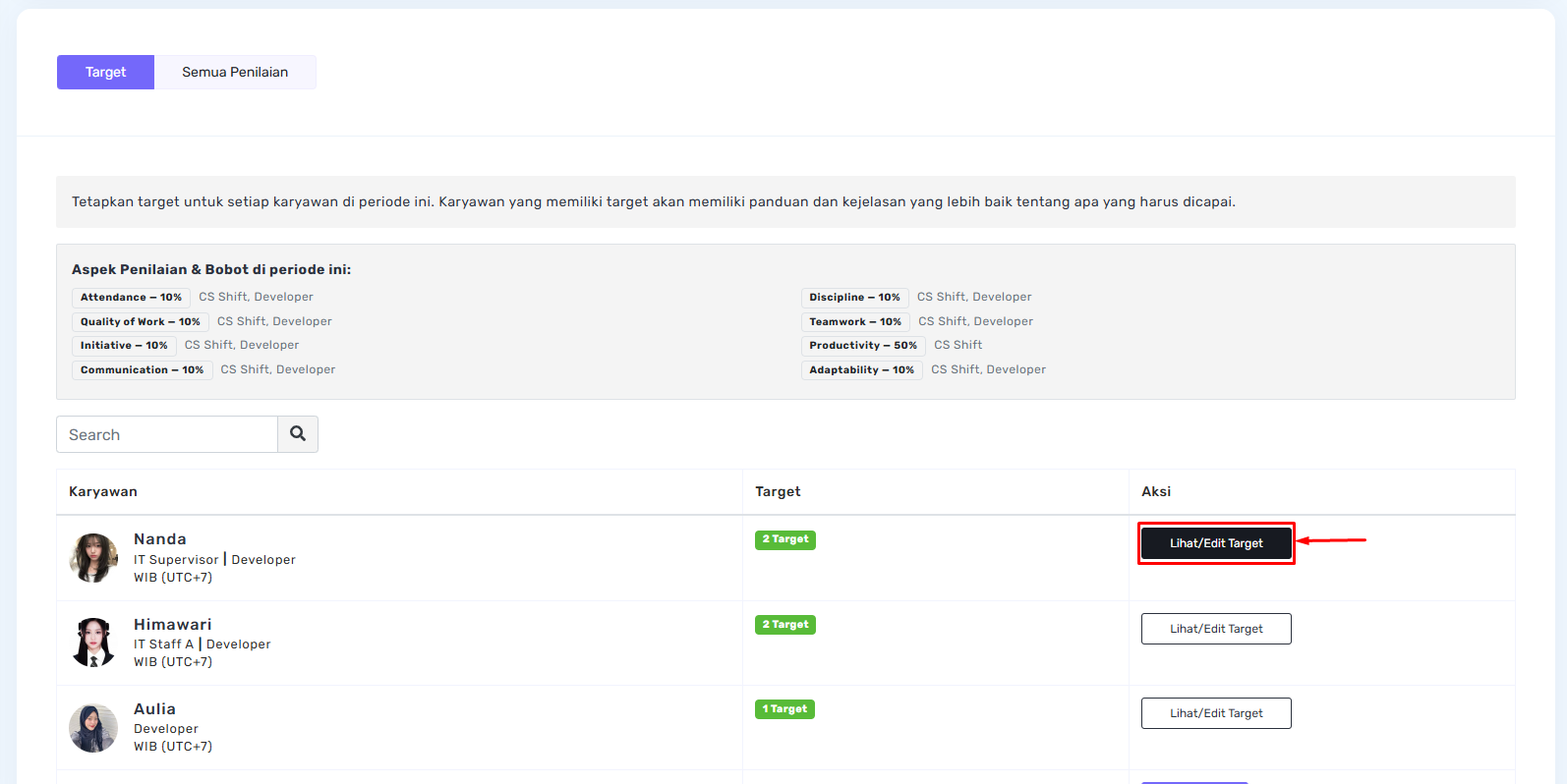
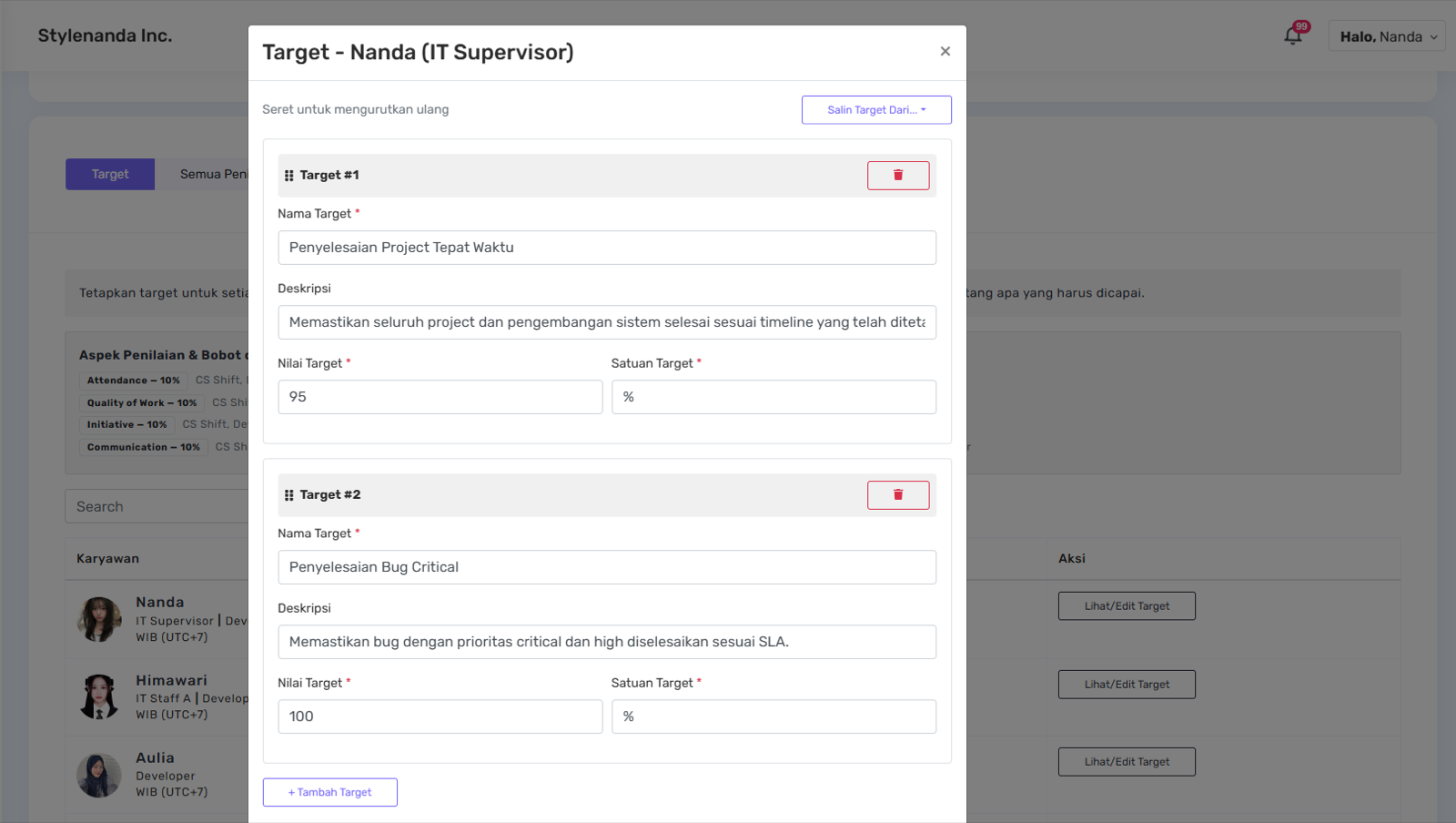
Before starting a review, reviewers can add or update employee goals.
Click View/Edit Goals in the Action column and complete the required goal fields. If needed, click Copy Goals From... and select another employee whose goals you want to copy. This feature helps reviewers quickly create similar goals without having to enter them manually.
Start reviewing
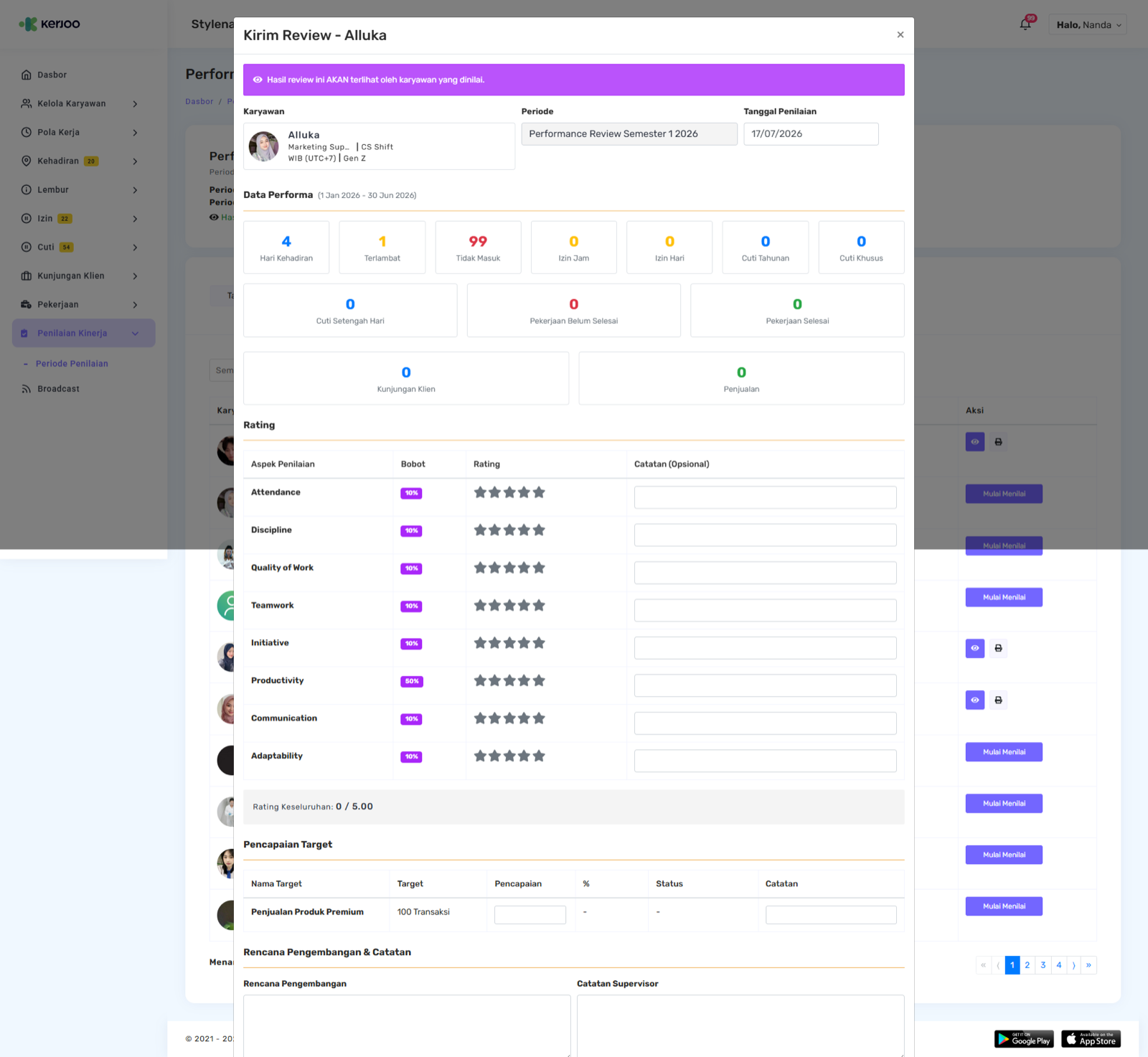
Click Start Review for the selected employee. The system displays the employee's Performance Data during the review period as supporting information.
Rate each Review Criterion, then complete the Goal Achievement, Development Plan, and Supervisor Notes sections. Once everything is filled in, click Submit Review to save and submit the completed review.
Viewing review results (employee)
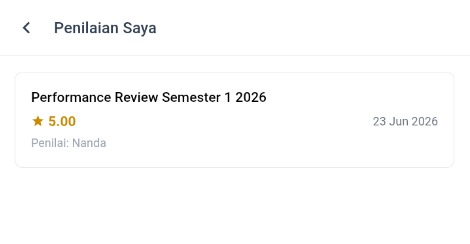
After the Performance Review process has been completed, employees can view their review results through Kerjoo Mobile. The availability of review results depends on the Status configuration set by the administrator when creating the Review Period.
The following rules apply:
- If the administrator selects Show to Employees, employees can view their review results through Kerjoo Mobile.
- If the administrator selects Do Not Show to Employees, the My Reviews menu will not display the review results even after the review process has been completed.
Viewing review results
If the administrator enables Show to Employees, employees can view their results by following these steps:
- Sign in to Kerjoo Mobile using an employee account.
- Open the Performance Review menu.
- Select My Reviews.
- Choose the desired Review Period.
The system will display the detailed Performance Review results for the selected review period.