Overtime Review
This admin panel contains a summary of employees' overtime performance. If an employee's overtime submission is not appropriate, the admin can reject the attendance by clicking the X (reject) icon.
The entire history of overtime rejection also will appear on the history icon  , and you can save the overtime data using the Excel export menu
 .
To access this panel, you can switch to the menu
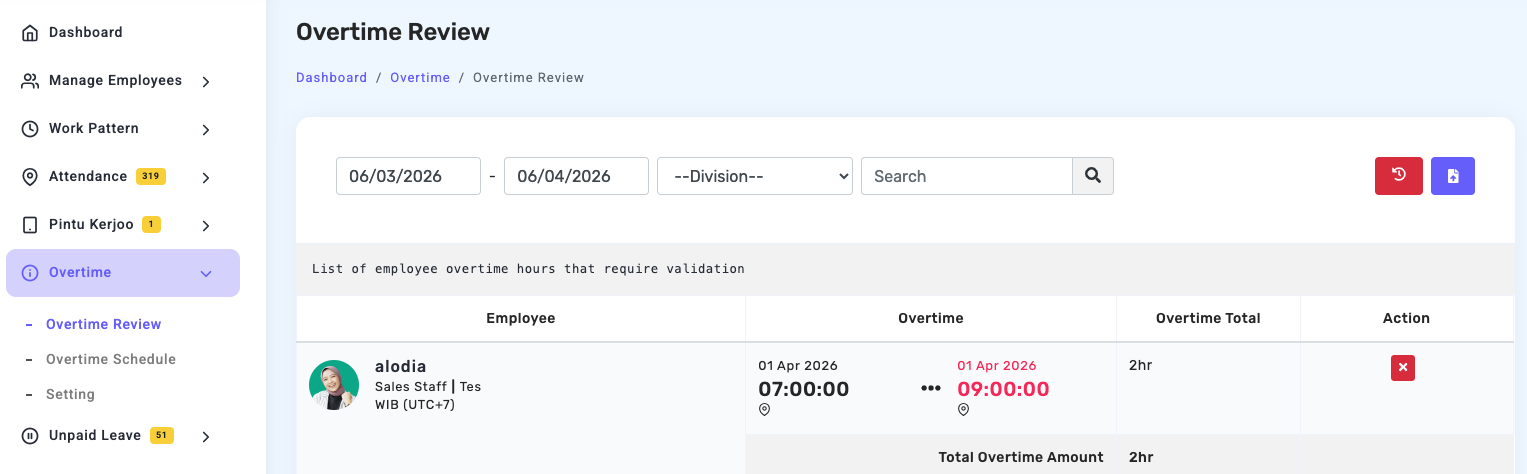
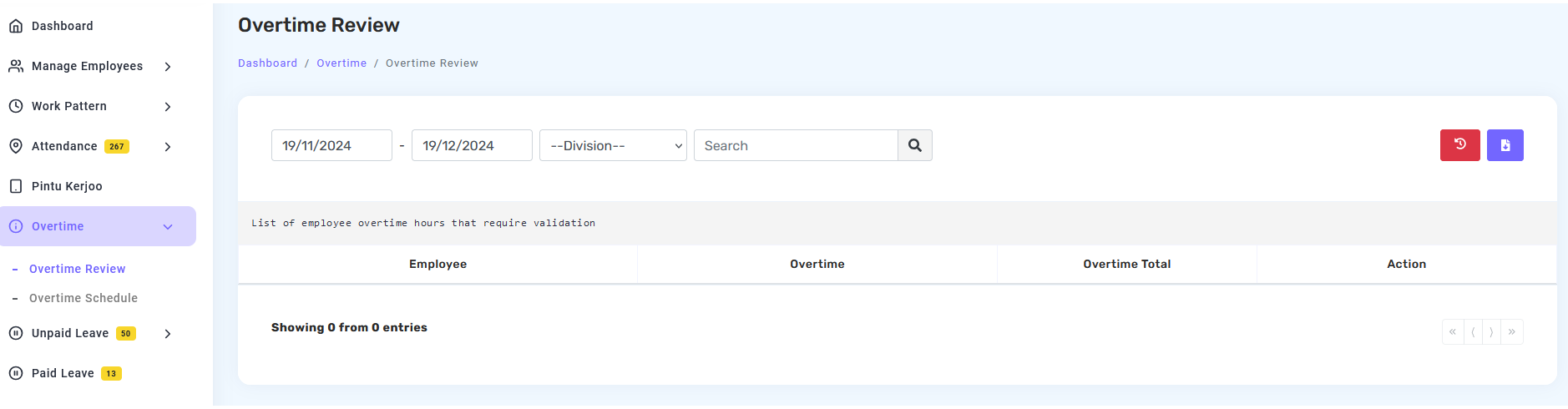
Features available on the Overtime Review page:
- Date Filter — admins can define the overtime time range by selecting a start date and end date to display overtime data for a specific period.
- Division Filter — used to display overtime data based on a specific division or department within the company.
- Search Field — the Search field allows users to find overtime data more quickly by entering specific keywords.
- Overtime Data Table — the list of overtime entries that require validation is displayed in a table with several key pieces of information:
- Employee – displays the name of the employee who performed the overtime.
- Overtime Time – shows the start and end time of the overtime.
- Total Overtime – shows the total duration of the overtime work.
- Action – used to take action on the overtime data, such as validating or reviewing the entry.
- Data Count Information — at the bottom of the table, there is information showing the total number of overtime records displayed on the page.