Project
Used to create and manage projects as containers for grouping tasks.
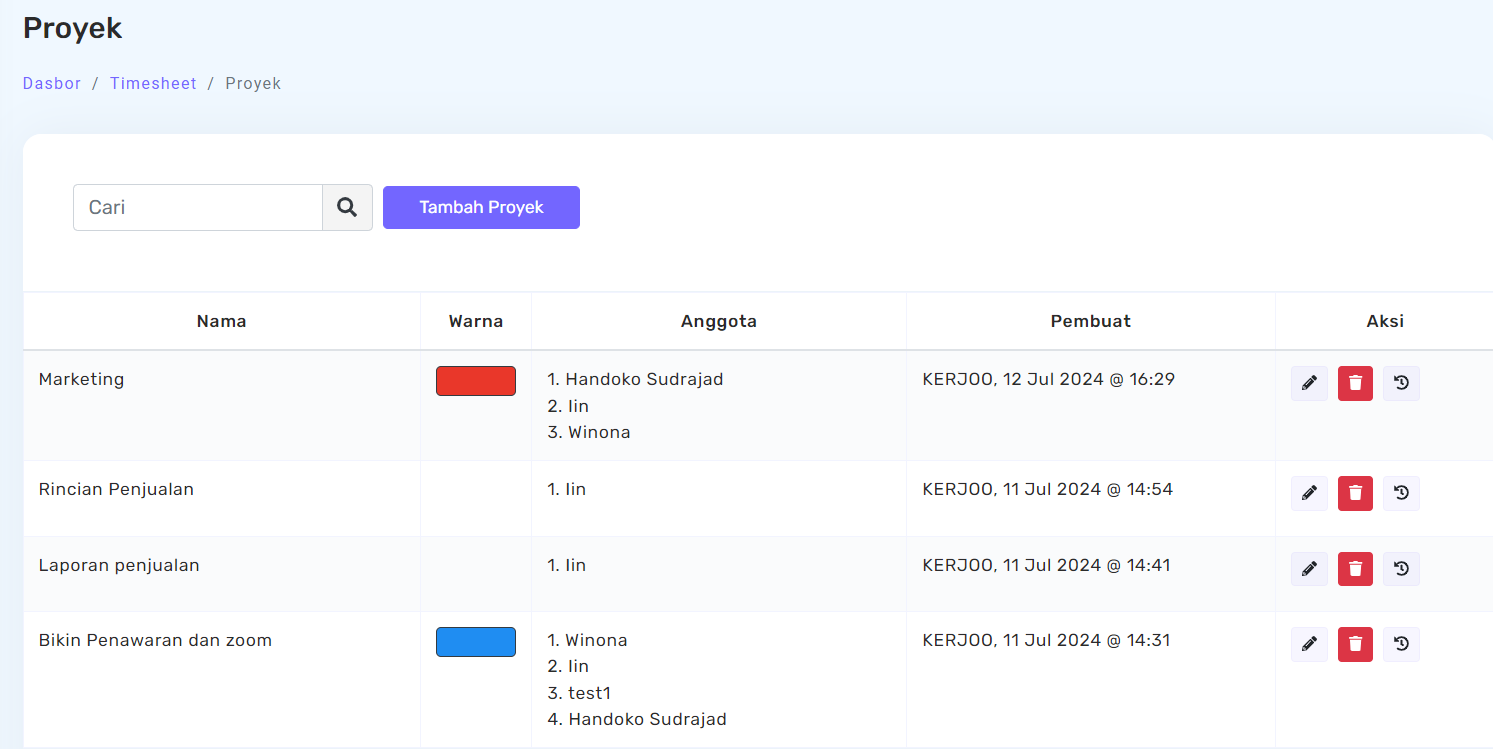
The Project sub-menu is used to create and manage projects as containers for grouping tasks. Through this menu, admins can define the project name, assign a label color, and select the members involved in the project.
Admins and supervisors can create projects and assign employees to them, while supervisors can only add employees from their respective divisions.
Usage flow
Open the Project sub-menu
Go to the Task menu, then select the Project sub-menu.
Add a new project
Click the Add Project  button.
Fill in the project details
Fill in the project details such as name, color, and select the members involved.
Save
Click Save to create the project. The created project will appear in the list and is ready to be used for managing tasks.
Manage the tasks inside
Click on the project name to view and manage the list of tasks within it.
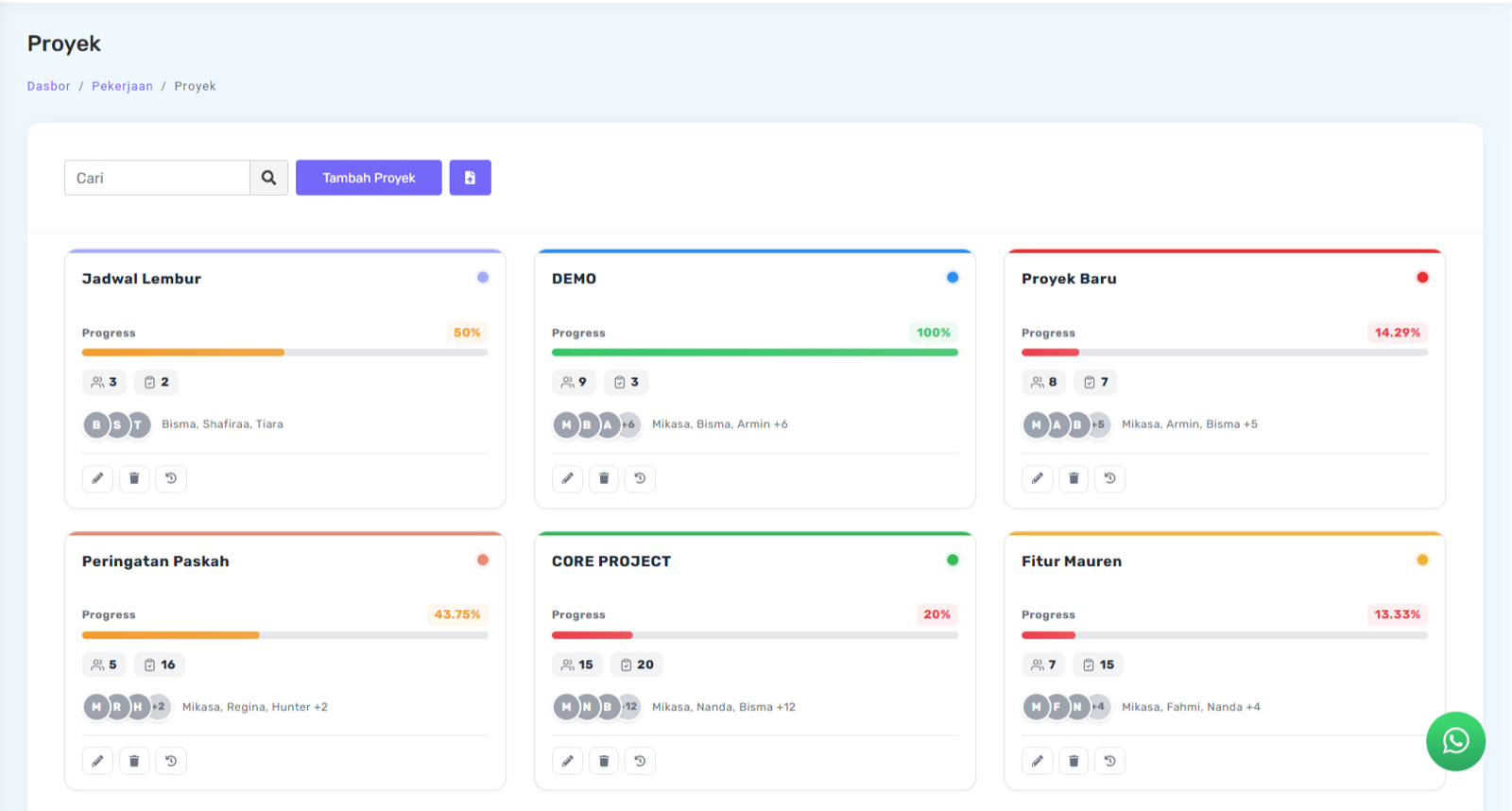
Admins can also monitor the progress of an ongoing project in percentage form. This progress indicates how much of the work within the project has been completed. The more tasks marked as Completed, the higher the progress percentage will be.
Task details within a project can also be monitored through each employee's activity data.
On the project page, admins can manage the tasks within the project using the following features:
- Display a list of tasks based on their status: Not Started, In Progress, and Completed
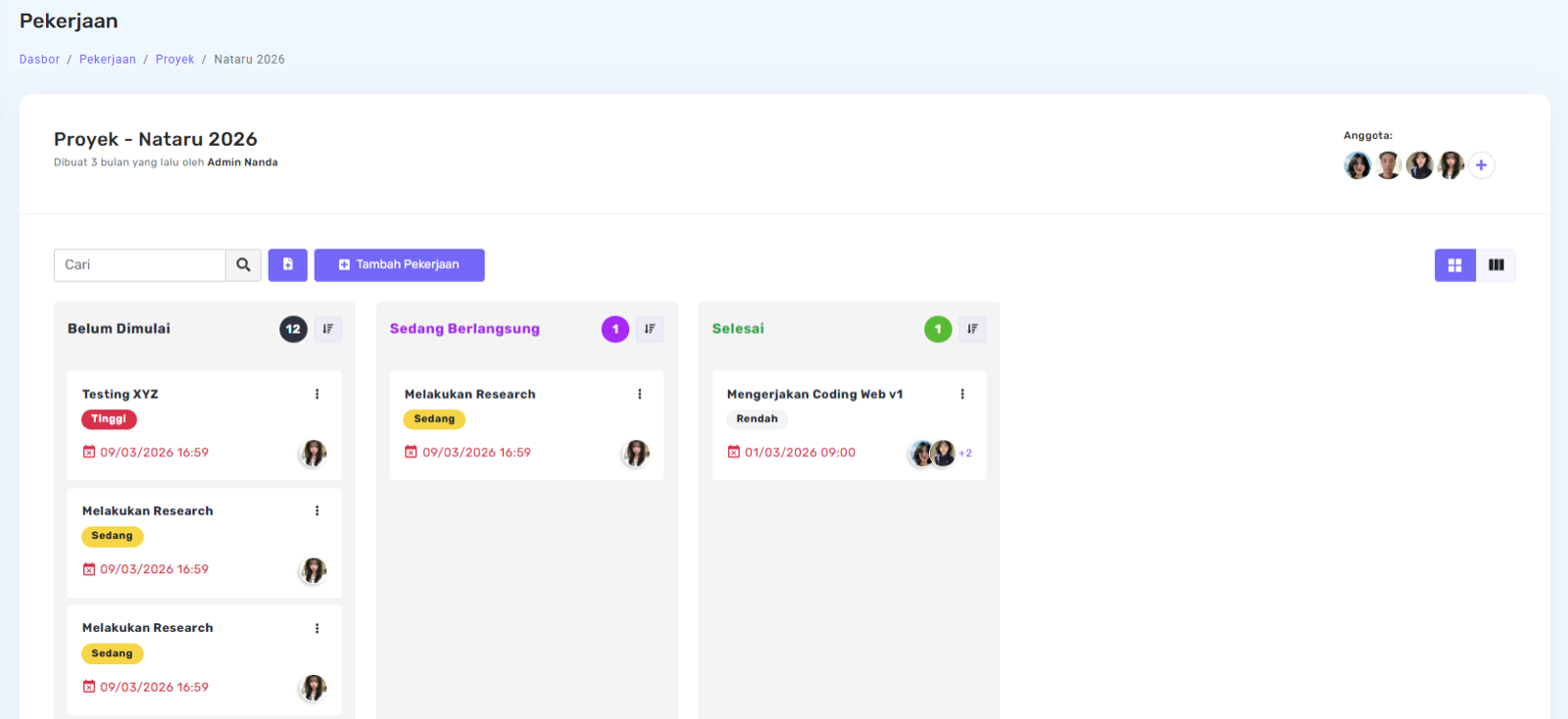
- Add new tasks to the project
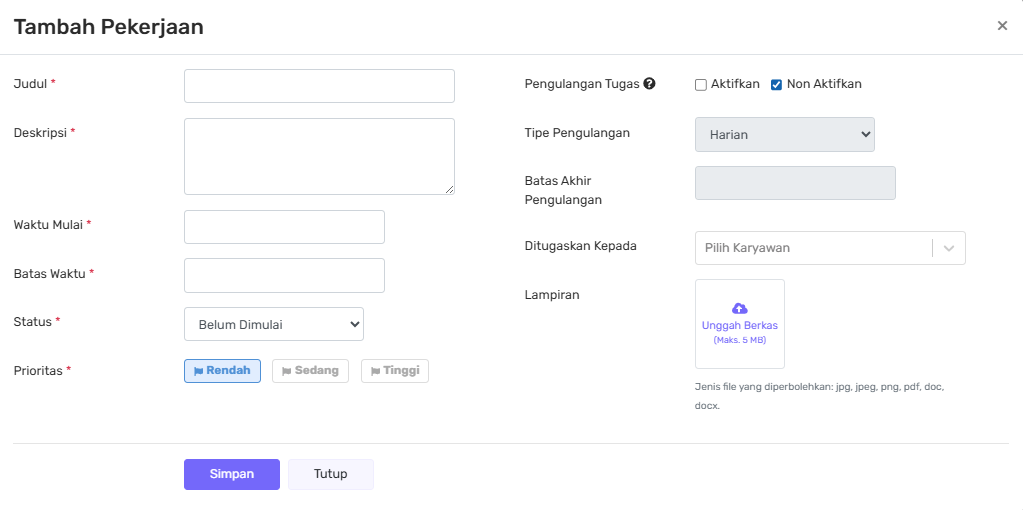
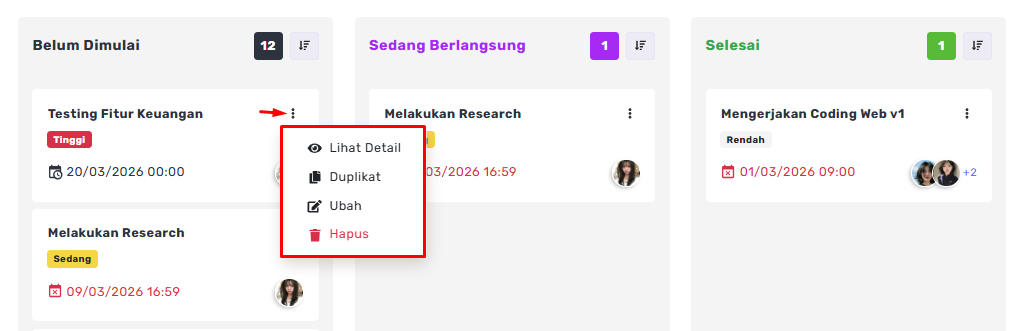
- Edit or delete tasks
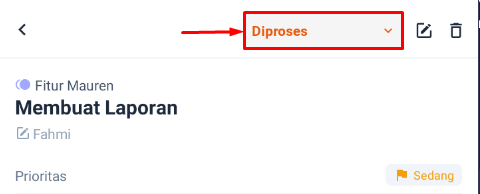
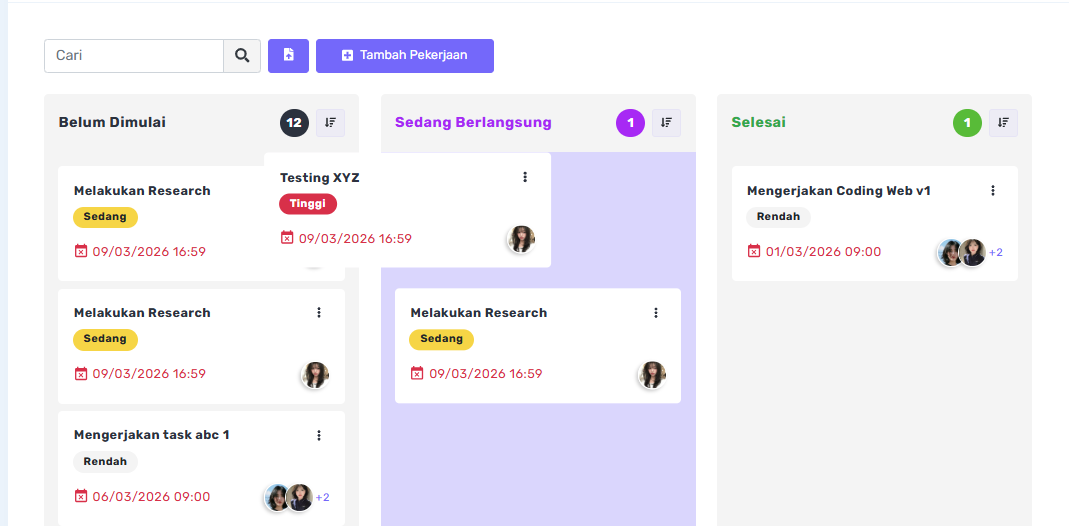
- Change a task's status, including via drag & drop (click and hold, then move)
- Set the task display (card view or list view)

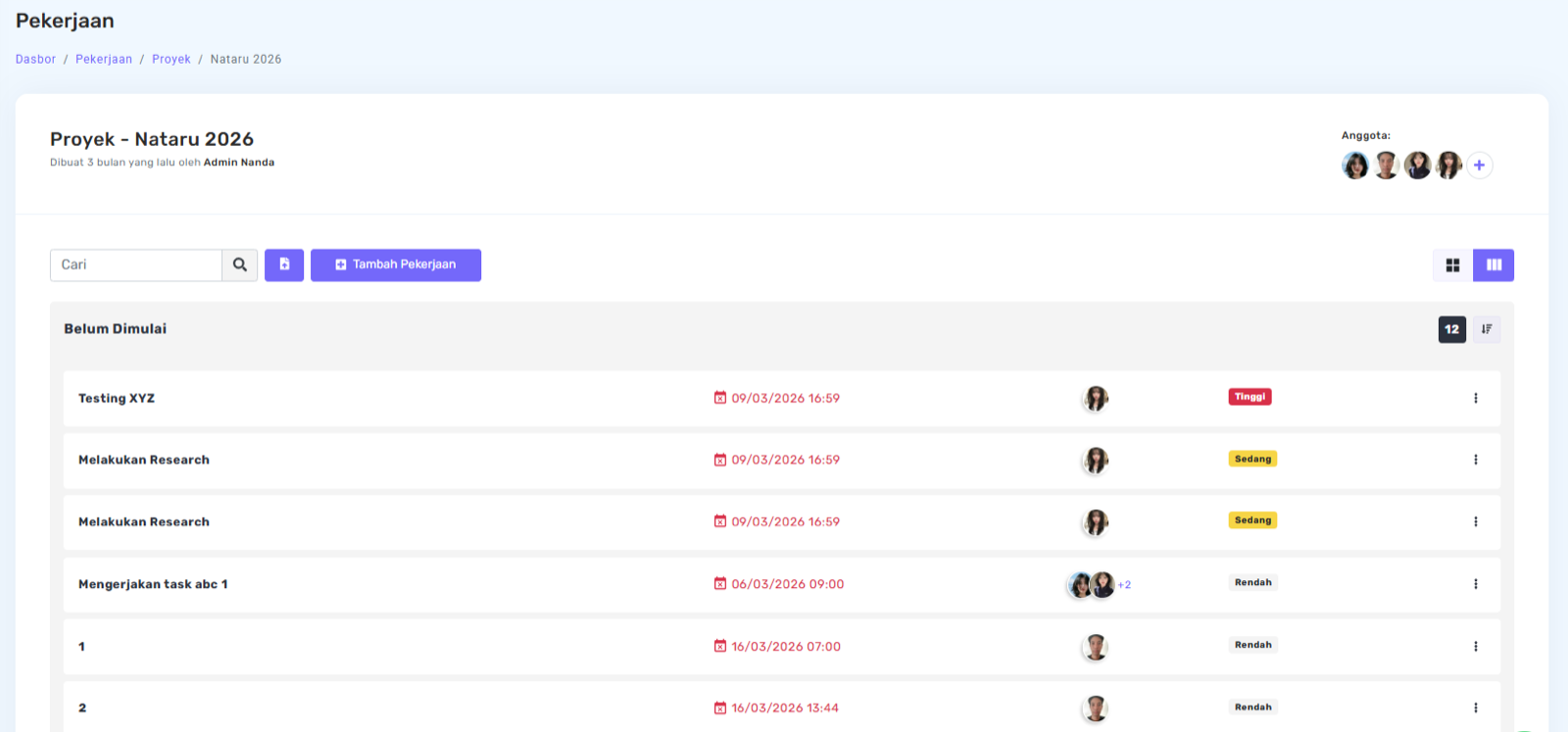
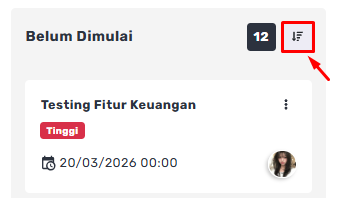
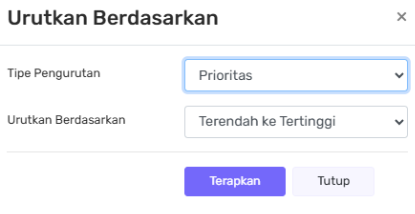
- Sort tasks by priority or deadline
- View task details and work progress
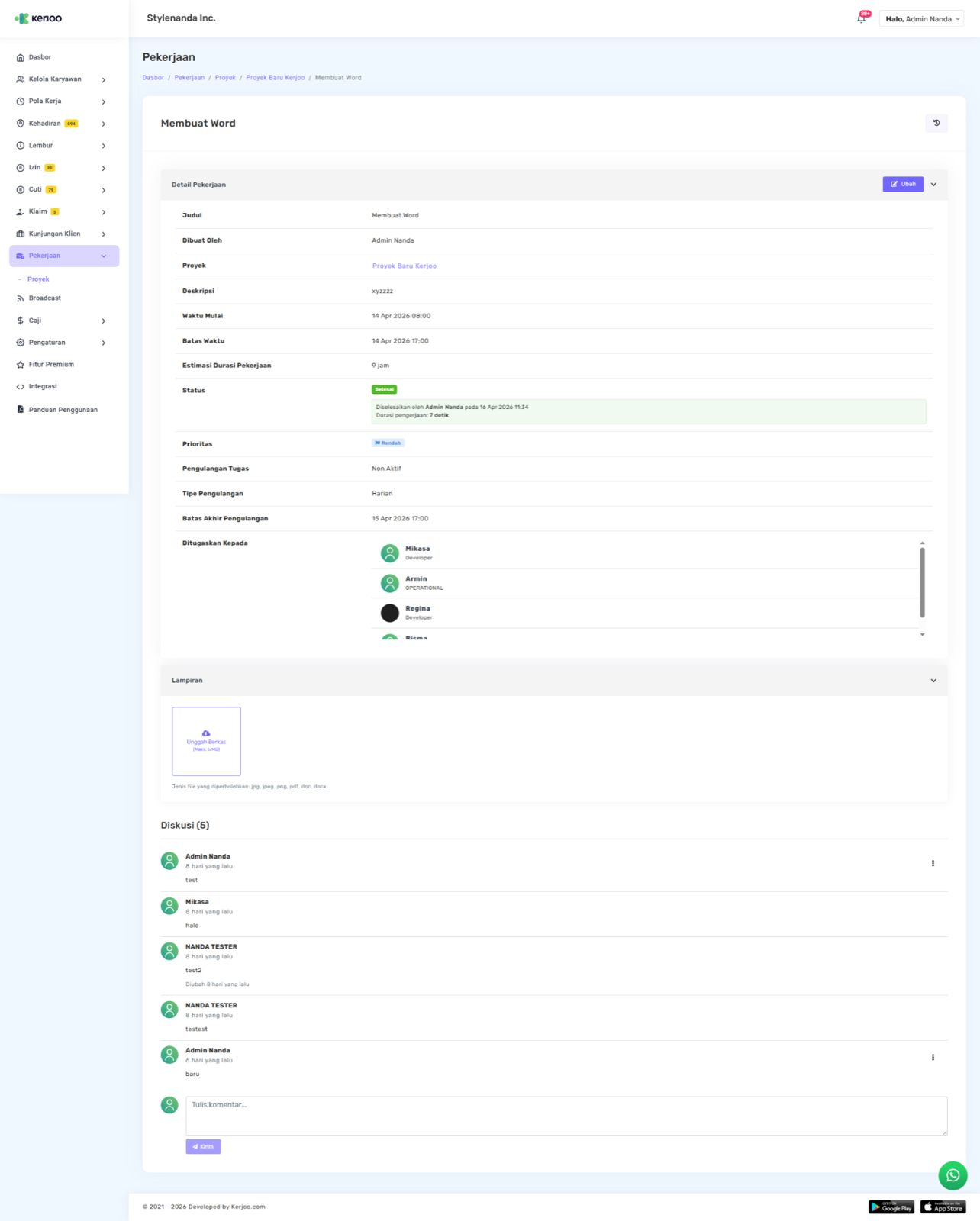
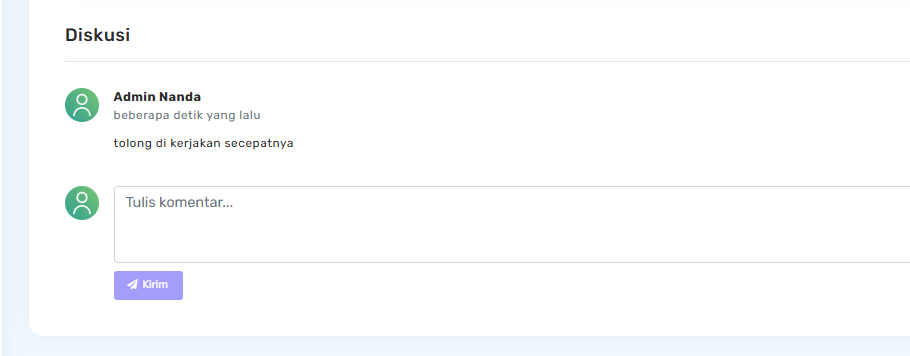
- Hold discussions or leave comments on each task for team collaboration
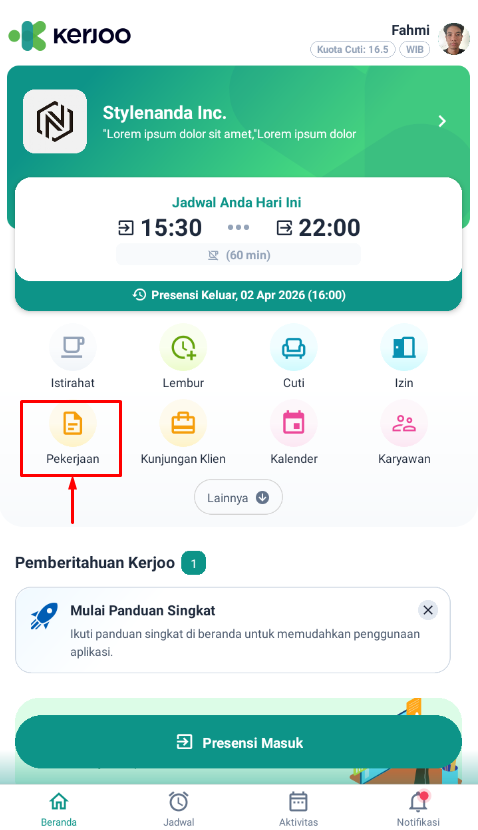
Task feature on the mobile app
This feature is accessible through the Task menu on the app home screen.
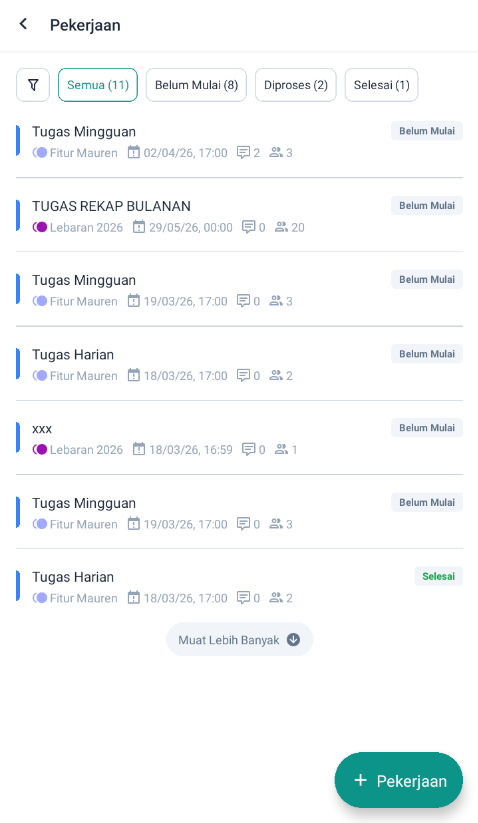
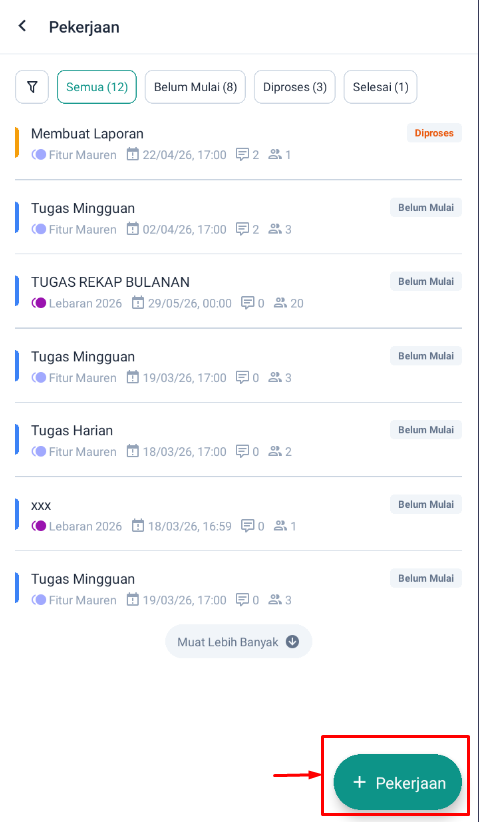
- Displays a list of tasks based on their status: Not Started, In Progress, and Completed
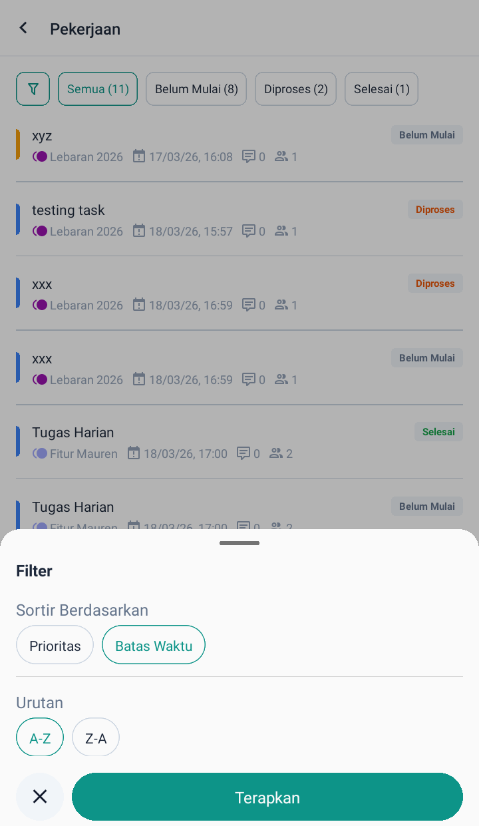
- Supports sorting by priority or deadline, as well as A–Z or Z–A order
- Employees can add new tasks linked to a project by clicking Add Task (if they are already registered as a member)
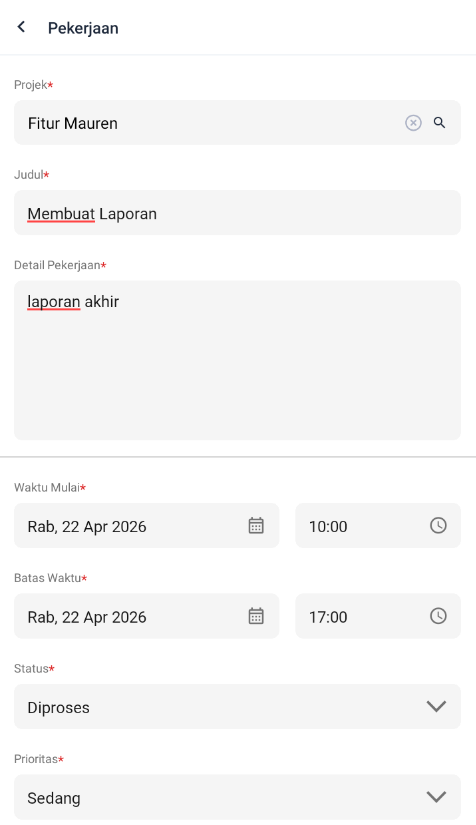
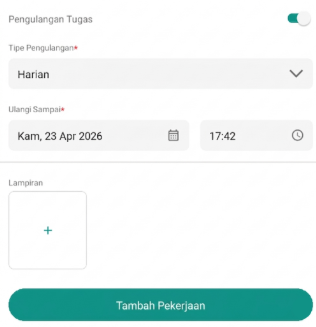
- Supports recurring task settings as needed
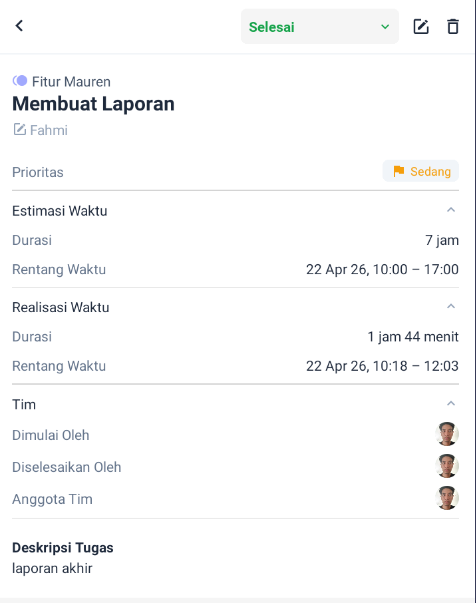
- Displays task details, including status and estimated duration after adding a task
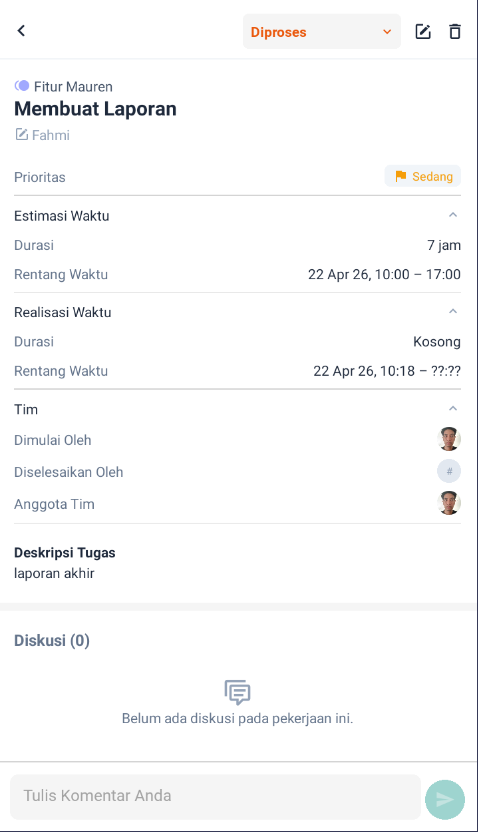
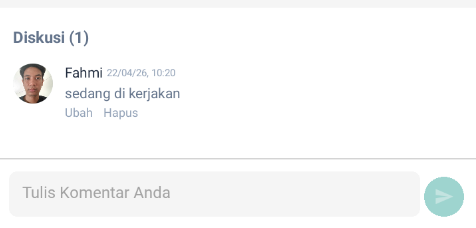
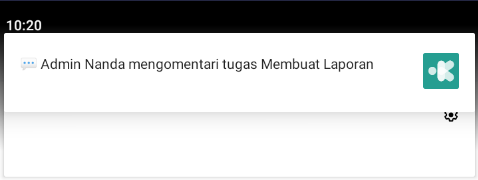
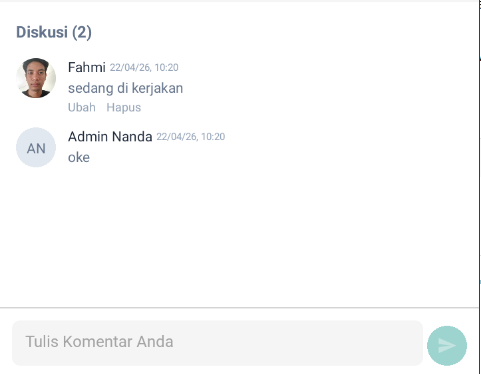
- Allows discussions or comments to be added to a task
- Employees can update the task status through to completion, and view a comparison of estimated and actual working time