Client
The system will show all client information that employees visited. Admin can also add client data by clicking Add.  .
In addition, you can also download client data in Excel format by clicking the icon. 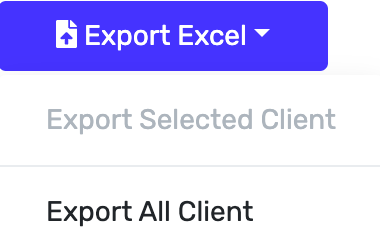 .
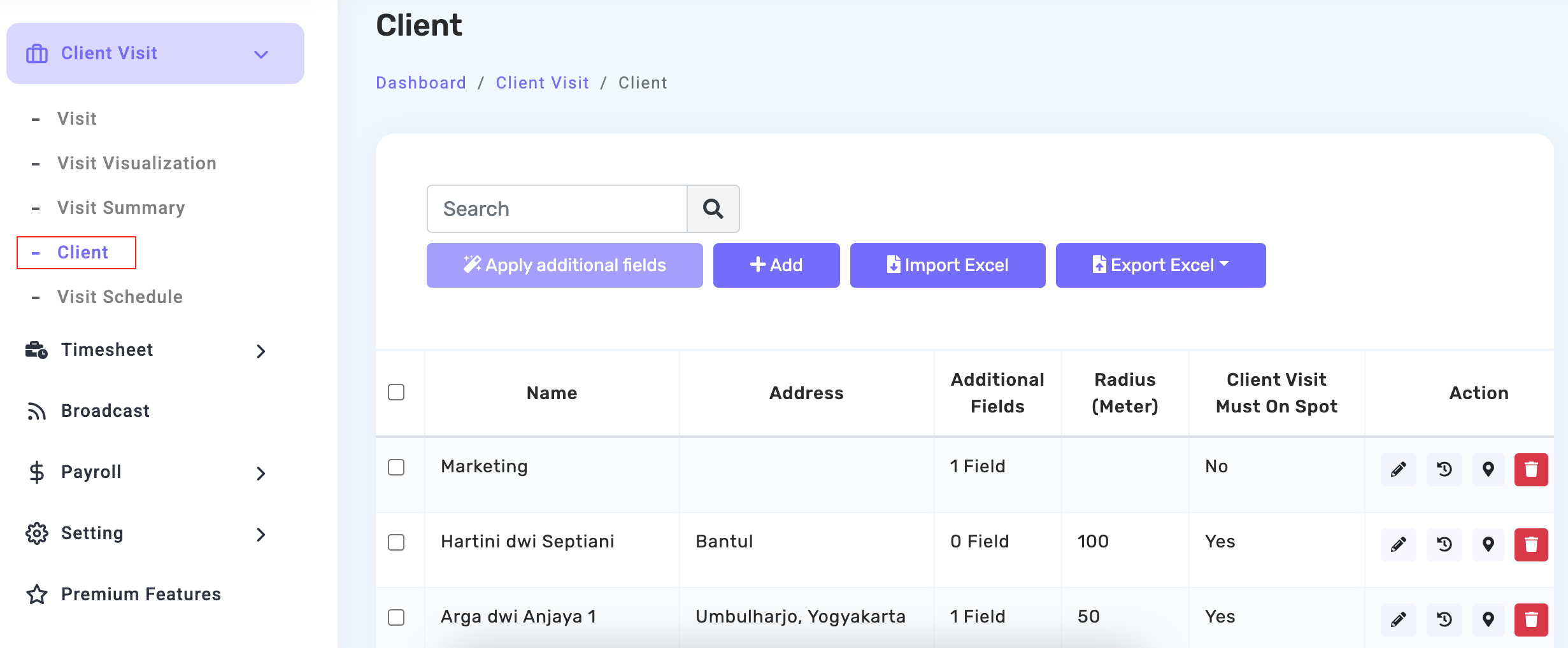
Add Client
You can complete data, including:
- Name: contains information or description related to the client's name or location

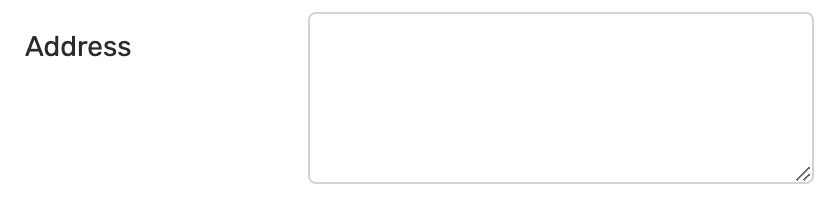
- Address: contains information on the address/location of the client that must be visited.
- Additional Fields, below is the explanation.

Description Other Information in the Client Menu
There are four options for filling in Additional Fields on the client visit form, including:
- Employee Text: When filling it in, you can add notes in the form of text or writing without any character restrictions.
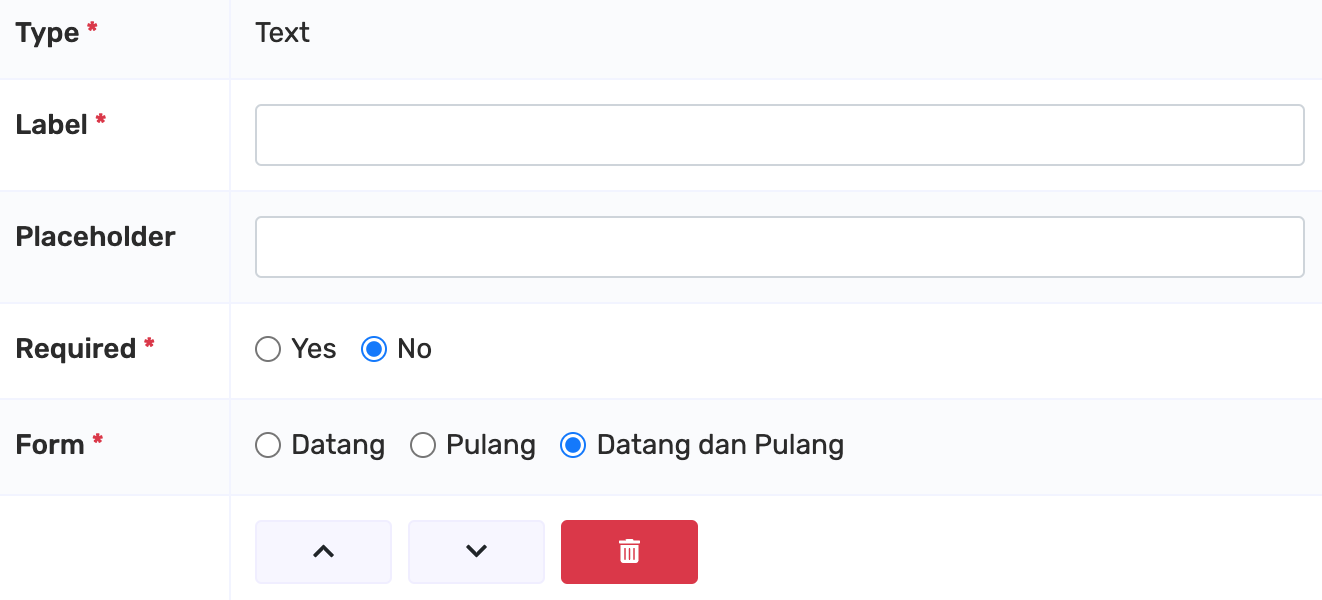
- Employee Textarea: adding notes in a textarea or writing notes and additional fields that can be filled in according to the command type.
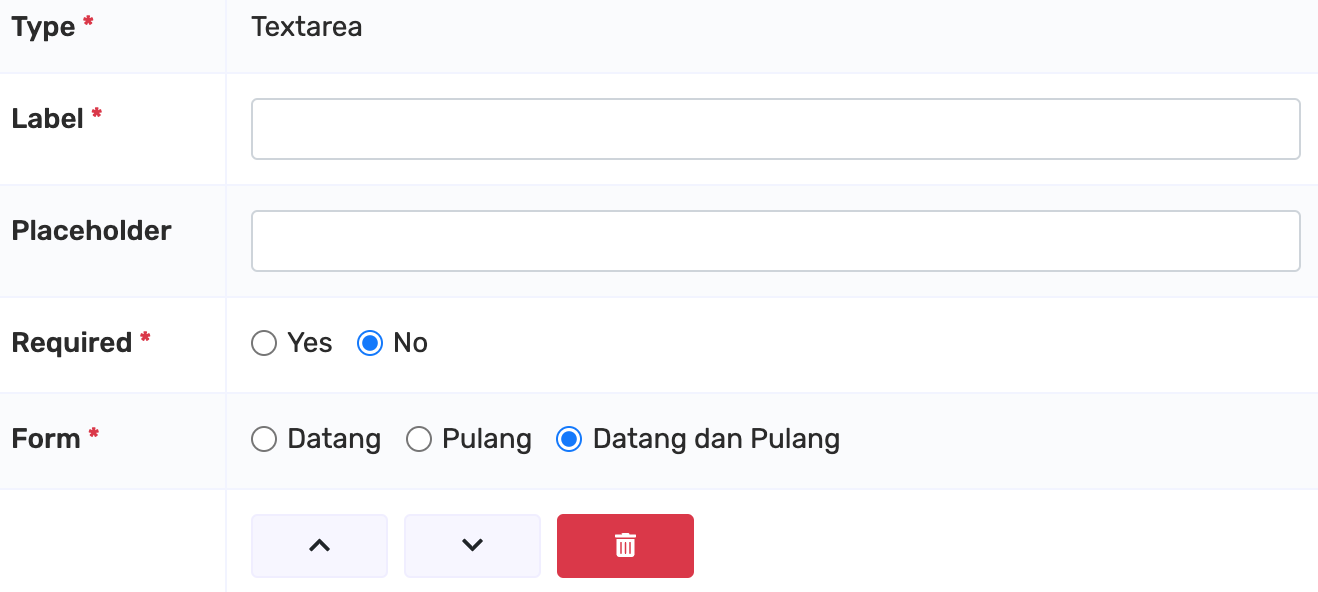
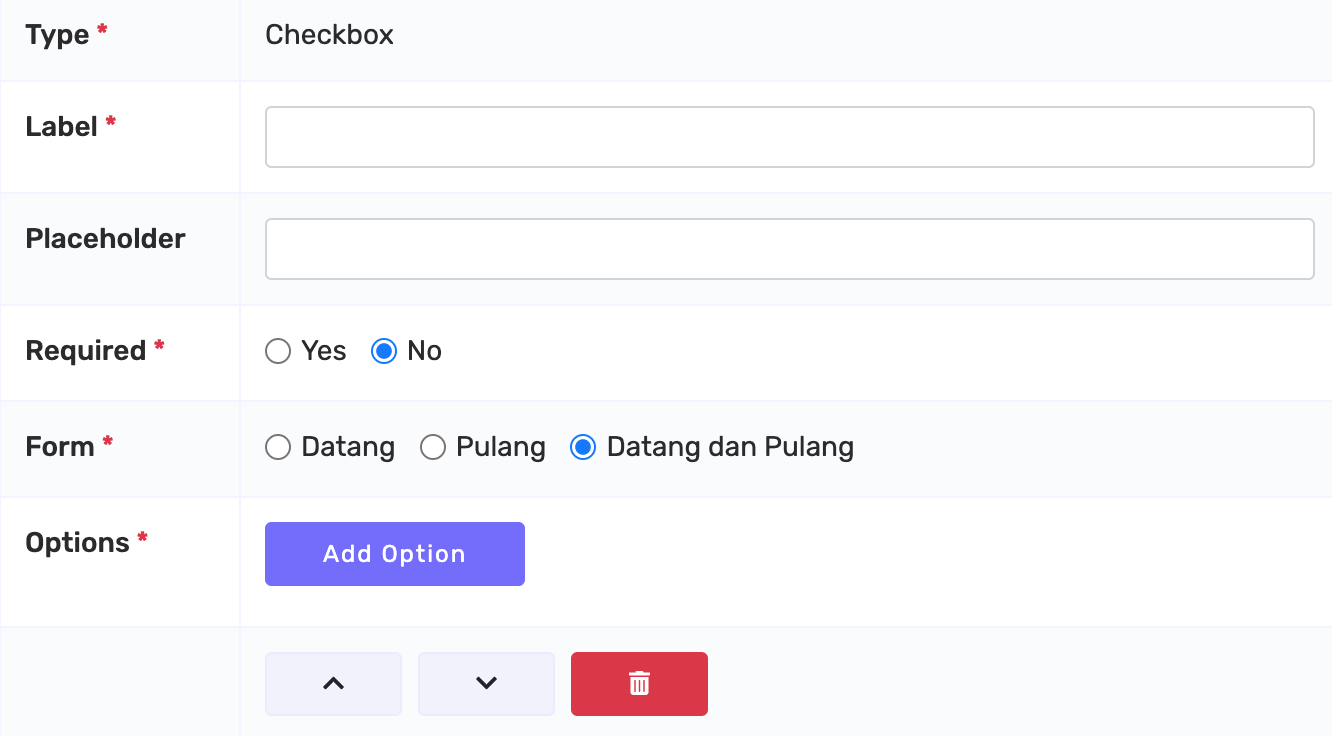
- Employee Checkbox: Notes in the form of a checkbox or note writing that can also be added/selected/checked off for each filling item.
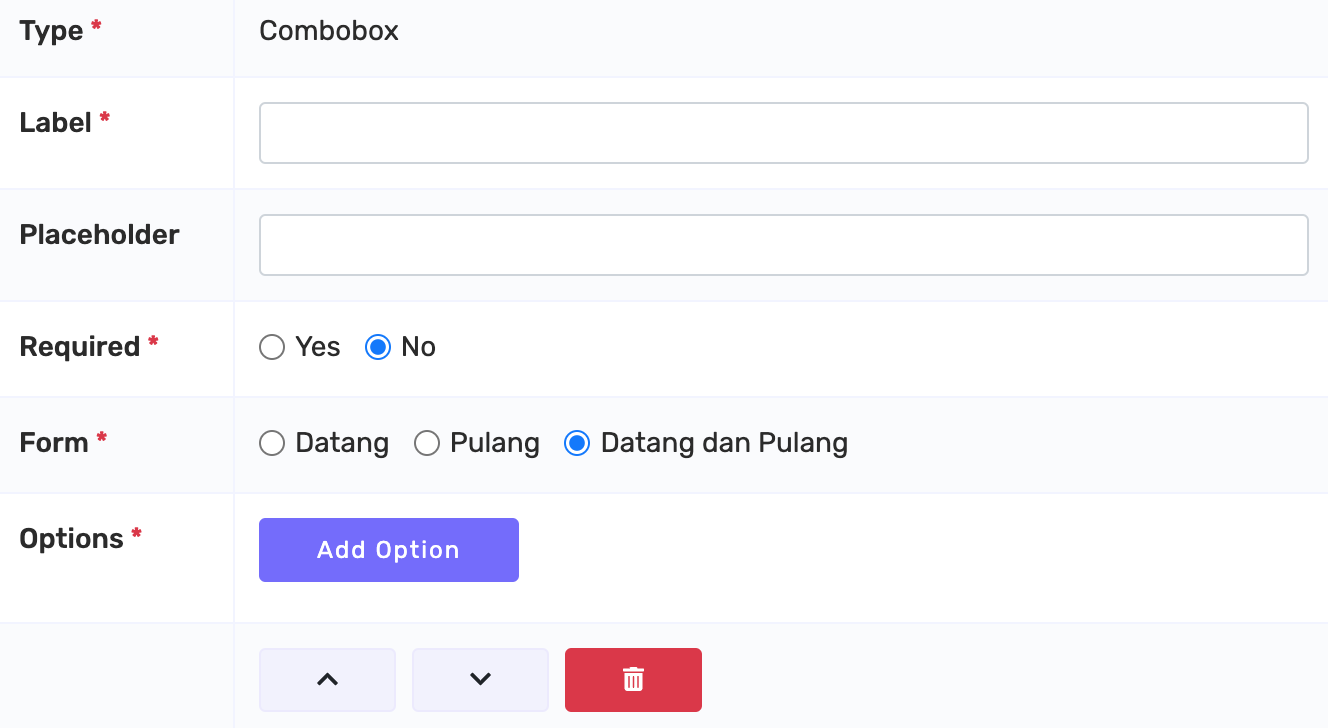
- Employee Combobox: This is adding notes in the form of a combo box, which can add notes and additional column options that accompany a description for each item of choice.
Icon Description on the Client Menu
 Import Excel
Used to import data from Excel to the Kerjoo system related to adding Client data that employees will visit before inputting the visit schedule. Pencil Icon
Used to change data related to filling in client data Change History Icon
Contains information related to changes in salary data that has been paid. GPS Icon
Loads information related to the location of the client to be scheduled. Delete Icon
Used to delete data related to client data that has been inputted.