Half Day Leave
What is the Half-Day Leave Feature?
The Half-Day Leave feature allows employees to take their annual leave for just half a day—either in the morning (until noon) or in the afternoon (after noon).
This feature is available on all Kerjoo plans at no additional cost. There are two types of half-day leave options:
- Morning Half-Day Leave (morning to noon)
- Afternoon Half-Day Leave (noon to evening)
How to Set Up the Half-Day Leave Feature (For Admins)
To enable this feature for employees, you’ll need to activate it and configure the schedule in advance.
Here are the steps to set it up, complete with explanations:
- Log in to Your Kerjoo Admin Account
Go to: https://app.kerjoo.com/#/login
Enter your email and password as usual. - Go to the Half-Day Leave Settings
After logging in, click Settings > select Half-Day Leave.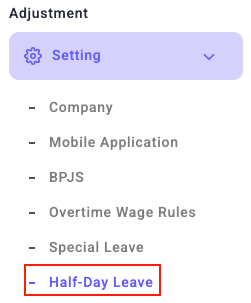
- Activate the Featurer
On this page, enable the feature by toggling the switch to the right.
Once active, the switch color will change. - Set Morning & Afternoon Leave Times
- Define the working hours after morning leave (e.g., starting from 1:00 PM WIB).
- Define the working hours before afternoon leave (e.g., until 12:00 PM WIB).
Make sure the timing aligns with your company's work policy.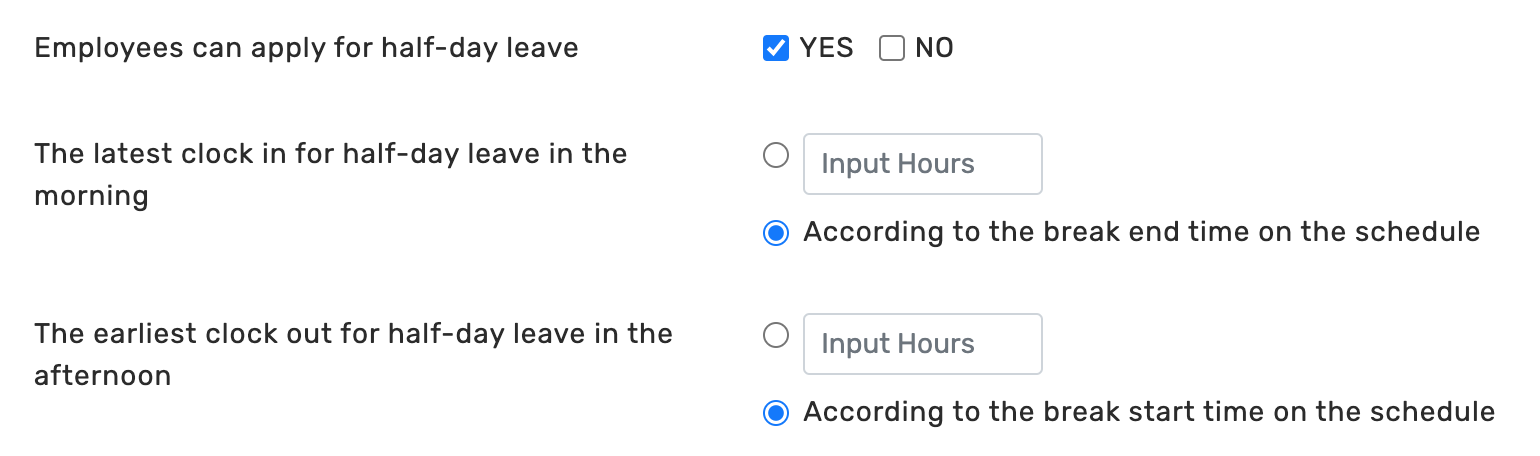
Why Is This Setup Important?
Without a proper schedule setup, the system cannot differentiate whether an employee is truly present or not.
For example:
- If you don’t set the check-in deadline after morning leave, the system may mark the employee as late.
- If an employee checks out too early during afternoon leave, the system may log insufficient work hours.
How to Request Half-Day Leave (For Employees)
Here’s how employees can apply for half-day leave through the Kerjoo app:
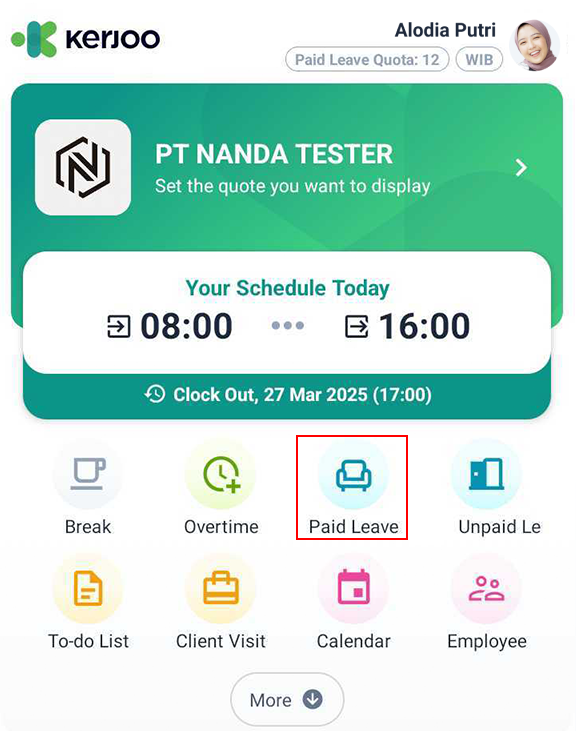
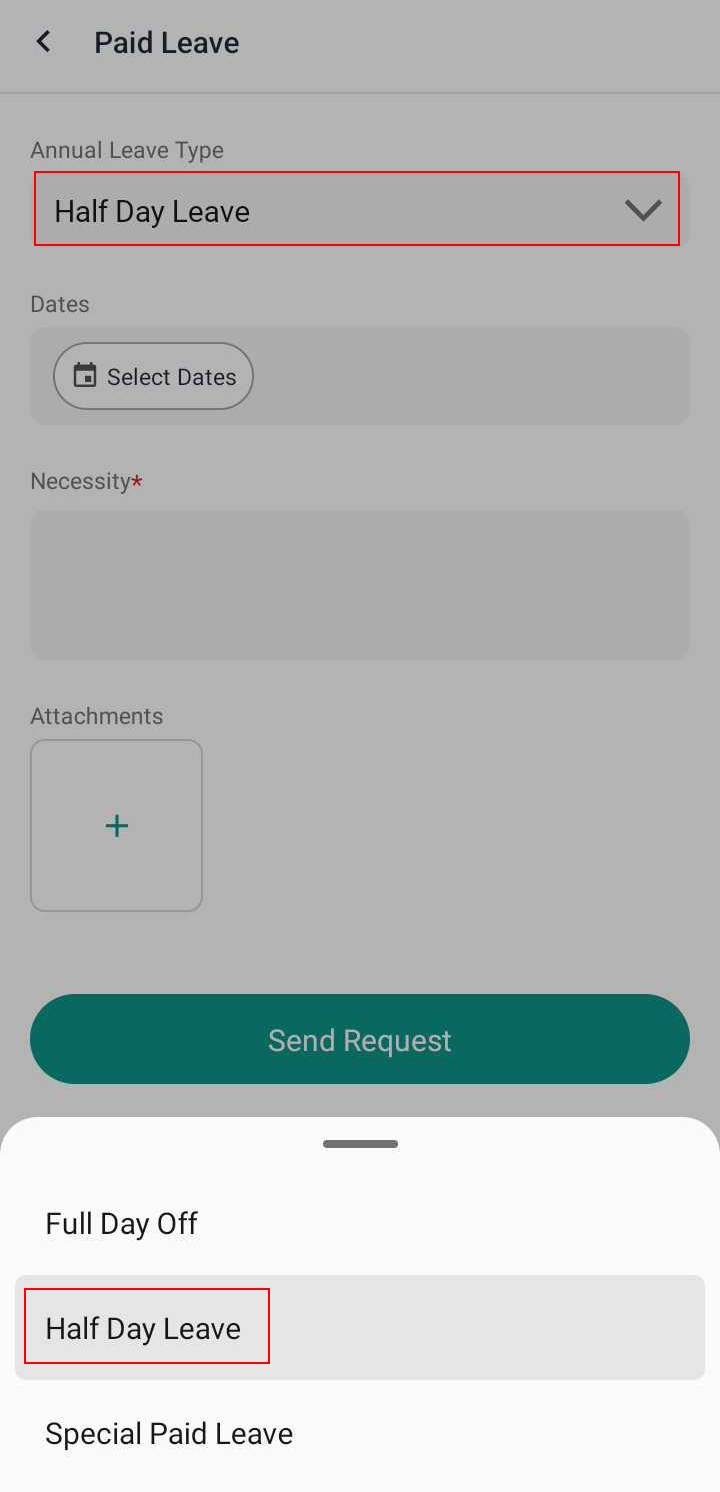
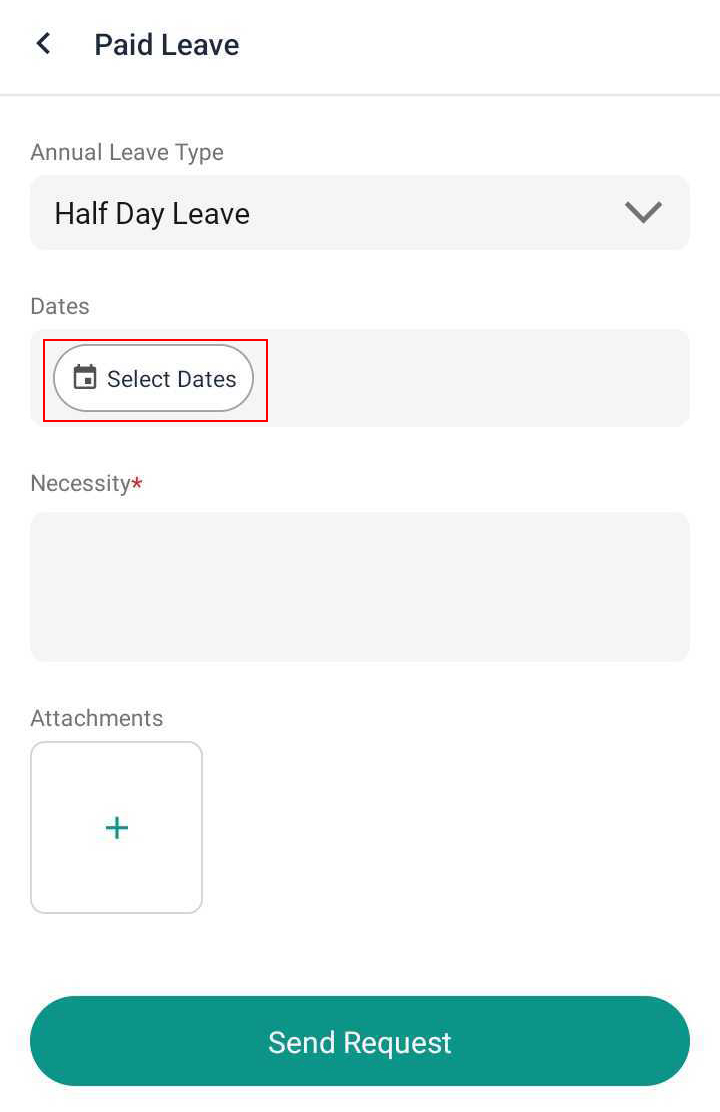
- Go to Leave > tap +Leave, then choose Half-Day Leave and select your desired date.
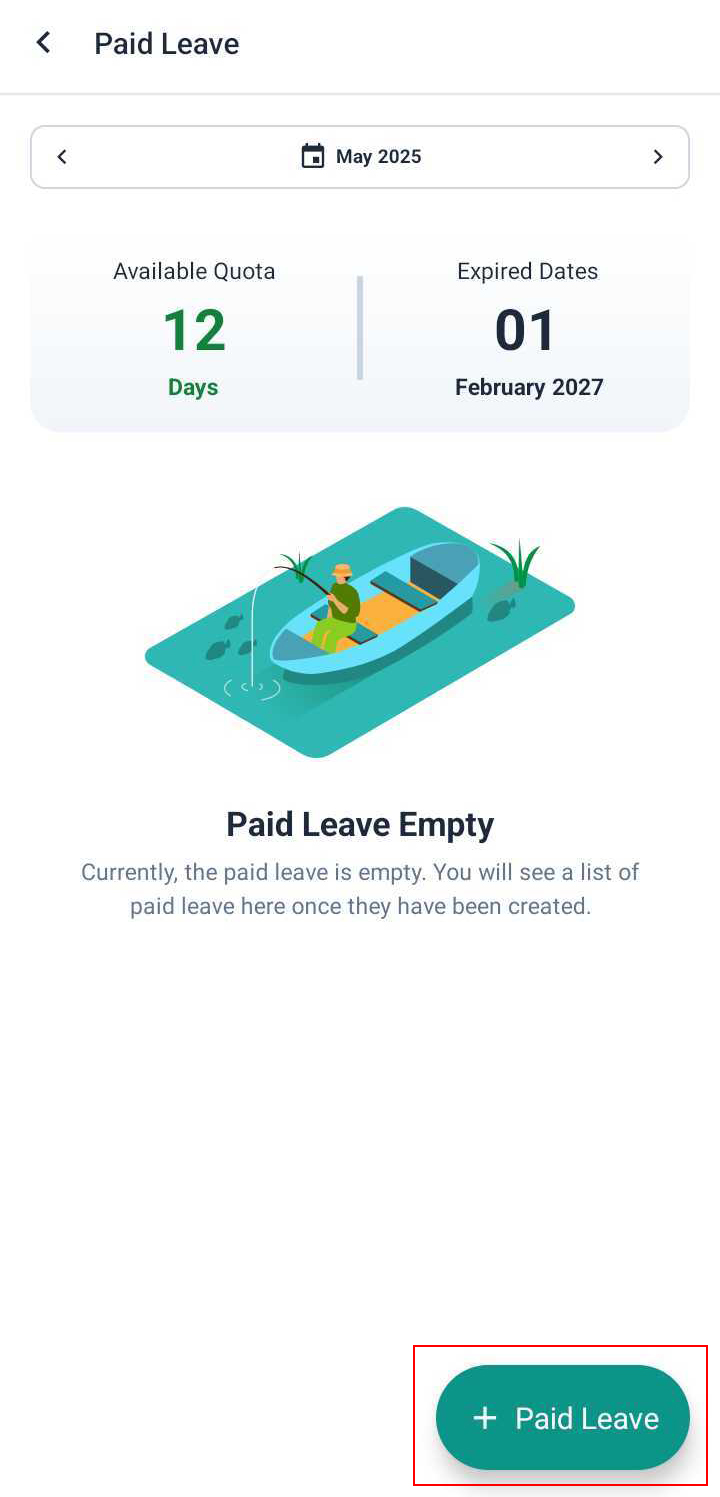
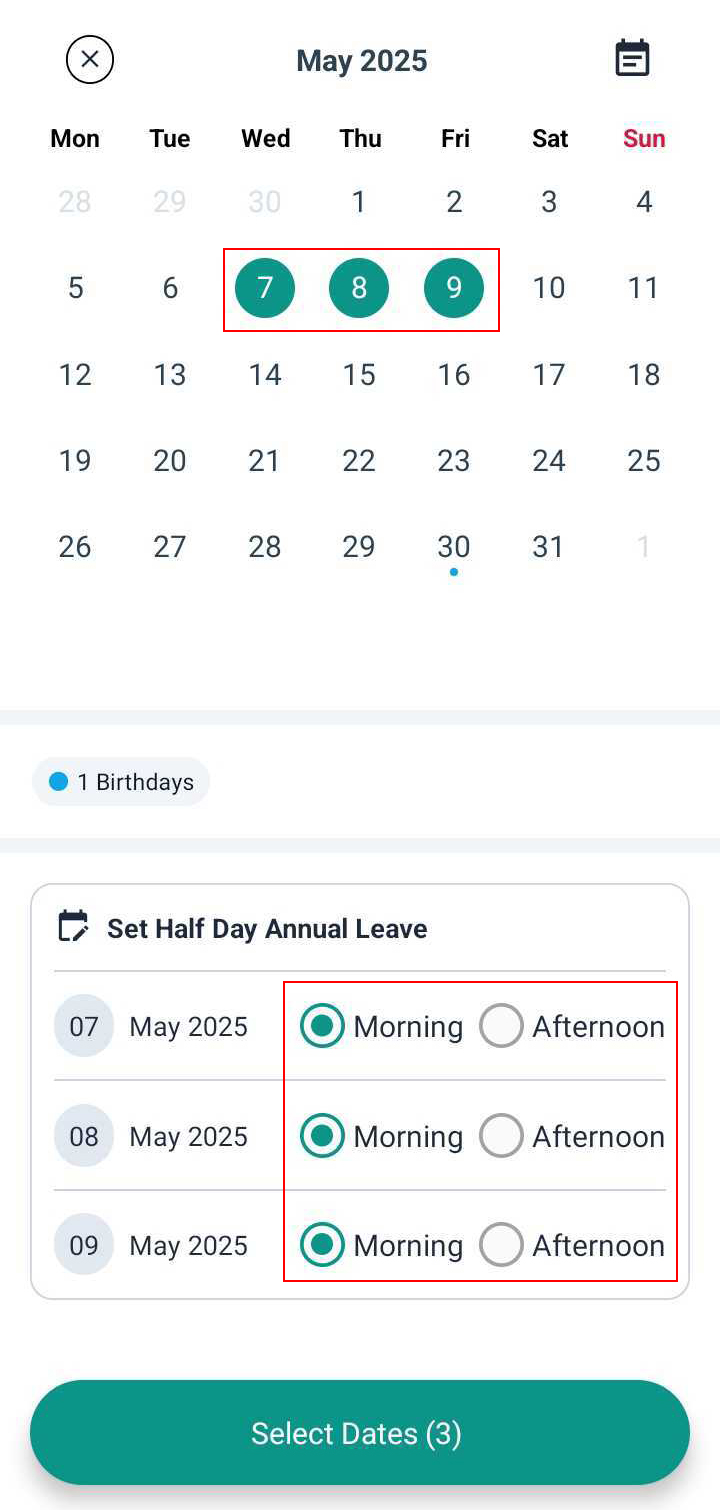
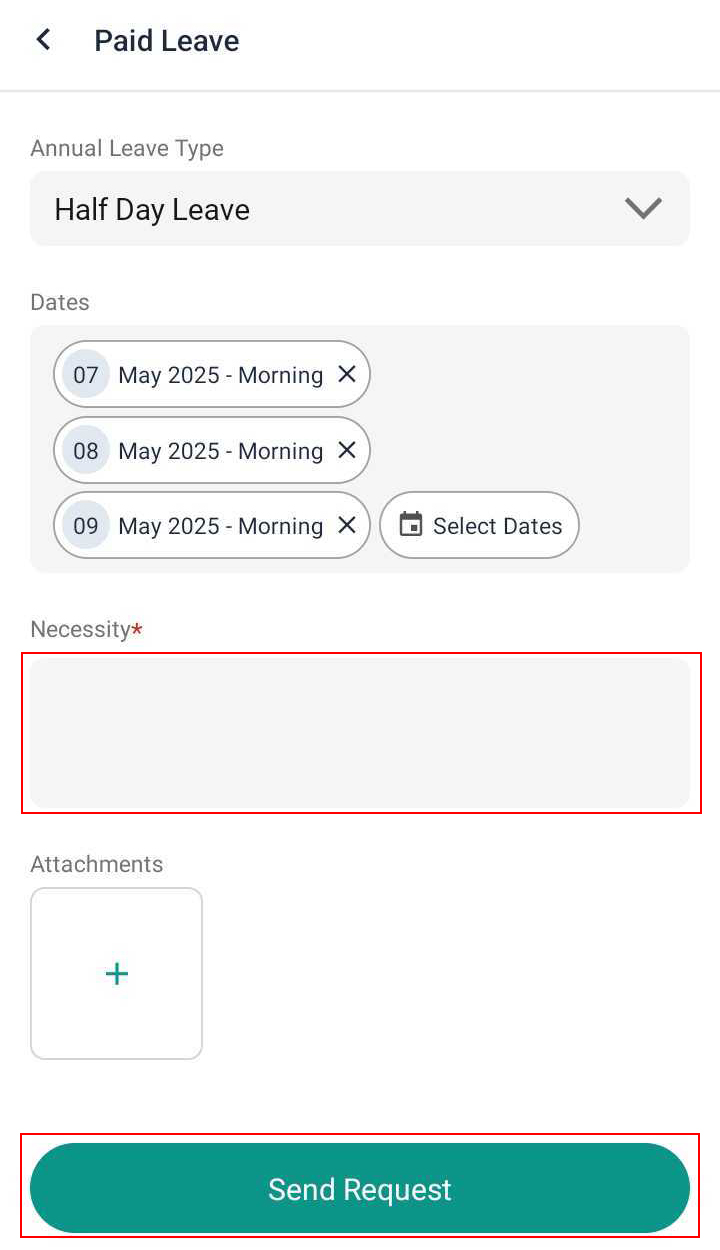
- Choose the date > select Morning or Afternoon Leave > fill in the leave reason, and submit the request.
Half-Day Leave Scenarios & Examples
Here are some possible real-life examples of using half-day leave:
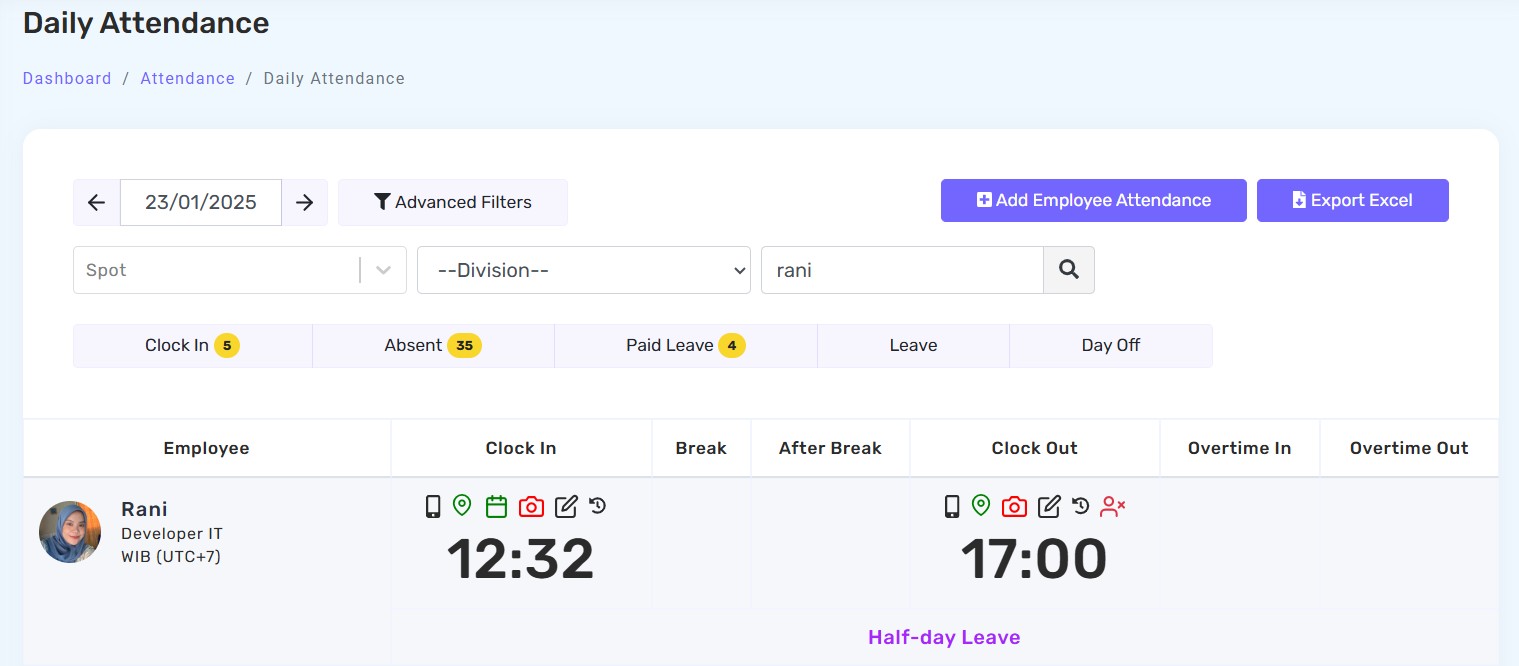
- Morning Leave, On-Time Check-In
Rani applied for morning leave and checked in at 12:32 PM.
➡ The system considers her on time based on the configured schedule.
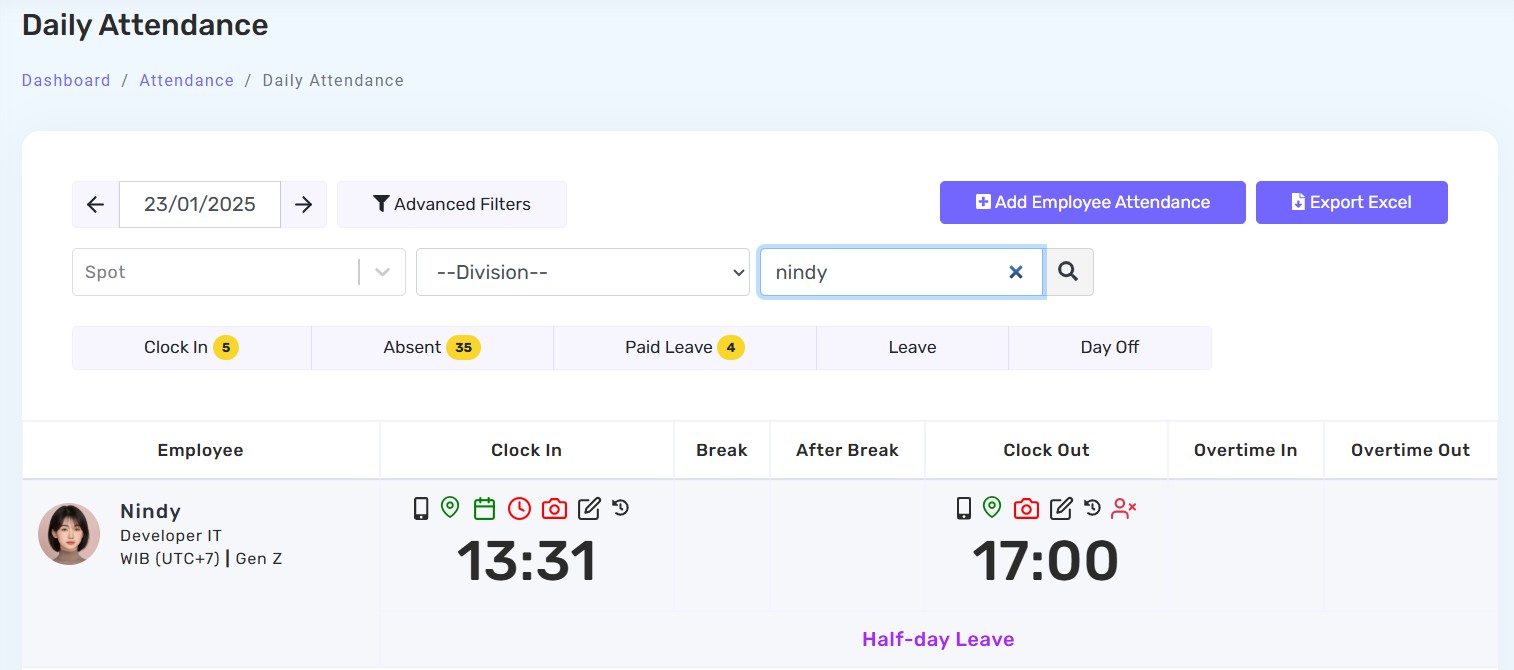
- Morning Leave, Late Check-In
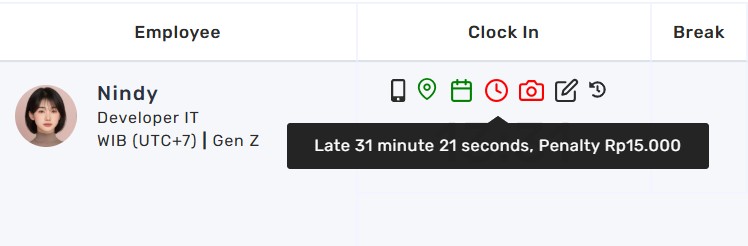
Nindy also applied for morning leave but checked in at 1:31 PM.
➡ Since it's past the 1:00 PM deadline, the system records a 31-minute delay (may lead to deductions or warnings depending on company policy).
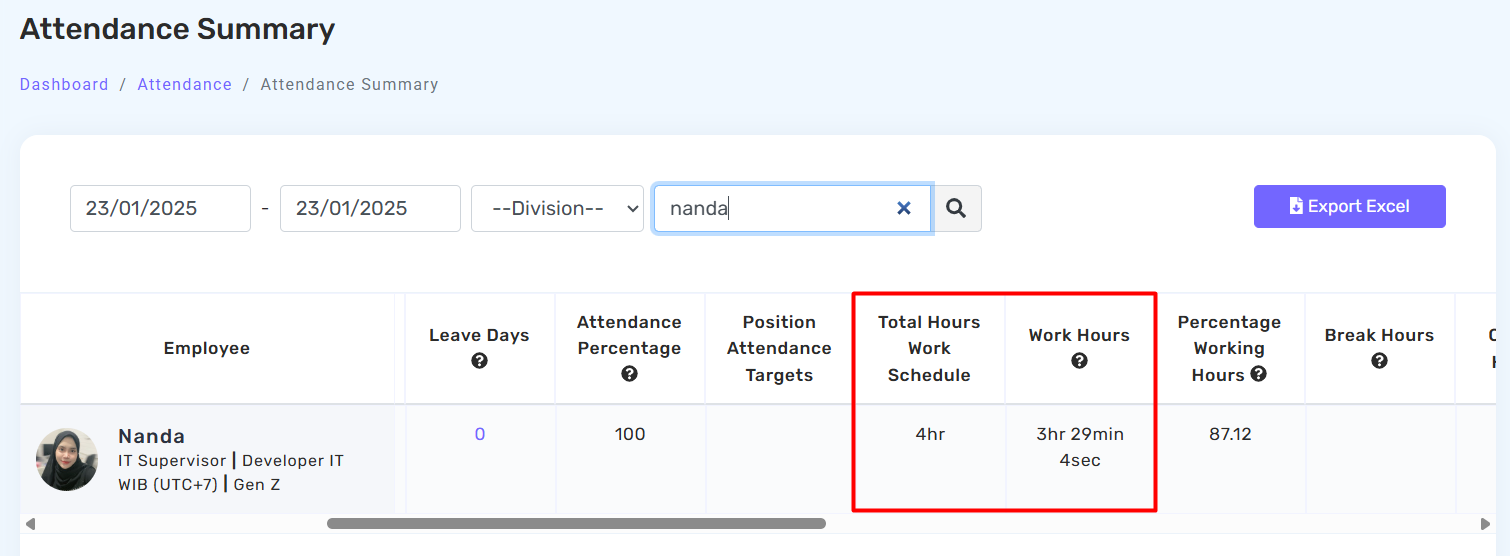
- Afternoon Leave, Early Check-Out
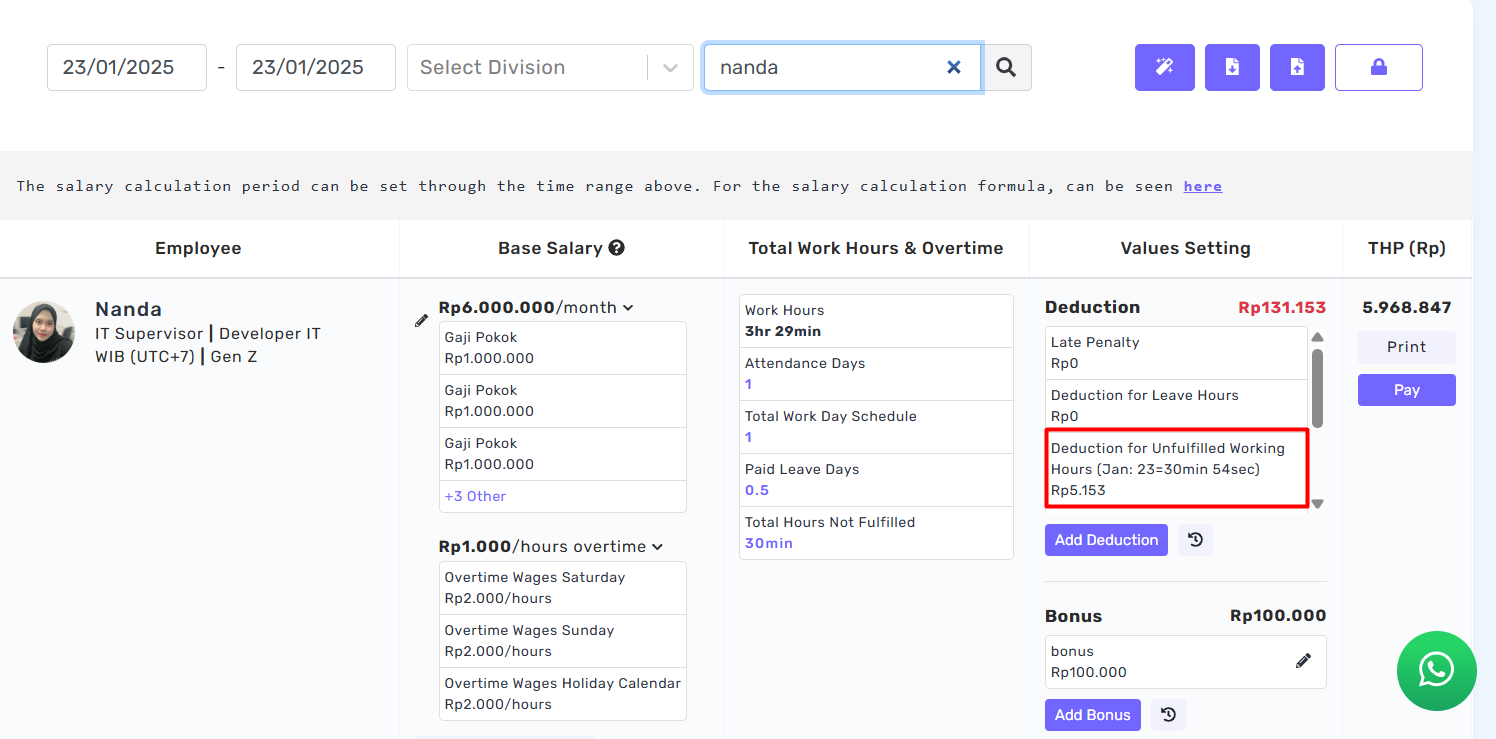
Nanda took afternoon leave and was supposed to check out at 12:00 PM or later, but did so at 11:30 AM.
➡ The system logs insufficient working hours and possible salary deduction.
- Afternoon Leave During Lunch Break
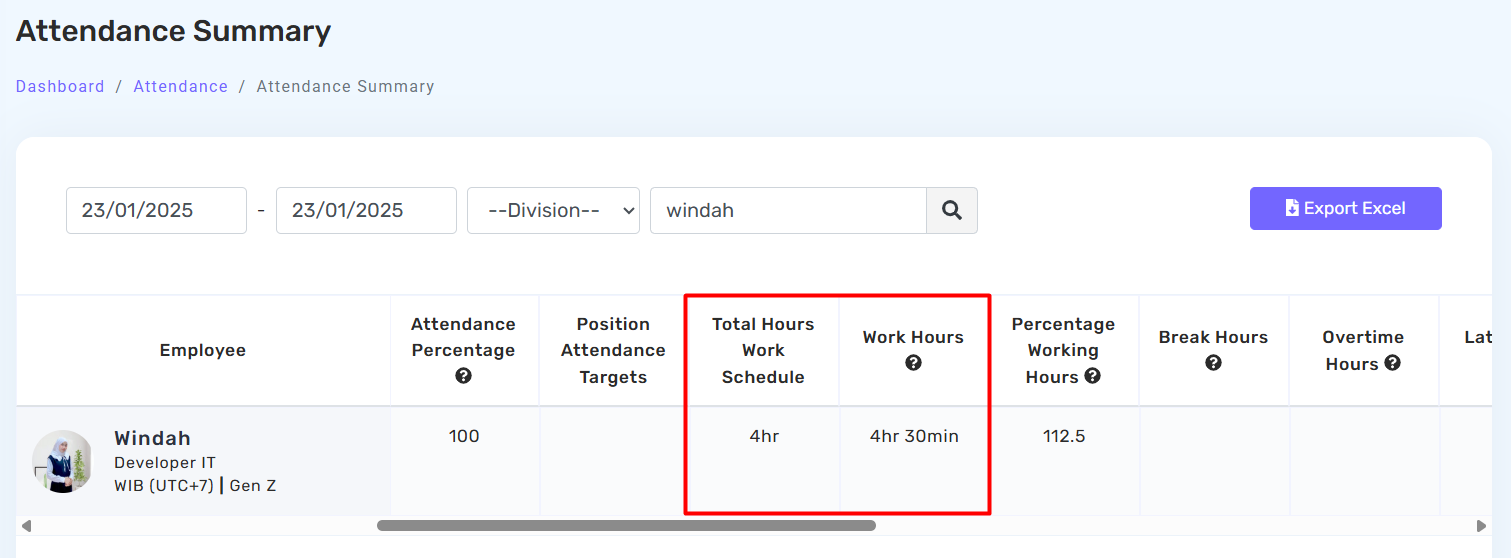
Windah applied for afternoon leave and checked out at 12:30 PM, which falls within the lunch break (12:00–1:00 PM).
➡ The system accurately calculates working hours; no violations occur.
- Leave Requested After Check-In
An employee checks in at 8:00 AM but suddenly needs to apply for morning leave.
➡ The system doesn’t allow it since attendance is already logged.
✔ Solution: HR can cancel the check-in, and the employee may resubmit the leave request.
- No Check-In After Morning Leave
If you take morning half-day leave, make sure to check in during the afternoon.
➡ If not, the system assumes a full-day absence.
✔ If emergencies prevent your return, apply for working hour permissions so the system records it accurately.
How Break Hours Affect Work Duration
The system does not count break hours as working time. For example:
-
If your shift is 1:00–5:00 PM and your break is 2:00–3:00 PM
➡ Only 3 effective working hours will be recorded. -
If your shift starts at 1:01 PM and break time is 12:00–1:00 PM
➡ The system records a full 4 hours and 1 minute of work.
Additional Tips for Admins & Employees
- Always coordinate with HR if there are changes to work schedules.
- Make sure lunch break times are properly set in the system to avoid errors during leave.
- Use app notifications to stay updated on whether your leave request is approved or denied.