Profile Picture Approval
Change Profile Picture Feature
The app's change profile feature allows employees to change the image representing their platform identity. This picture can be displayed next to the username, thus becoming a digital 'face' of a person online.
Why is this feature important?
- First, a profile picture can depict a person's ownership of a platform or app. This makes it easy for HR or admins to recognize and remember you easily.
- The change profile feature lets you choose your gallery's best professional photo or selfie. Thus, you can be more comfortable using the Kerjoo Online Attendance Application.
- In a professional context, profile photos can make a good impression on coworkers or clients.
How to Use the Change Profile Photo Feature
There are two guidelines for using the profile photo change feature: the first is on the Kerjoo mobile attendance application used by employees, and the second is from the admin panel used by the company admin/HR.
This feature is also available on any plan, including the free and basic plans. Here is the usage guide.
- First, log in to the Kerjoo Mobile App. Use the registered email or phone number and enter the password to access the account;
- upon successful login, find and click on the [Profile icon] at the bottom of the screen. This menu will display various settings related to your profile;

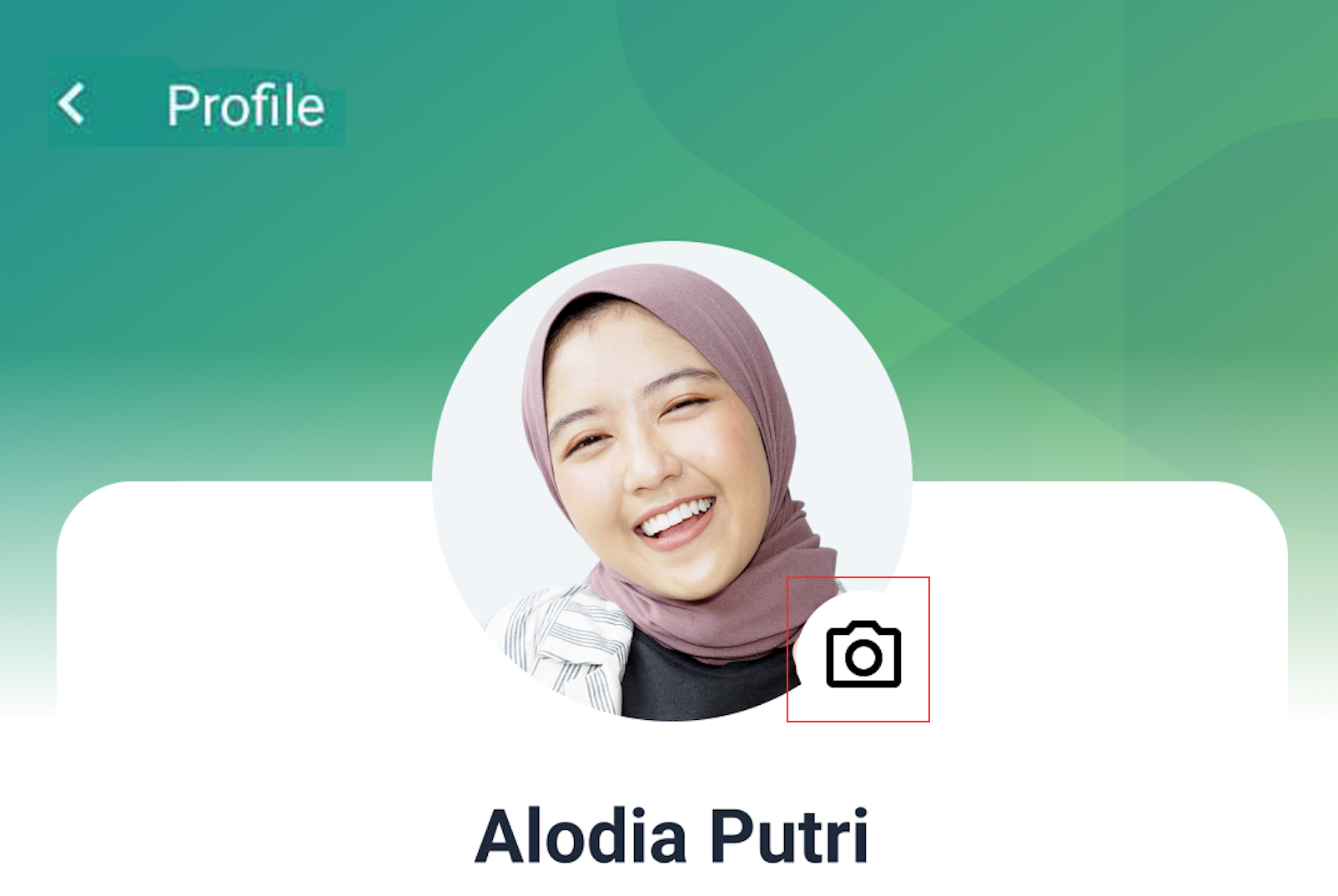
- go to the profile menu and click the [Camera] icon on your profile picture.
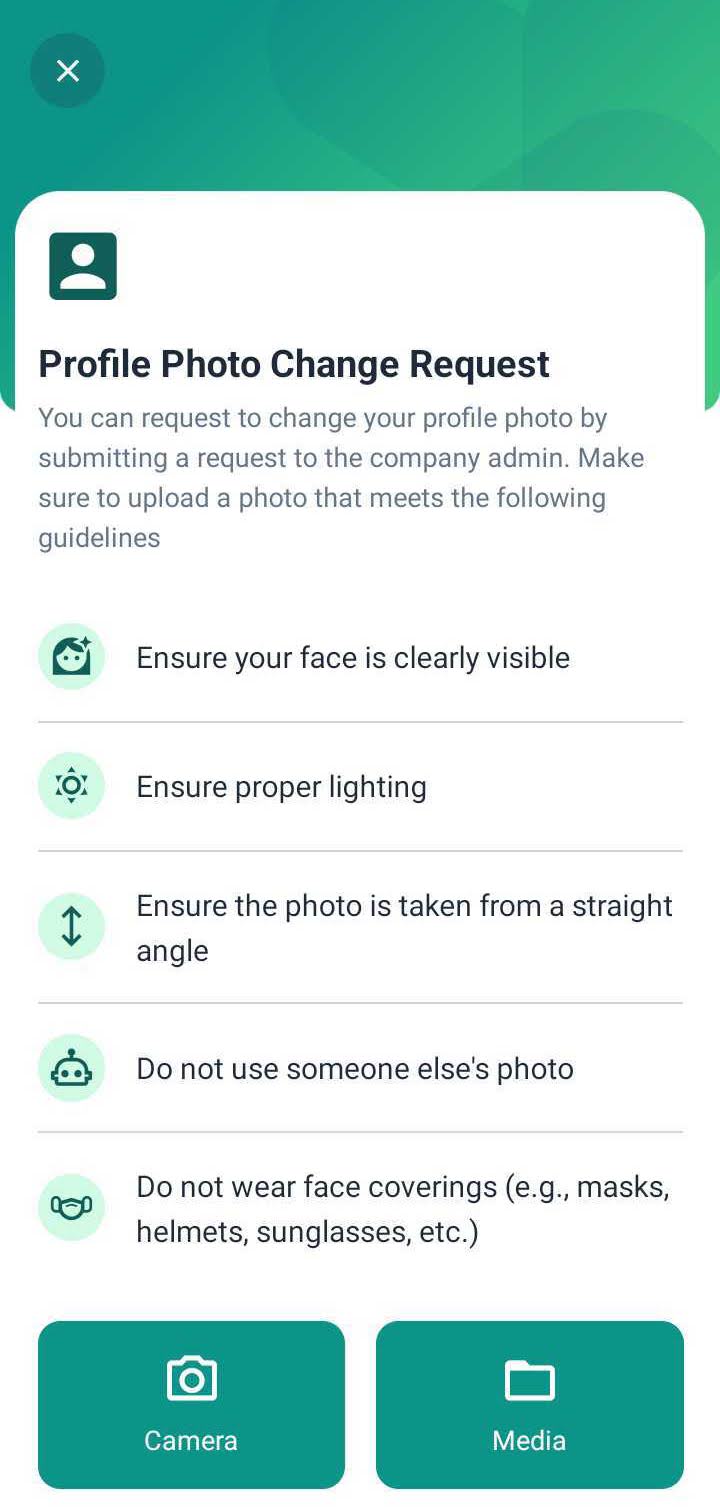
- Before you change the photo, you will see a description of what photo should be uploaded. You can then select an image from your Camera or media.
- If necessary, you can crop or adjust the position of the photo so that it appears to match the desired profile view.
- Once you are satisfied with the uploaded photo, click the save button to update your profile photo. The new photo will automatically appear on your profile.
- After saving, the next step is to wait to see if the Company Admin accepts or rejects the profile photo change.
Admin Panel Kerjoo
- First, click on Admin Kerjo and login with the username and password sent to your email.
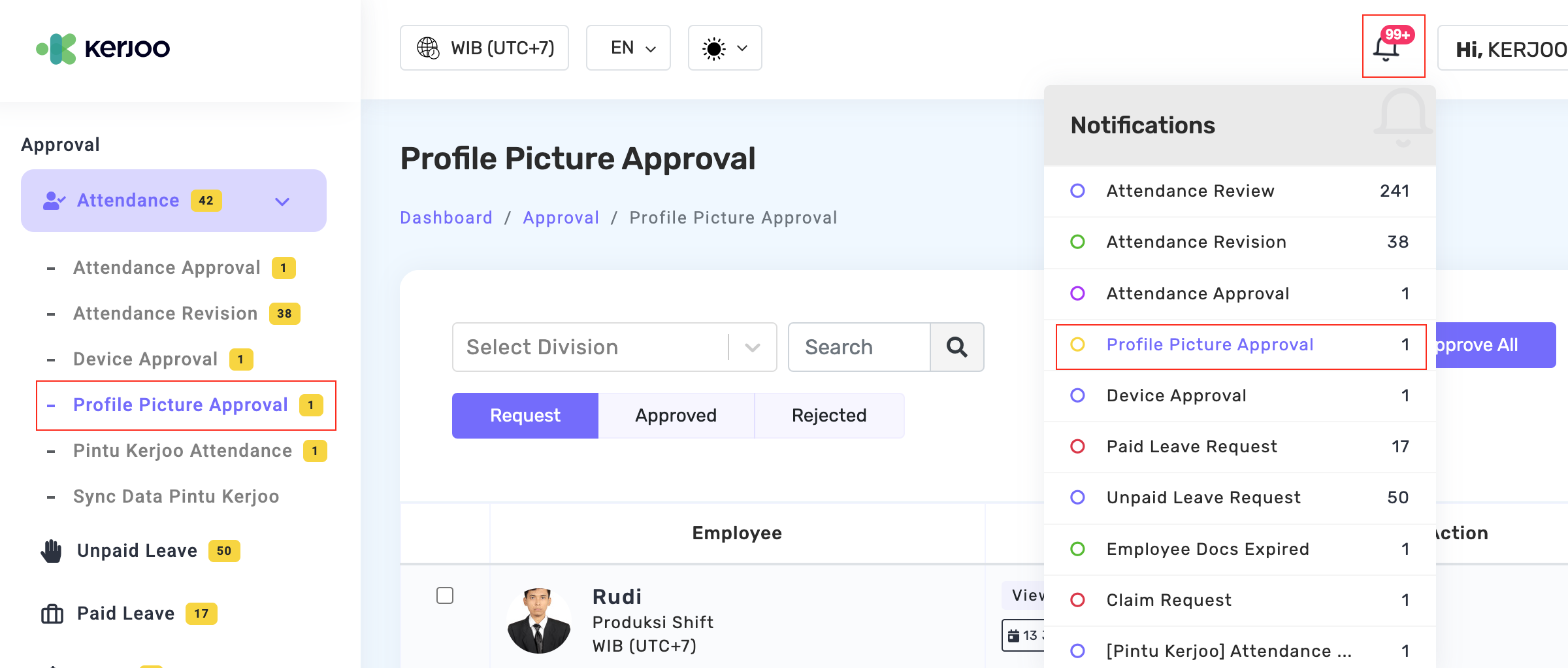
- After that, check the notifications. As an admin, you will receive notifications of employee photo change requests in the [Attendance] menu and [Profile Photo Approval] sub-menu, as shown below.
- In addition, you will also receive notifications of employee photo change requests via the email registered as a Kerjoo admin.
Approved Profile Picture Change Requested
Once an employee has changed their profile picture, you, as an admin, can approve or reject their request.
The reasons vary, but when you feel that the profile picture used by the employee is professional and meets the standards, you can accept the profile change request made by the employee.
The method is as follows.
The green approve [👍] button
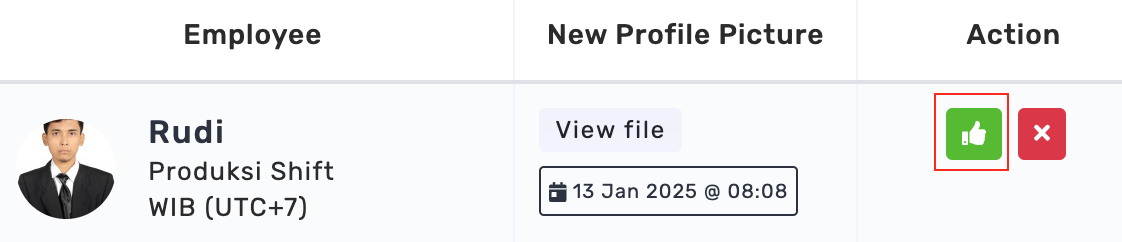
- Once inside the profile photo approval admin panel, you can find a green [👍] button to approve the employee's profile change;
- This button can be found in the [Action] column on the right side of the admin panel;
- After that, click the [👍] button to approve the request to change the employee profile photo and
- For more details, you can see the image below.
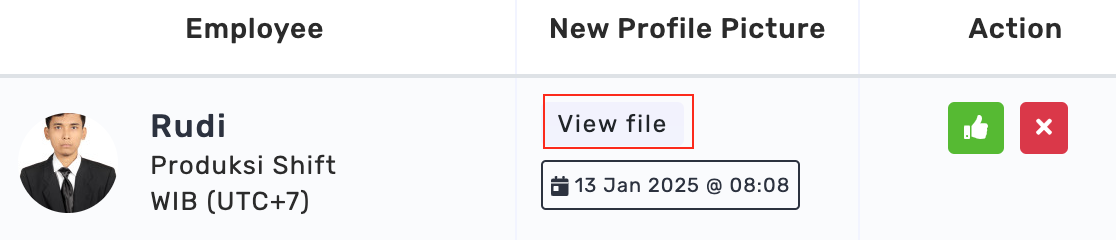
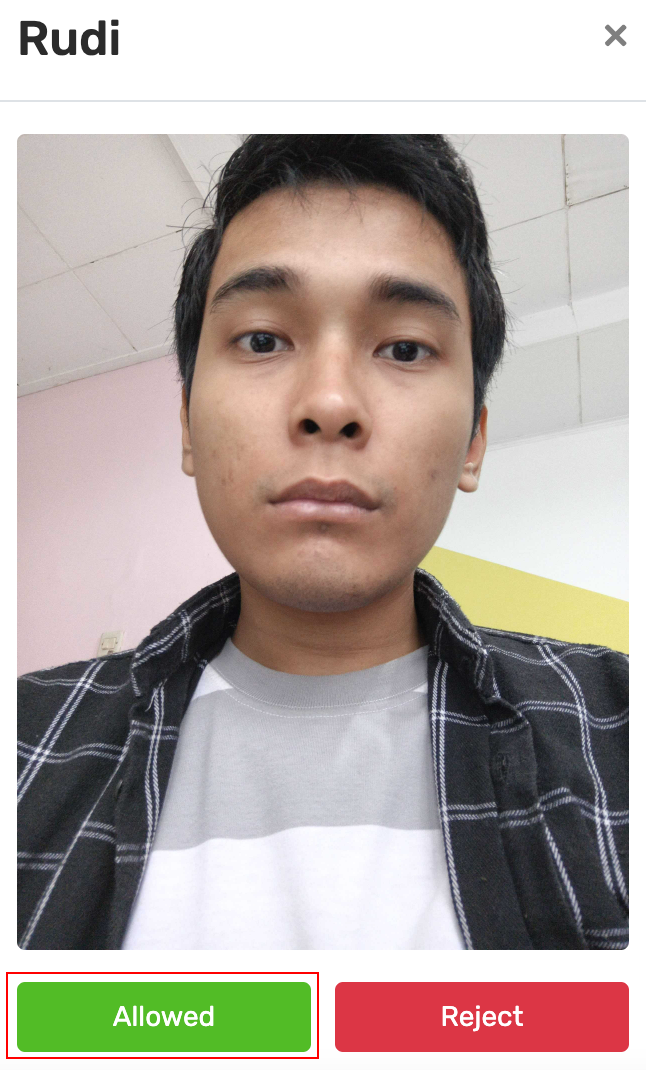
View File Action
- In addition to clicking the green button, you can also approve employee profile change requests in the [View File Action] column;
- this can also make it easier for you to check and see if the employee profile photo has met the professional profile photo standards in your company;
- after that, click [Allow], and the system will automatically approve the request to change the employee profile photo; finally
- For more details, see the image below.
Approve Selected
- Now, if there are multiple profile photo change requests by numerous employees at once, you can use the [Allow Selected] feature to shorten the approval time;

- to use it, you can switch to the [Allow Selected] button located above the action column;
- After that, click the button to check/select the employees whose profile change requests have been approved.
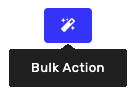
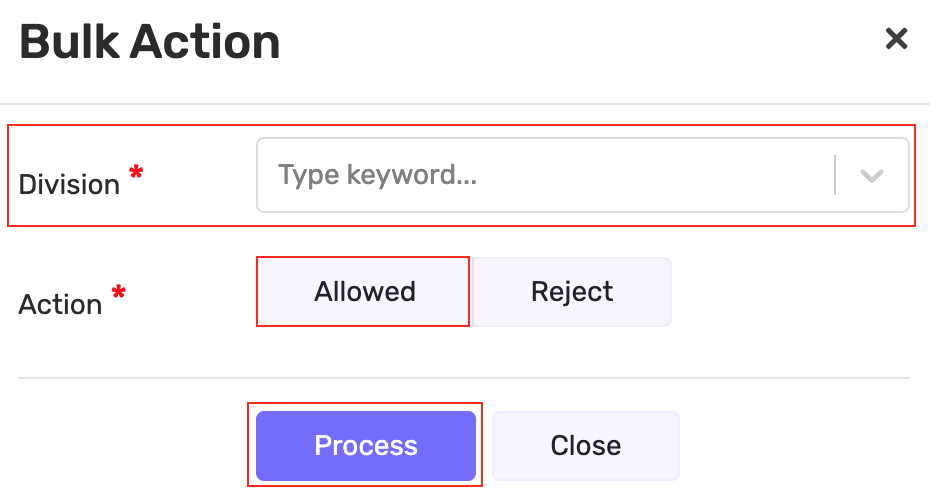
Bulk Action
- If the allow option is selected for personal profile photo change requests, then a mass action can approve photo changes in Bulk per division.
- To use it, you can click the [Mass Action] button to the left of allow selected;
- after which you can select which divisions you approve the profile change for;
- then click [Allowed] and [process], and the system will enable the profile to change automatically.
Action Approve All
- Finally, you can process all profile photo change permissions via the [Approve All] button;

- After clicking [Approve All], you can approve all employee profile photo change requests, dramatically shortening your time and performance.
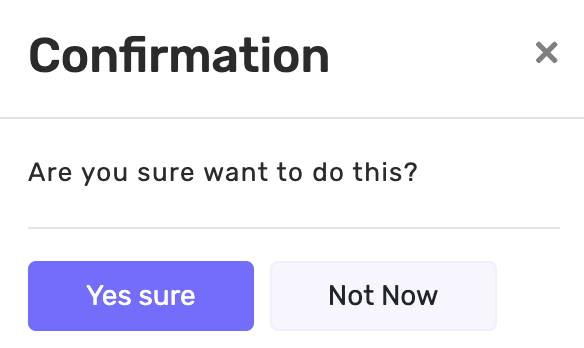
- However, ensure that the profile picture submitted by the employee meets professional standards.
- For the record, to check the accepted profile submissions, you can view them in the [Approved] tab;
- later, you will see the data/history of employee profile photo change approval as follows.
Rejected Profile Photo Change Requests
You can also allow and reject employee profile photo submissions. This can be caused by several reasons, such as the photo used by the employee needing to convey a professional impression.
You can also justify a rejection, such as the photo not matching your company's profile requirements.
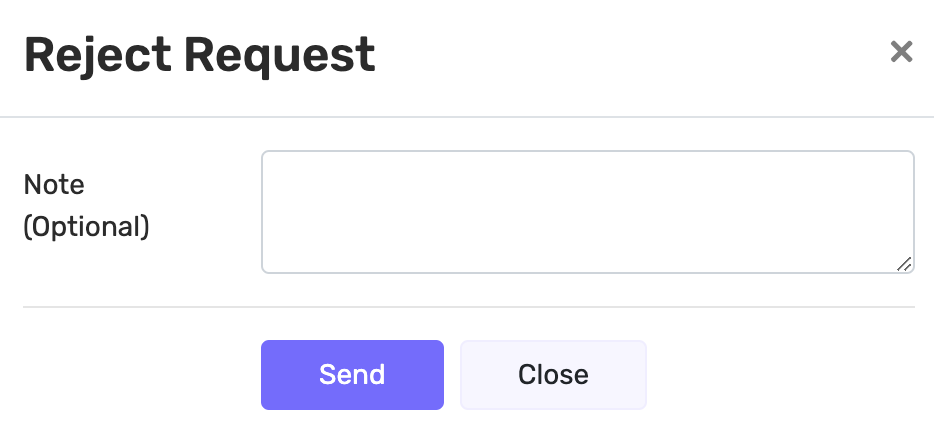
In the Kerjoo feature, the admin can provide why the application was rejected so that employees can understand why their profile photo change was rejected.
Similar to approving profile changes, to reject a request, you can do so through various actions, such as:
Red-colored Reject [X] Button
- Similar to approval of a profile change, you can reject it by clicking the [X] button to the right of the [👍] button to reject an employee profile change;
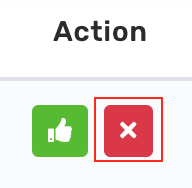
- after that, click the [X] button to reject the request to change the employee profile photo, and the system will process the rejection automatically.
- You can also add a reason for rejection, such as 'photo does not match.'
View File Action
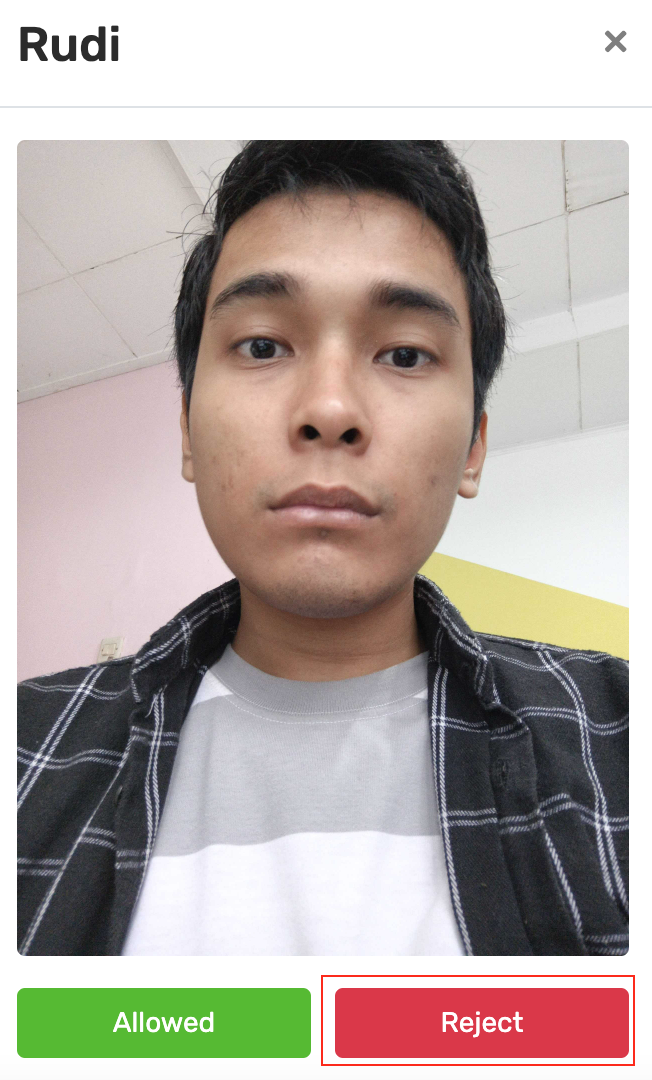
- You can also reject employee profile change requests in the [View File Action] column;
- this can also make it easier for you to check and see if the employee profile photo has met the professional profile photo standards in your company;
- If you want to reject it, click [Rejected], and the system will automatically record the profile photo change as rejected.
Bulk Action
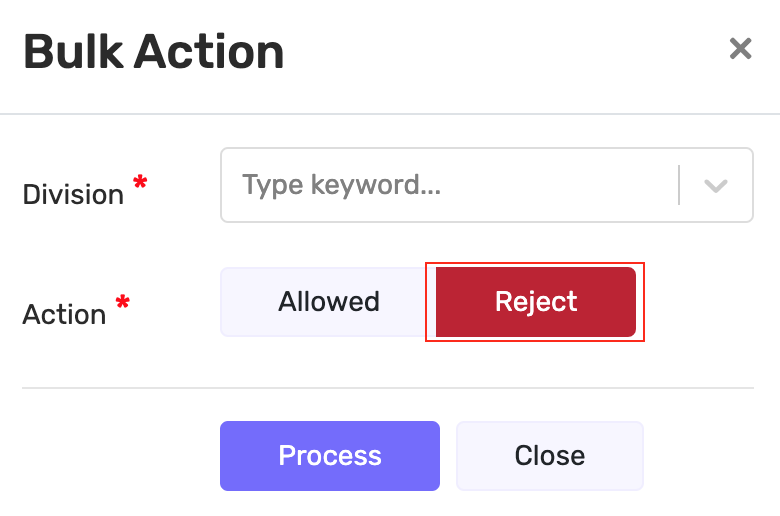
Now, you can also utilize the [Bulk Action] feature on the left side to allow selected to reject profile change requests by employees;
- select which divisions you are denying profile changes to;
- then click [Rejected] and [process], and the system will reject the profile change automatically.
- as a note, to check the received profile submissions, you can see them in the [Rejected] tab;
- later, you will see the data/history of profile photo change rejection submitted by the employee.
Employee Notification
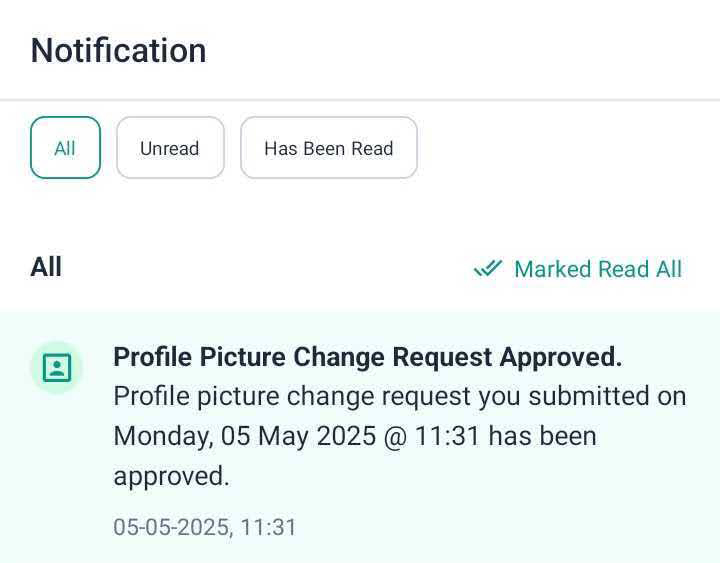
Of course, after the company admin/HR reviews your proposed profile change as an employee, you will receive a notification in the form of either rejection or approval.
Notification Received
You can check the notification on the notification panel on your smartphone.
If approved, Kerjoo will send an acceptance notification as follows.
Rejected Notification
If you are rejected, you must review the profile you submitted to the admin. It could be that the profile you used seemed unprofessional or personal.
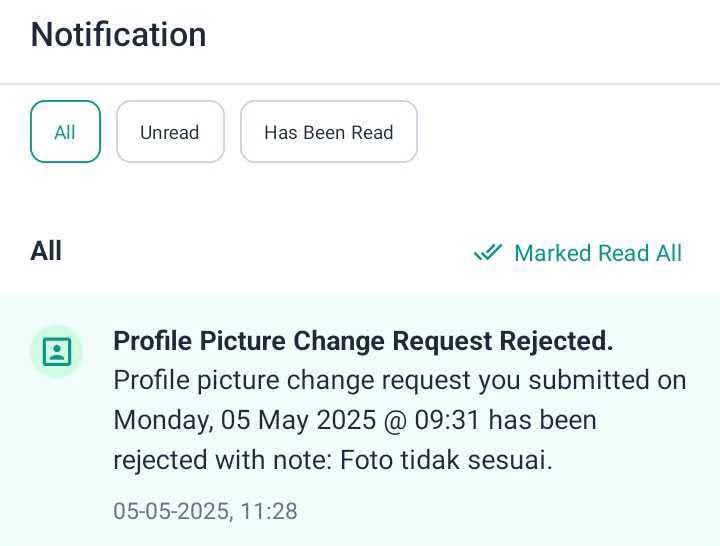
You can adjust the rejection note submitted by your company's HR/admin. Thus, your profile change will be approved, and you will be more comfortable using the Kerjoo Online Attendance Application.
The profile photo change feature on the Kerjoo Online Attendance Application allows employees to update their profile photos independently.
Before submitting a profile picture change request, ensure all the information and data you enter are correct. After the approval process is complete, do not hesitate to give feedback to HR, such as thank you or anything else.