Sales Products
The sales Products section enables users to manage the list of products and conversion units used by the sales team in the field.
There are two main settings in this menu:
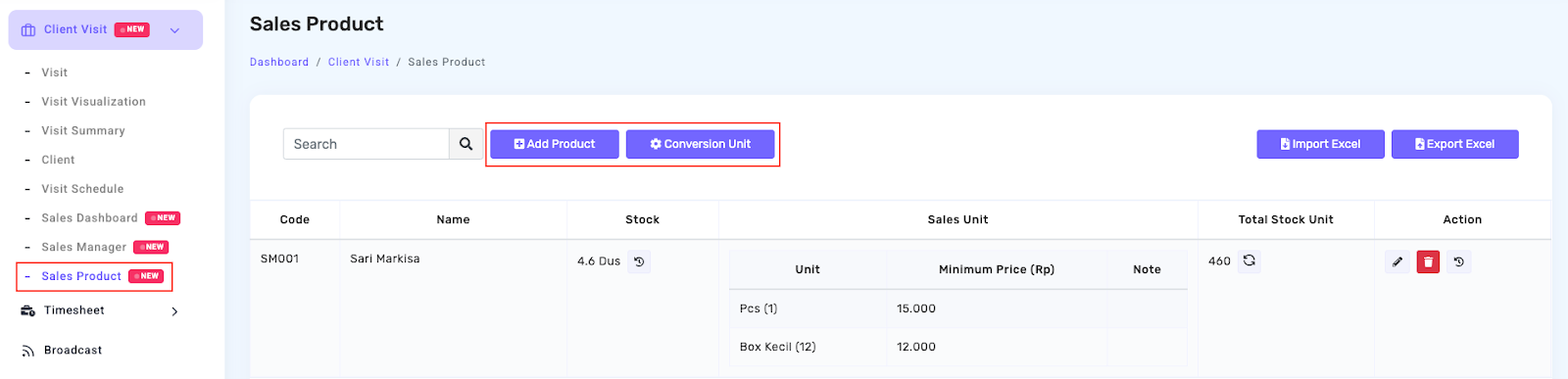
Add Product
This feature allows admins to add products sold by the sales team, including detailed settings such as product name, stock quantity, unit, and change history.
How to Add a New Product:
- Go to the Conversion Unit menu

- Fill in the complete data according to the available form (for example: product name, unit, initial stock, price, etc.)
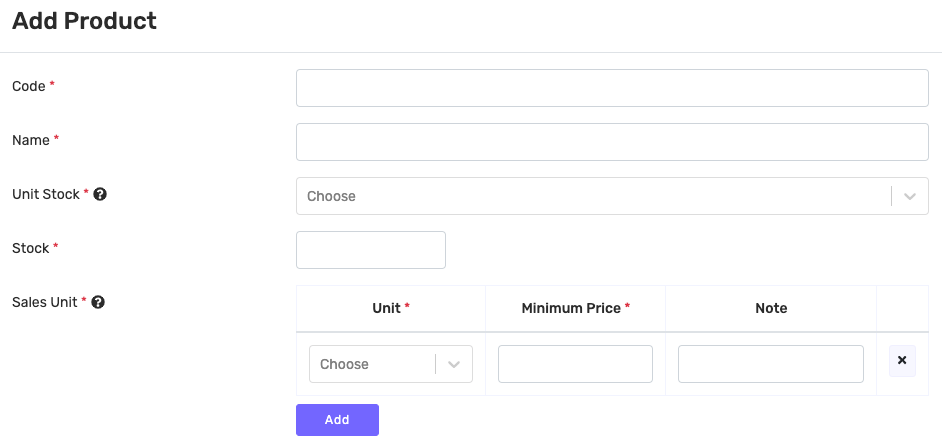
- Once saved, the product will be immediately available for use by the sales team when transacting in the field.
Conversion Unit
Used to manage main units of stock recording and management, such as boxes, cartons, or gallons. The system will automatically calculate the stock conversion according to a unit that is used in a transaction. With this feature, sales team can choose the most relevant unit when reporting visit results.
How to Add a New Conversion Unit:
- Go to the Conversion Unit menu

- Click Add Conversion Unit

- Enter the unit name (for example: pcs) and conversion value (for example 1 box = 12 pcs)

- Click Save
Additional Features in Product Sub Menu
Some additional features that can be used to manage products include:
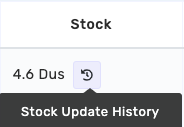
Stock Change History
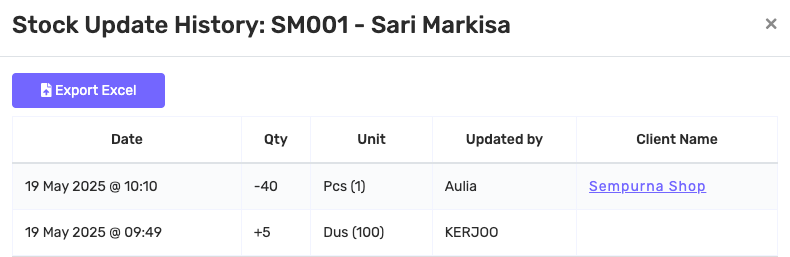
Displays all stock changes that occur. The information displayed includes the date of change, the amount of stock added or reduced, the name of the user who made the change, and the name of the associated client.
Updating Stock
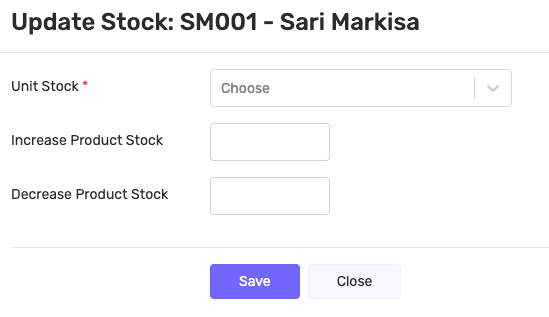
To update stock, click the 🔄 icon next to the stock quantity. Fill out the change form by selecting the unit and quantity to add/drop, and click Save.
Edit Product Information
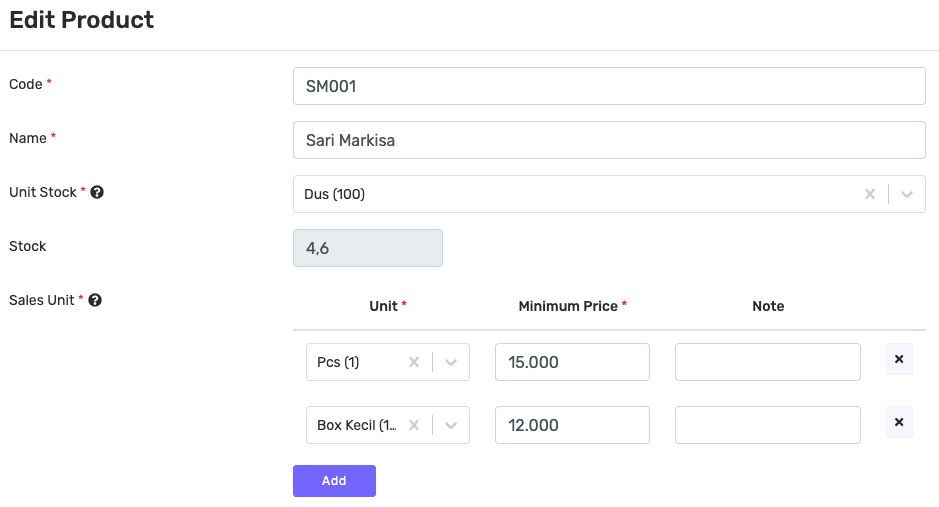
Click the ✏️ icon on the product list to change the name, unit, or other information.
Edit Products in Bulk
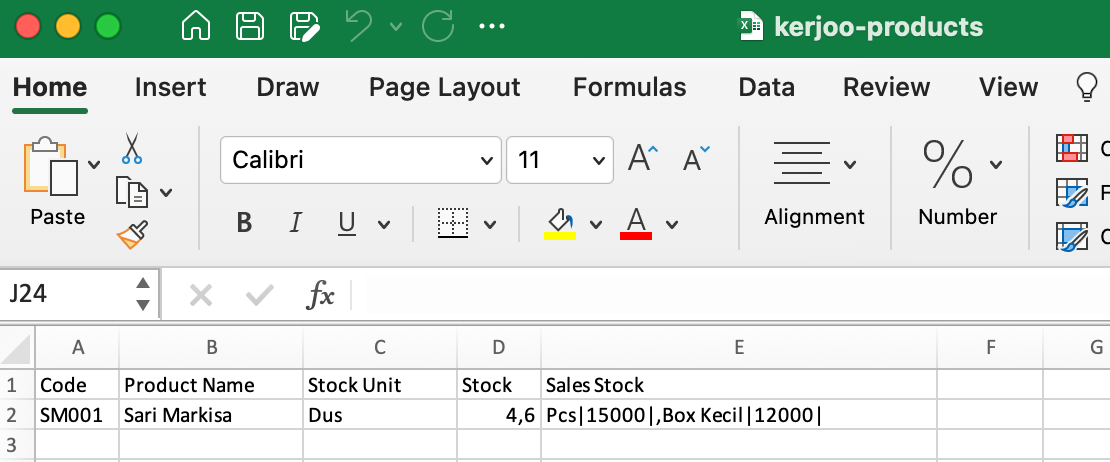
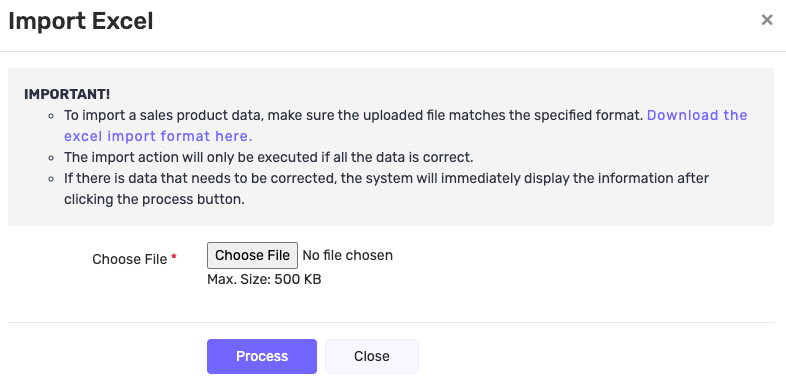
Use the Import via Excel
 feature to update stock or prices in bulk. Fill in the file according to the format provided, then upload it to the system.
Export Product Data
You can also download all product data using the Excel Export
 feature, for internal reporting or record-keeping purposes.