Report
The Report menu is used to monitor and manage all employee leave data in one centralized view.
This feature helps HR and company administrators quickly, accurately, and transparently access information about leave entitlements, remaining leave balances, and leave history.
This menu can be accessed through
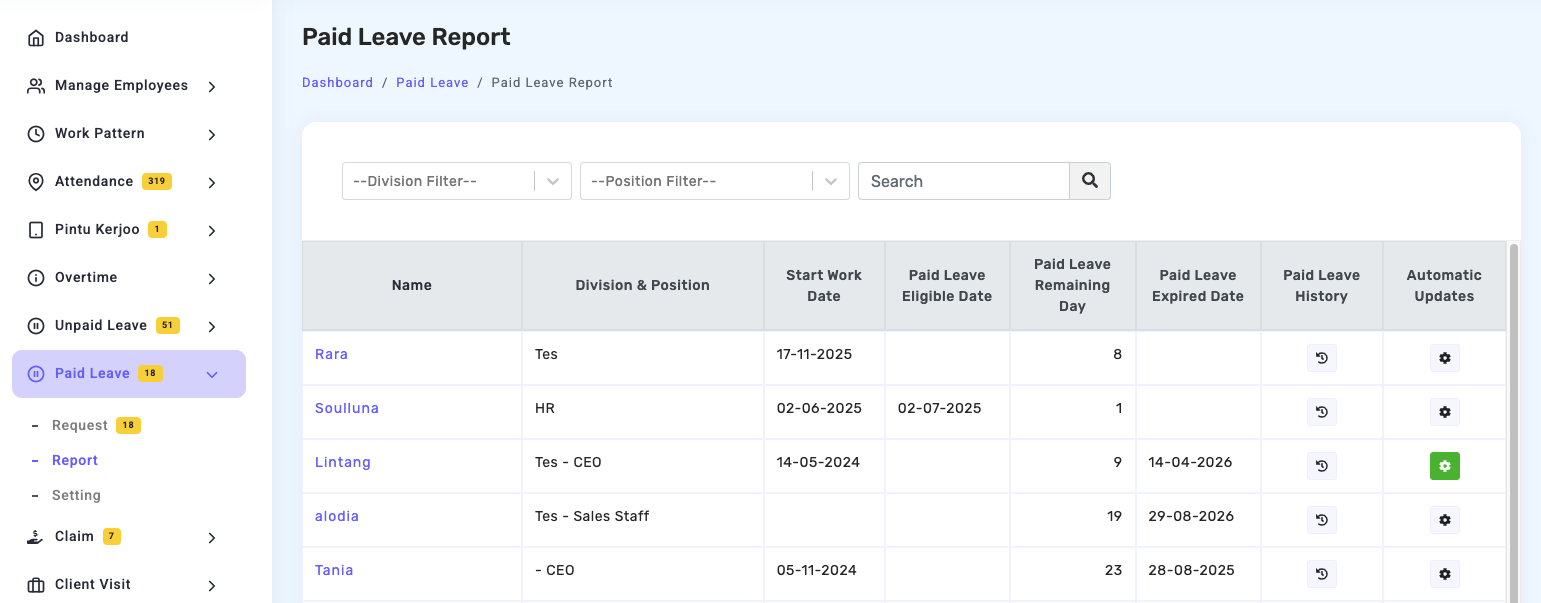
Main Functions of the Report
This feature allows you to:
- View the complete list of employees along with their leave information
- Monitor each employee's remaining leave balance
- See the employee's start date and the date they begin receiving leave entitlements
- Access detailed leave usage history
- Configure automatic leave updates
With this report feature, HR no longer needs to calculate leave manually, as all data is stored and updated systematically within the system.
Data Filters and Search

At the top of the page, several filtering options are available to make data searching easier:
- Division Filter — used to display employee data based on a specific division.
- Position Filter — used to display employee data based on job position.
- Search Field — used to directly search for an employee's name without scrolling through the entire list.
These filter features help HR access data more efficiently, especially when managing a large number of employees.
Explanation of Columns in the Report
-
Name — displays the employee's name. The name can be clicked to view more detailed information (if available in the system).
-
Division & Position — displays the employee's role and department within the company.
-
Start Date — the official date when the employee began working at the company.
-
Leave Entitlement Start Date — the date when the employee begins receiving annual leave entitlement according to company policy. This usually follows the minimum employment requirement (for example, after 12 months of service), depending on company settings.
-
Remaining Leave — displays the number of leave days still available for the employee to use. This balance will automatically decrease once a leave request is submitted and approved.
-
Leave Expiration Date — displays the end date of the applicable leave period. This information is important to determine whether leave has an expiration period (for example, expiring at the end of a specific cycle).
-
Leave History — there is a history icon that can be clicked to view detailed records of the employee's leave usage, including:
- Application date
- Leave type
- Approval status
- Number of days used
This feature helps HR conduct audits or reviews when necessary.
-
Automatic Update — there is a settings (gear) icon used to configure the automatic leave update system. This feature is used to:
- Set up automatic leave entitlement additions
- Define the leave reset period (for example, annually)
- Adjust company policies regarding leave accumulation or expiration