Daily Attendance
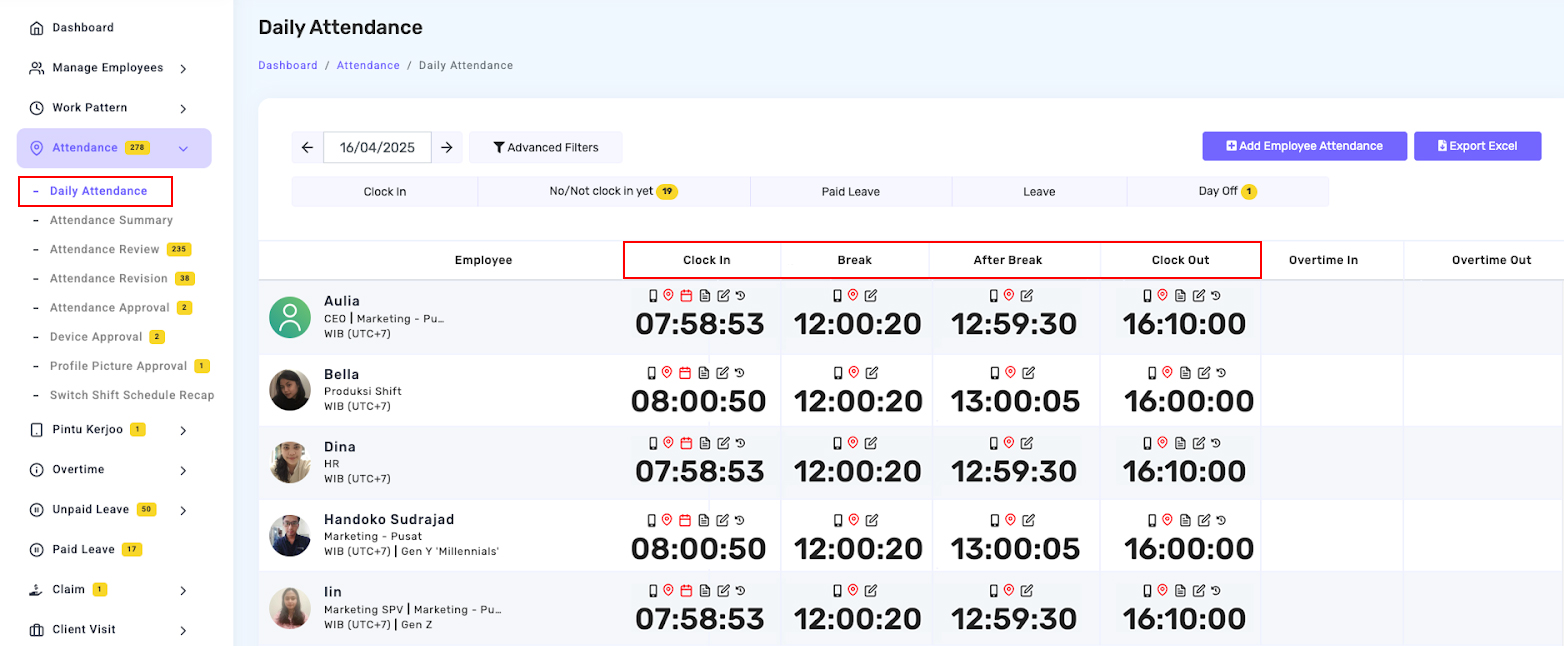
It displays employee daily attendance data, including employee identity, details of clock in or no/not clock in, overtime in, overtime out, and breaks.
Add Employee Attendance
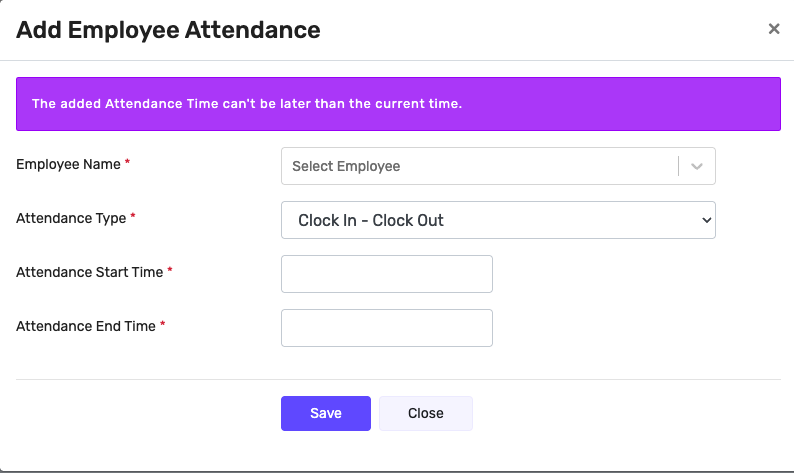
The Add Employee Attendance feature lets company admins add manually clock-in and clock-out records for employees. This feature serves as a solution in cases of technical issues, missed clock in by employee, or when attendance data needs to be corrected.
Only company admins can access and use this feature through the Kerjoo admin panel. Employees cannot add or edit their own attendance manually.
This feature can be used by following situations:
- An employee forgets to clock in or out.
- There is a technical issue with the device during attendance.
- Adjustments are needed for administrative purposes or internal reporting.
Please note, however, that the attendance time added cannot exceed the current (real-time) timestamp. To use this feature, click the button  available on the attendance dashboard and follow the on-screen instructions provided by Kerjoo.
Icon Descriptions of Daily Attendance Menu
 Device
Contains information related to device data used by employees when taking attendance. Work Schedule
This icon loads information on the work schedule set by the Admin. The Admin can change or delete the schedule if it does not meet existing needs. GPS Status
It loads information on employee location data when taking attendance. A green color means that the employee has made a presence in accordance with the previously inputted presence location. A red color indicates that the employee took attendance outside the attendance location. But if it is gray, the employee takes attendance at an area not set in the admin panel. Attendance taken within the area of an attendance location that is currently inactive is also recorded as attendance outside the attendance location (red), for divisions whose attendance does not have to match the location. For divisions whose attendance must match the location, such attendance is rejected. Note
Load information in pictures/photos of employees when taking attendance. Selfie
Load information in pictures/photos of employees when taking attendance. Edit Attendance
The Admin can use this icon to change or cancel attendance data if needed. Change Histories
It contains information related to attendance data that the Admin has changed.
Export Excel Daily Attendance
This feature allows you to download daily attendance data into an Excel file. You can select the date or time range of a particular employee's daily attendance as needed by :
Click Menu
- Attendance -
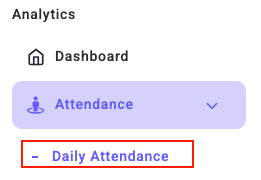
- Click Export Excel

- Fill in and complete the data as needed.
- You can use several formats; select columns to check the required data.
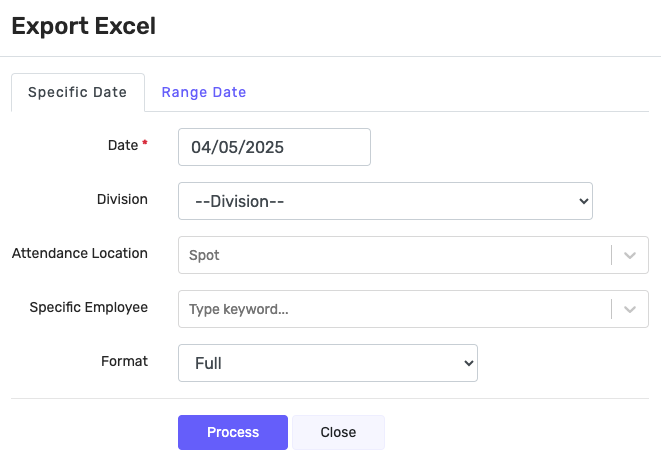
- Click Process