Unpaid Leave
How to request leave days and leave hours in the Kerjoo app, and how to track or cancel your requests.
The Unpaid Leave menu on Home has two tabs: Leave Hours for a few hours off within a working day, and Leave Days for one or more full days. If your company does not use leave hours, only the Leave Days tab appears.
Leave Days
Open Unpaid Leave
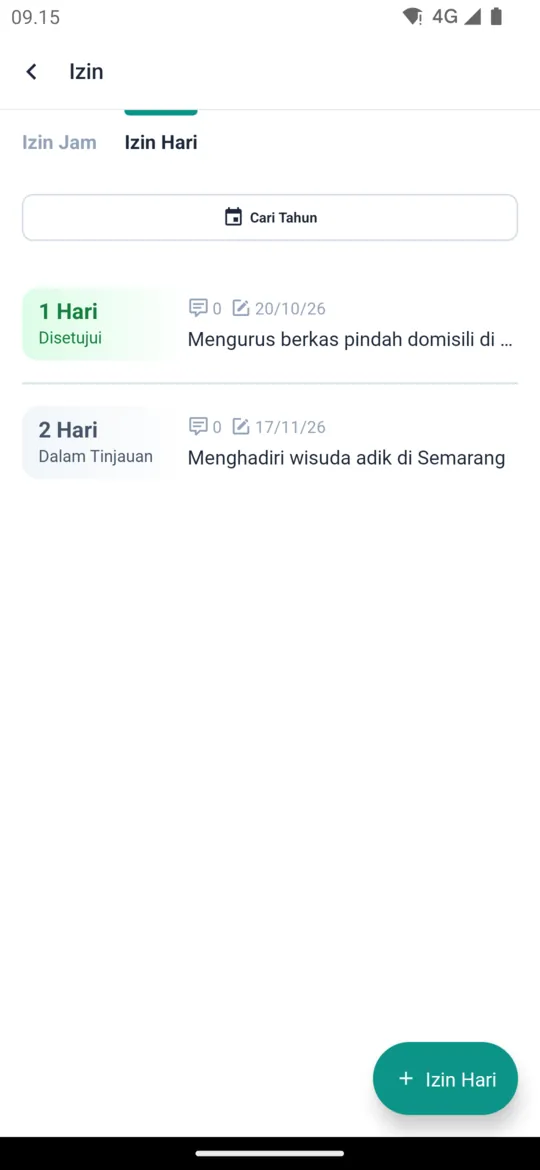
On Home, tap the Unpaid Leave menu, then choose the Leave Days tab. It lists your leave day history and each request's status.
Create a new request
Tap the + Leave Days button at the bottom right.
Fill in the form
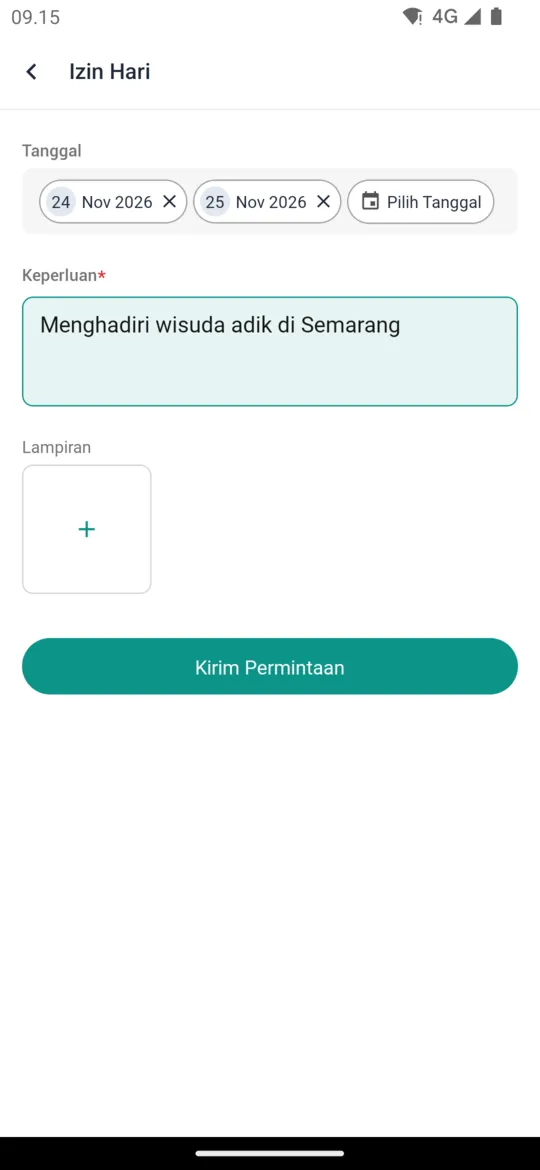
Tap Select Dates to choose one or more Dates, write the Necessity, and add Attachments if you have any, such as a doctor's note. You can attach up to 5 files.
Send the request
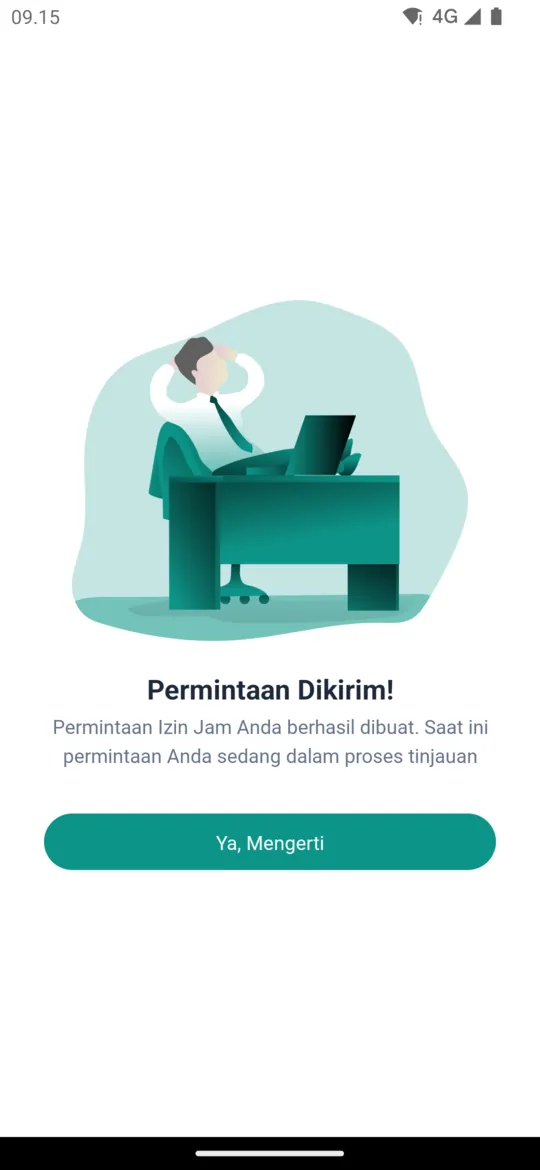
Tap Send Request. A Request Sent! screen appears; tap Yeah, Understood. The request stays In Review until an admin or supervisor processes it.
Leave Hours
Open the Leave Hours tab
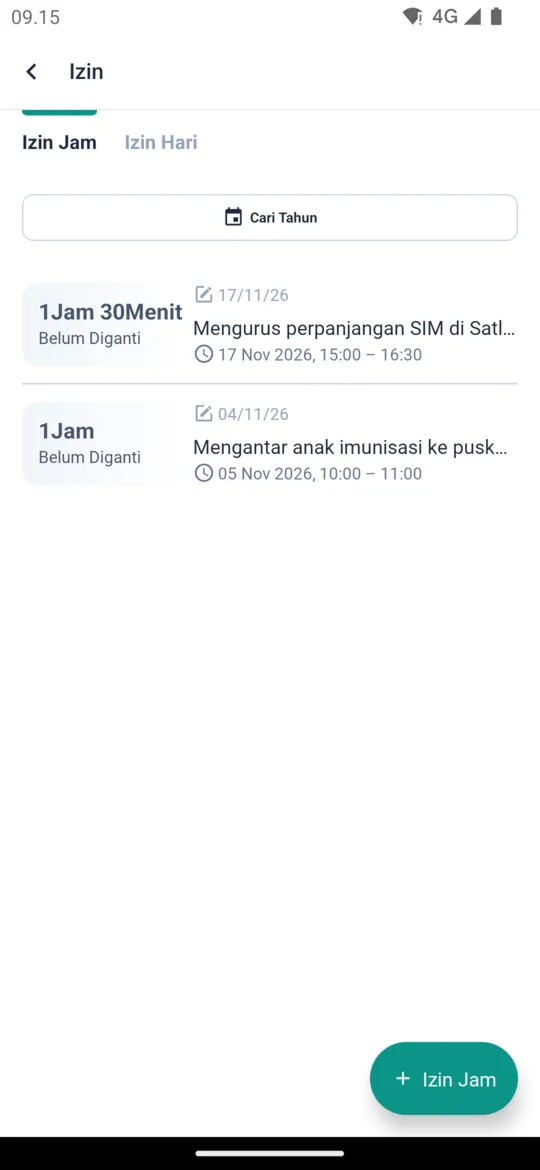
On Home, tap the Unpaid Leave menu, then choose the Leave Hours tab. The list also shows whether the hours have been made up, for example Not Replaced.
Create a new request
Tap the + Leave Hours button at the bottom right.
Fill in the form
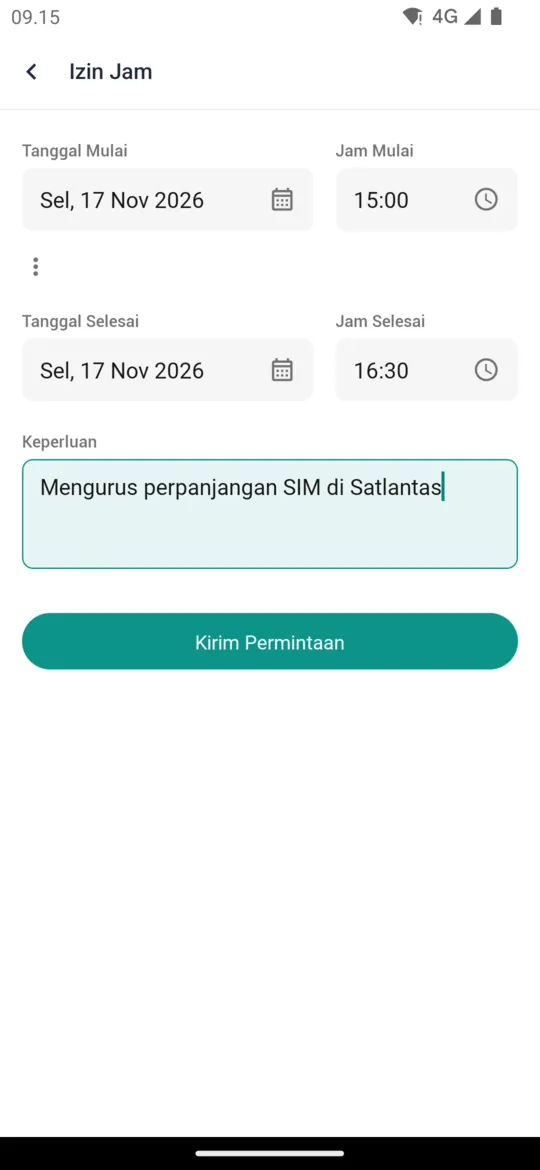
Set the Date Start and Start Time, then the Date End and End Time. Write the Necessity for the leave.
Send the request
Tap Send Request. A Request Sent! screen appears; tap Yeah, Understood.
Leave hours count as approved unless an admin or supervisor rejects them. If your company requires the hours to be made up, you can replace them when you clock in; see Replacing Leave Hours.
Tracking and Cancelling Requests
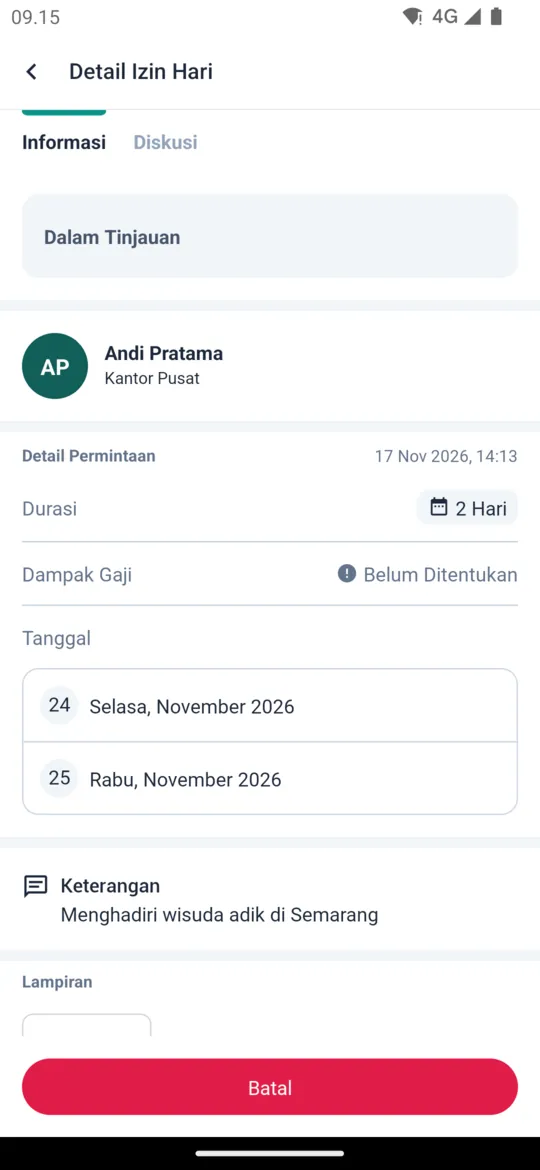
- Your requests and their status (In Review, Approved, Rejected, or Canceled) are listed in the Unpaid Leave menu. Tap a request to see its details.
- The result is sent as a notification and recorded in the Message tab.
- In a leave day request's details, the Discussion tab lets you talk with the reviewer about that request.
- While a leave day request is still In Review, you can cancel it: open the request, tap Cancel, fill in the Cancellation Reason, and confirm.
Admins process requests in Leave Day and Leave Hours Review. Supervisors can also process them from the app; see Approvals for Supervisors.