Attendance
How to clock in, clock out, take breaks, and record overtime in the Kerjoo app, including attendance notes and your attendance history.
Attendance in the Kerjoo app uses a face photo and your location. Make sure the Camera and Location permissions are granted (see App permissions) and that you are at the attendance location set by your company.
Clock In and Clock Out
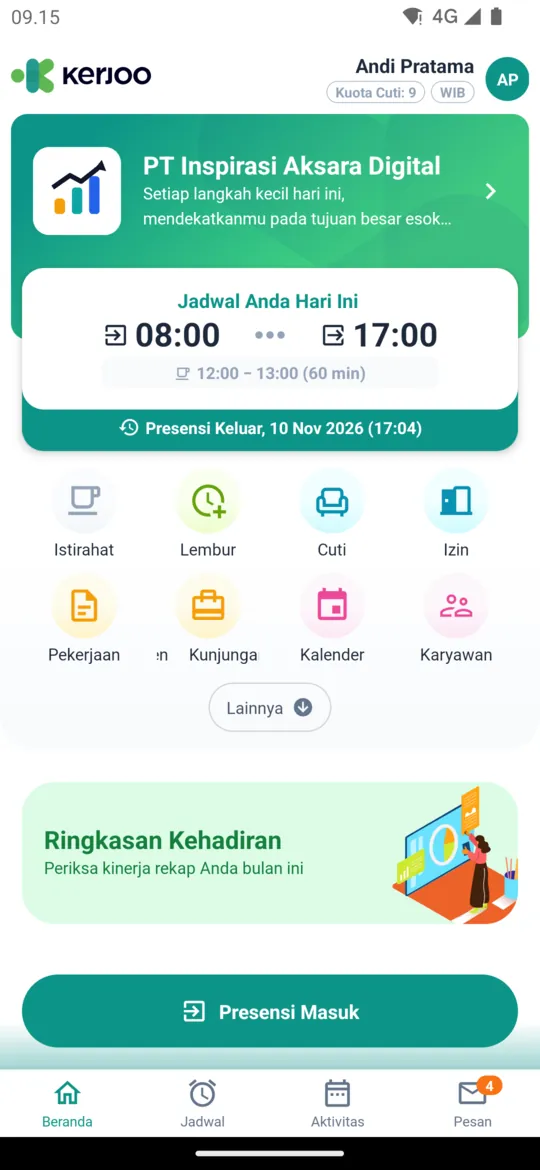
Tap the attendance button on Home
The attendance button sits at the bottom of Home. Its label follows your last activity, for example Clock In at the start of the day and Clock Out after you have clocked in.
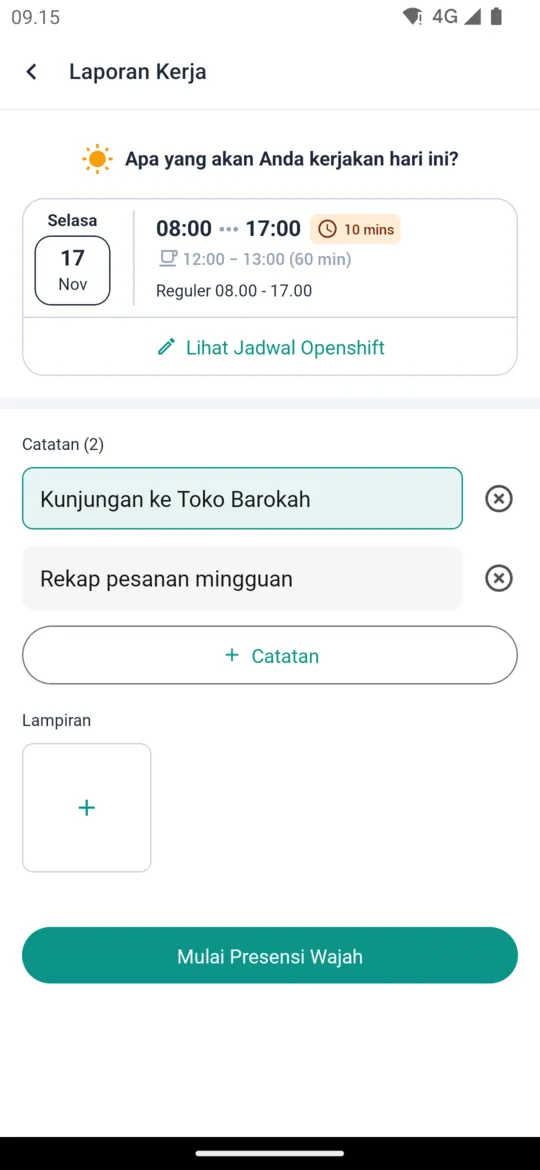
Fill in attendance notes (if asked)
If your company requires notes at attendance, the Work Report screen appears with your schedule for today and a question such as What are you doing today?. Write your note under Notes, then tap + Notes to add another one. When available, you can also add Attachments and choose a supervisor under Report To. If notes are mandatory, you cannot continue until you fill one in.
Then tap Start Facial Attendance.
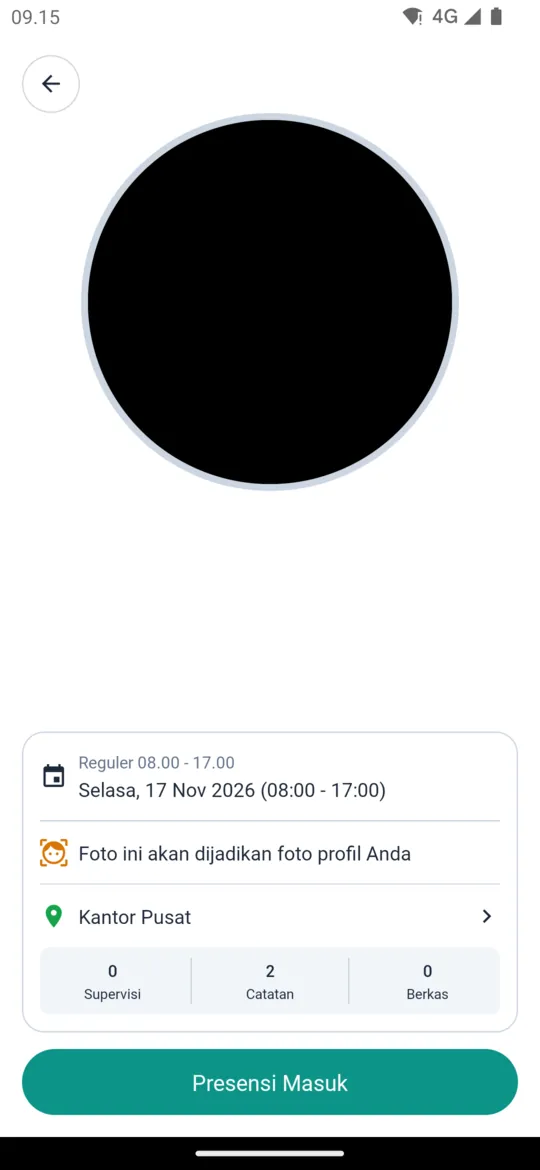
Take your face photo
When the camera opens, read the Photo Rules and tap Yeah, Understood. Keep your face straight inside the camera circle, without glasses, a mask, or a helmet, in good lighting.
Below the camera you see your schedule, the detected attendance location, and how many notes and files will be sent. Once your location is found, tap the button at the bottom, for example Clock In, to take the photo and send your attendance. If it says You are outside the presence area, move into the attendance location or contact your admin.
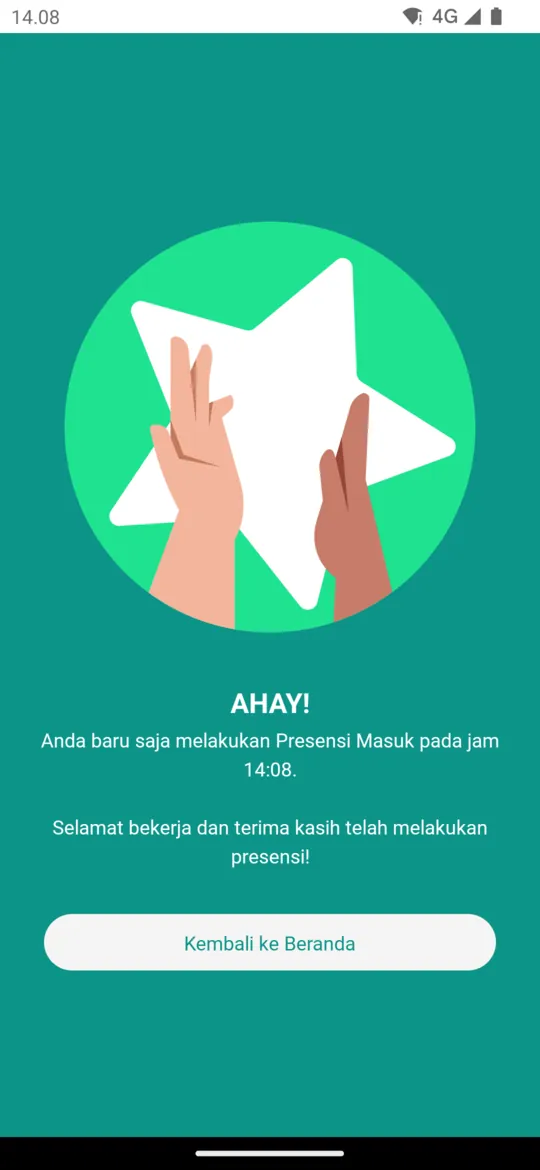
Attendance recorded
The app shows a message that your attendance was recorded, with the time. Tap Back to Home. The data goes straight to your company's admin panel.
First attendance:
If you do not have a profile photo yet, the photo from your first attendance becomes your profile photo and is used as the reference for face matching. Make sure your face is clearly visible the first time.
Break
- After clocking in, tap the Break menu on Home.
- On the Start Break screen, tap Start.
- When your break ends, tap the Finished Break button at the bottom of Home, then tap Finish.
Break attendance does not use a face photo.
Overtime
- Tap the Overtime menu on Home. You can use it after clocking out.
- Follow the same steps as clocking in: fill in notes if asked, then take your face photo.
- When overtime ends, tap the Finished Overtime button at the bottom of Home, then take your face photo as usual.
Requesting overtime schedules is covered in Schedule & Shift Swap.
Replacing Leave Hours
If you have leave hours that have not been replaced yet, you can replace them when you clock in.
- Tap Clock In. The Work Report screen shows a Leave hour you want to replace card.
- Tap the card. The Change Leave Hours screen opens with the question Do you want to change the leave hours?.
- Select the leave hours to replace, then tap Select.
- Continue with Start Facial Attendance.
If you do not want to replace leave hours that day, leave the card empty and continue clocking in.
Attendance History and Summary
- Open the Activity tab to see your attendance history. Tap an entry to open Activity Detail, which shows the location (with a See on Map button), notes, schedule, and the device used. From this page you can also request an Attendance Revision.
- The Attendance Summary card on Home shows your attendance recap, such as days present, lateness, and working hours.
Common Issues
| Message in the app | Meaning and fix |
|---|---|
| Device Not Registered | Your company only accepts attendance from registered devices. Tap Ya, Register!, then wait for approval from an admin or supervisor. Your devices are listed in Profile > Registered Device. Admins approve them in Device Approval. |
| Attendance Restiction | You tried to clock in outside the time your company allows. Tap Report to ask for approval, then wait for a notification from your admin or supervisor. Admins handle it in Attendance Approval. |
| You are outside the presence area | Your location is outside the attendance location radius. Move into the set area, or ask your admin where you should clock in. |
| You were detected using a mock location or fake GPS. | Turn off any location-faking app. You cannot clock in while a fake location is detected. |
| This device is not safe! disable developer/root/jailbreak mode. | Turn off developer mode, root, or jailbreak on your phone. |
| Face doesn't Match | Your face does not match your profile photo. Retake the photo following the photo rules. If it keeps failing, request a new profile photo (see Profile Picture Approval). |
| Please allow kerjoo to access your location or your camera | The app permission has not been granted. Turn it on in your phone settings under the Kerjoo app. |