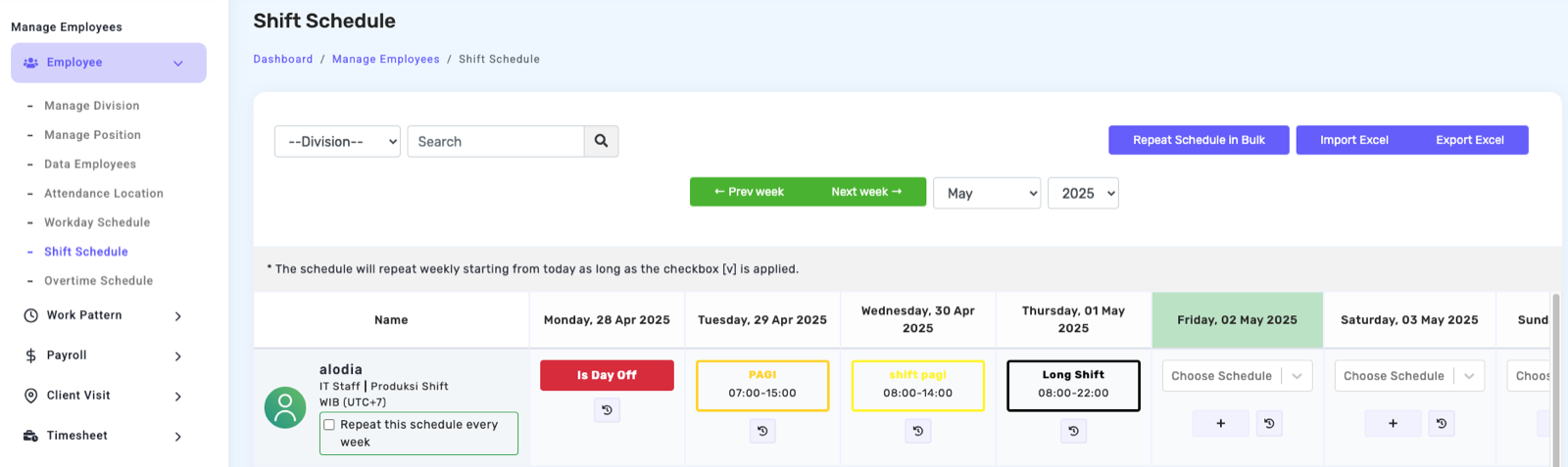
Shift Schedule & AI Shift
Used if there is more than 1 work shift applied by the company such as morning shift, afternoon shift, night shift. In this case, one employee can only input 1 shift in 1 day. The shift schedule cannot be changed if the date has been missed.
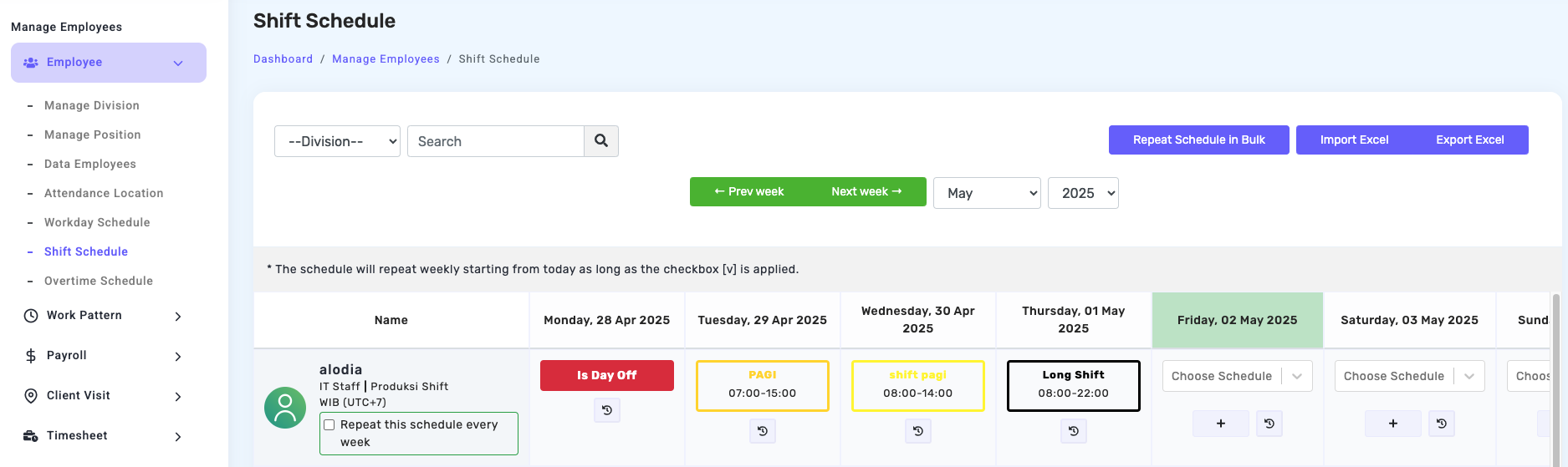
AI Shift
AI Shift is a Kerjoo feature that helps admins manage employee schedules in shift-based work environments. With this feature, admins can perform several tasks that previously required manual processes, such as creating schedules for an entire division, finding replacement employees when someone is unavailable, and checking whether two employees can swap shifts.
AI Shift offers three main features:
- Generate Schedule, to automatically create shift schedules.
- Find Replacement, to recommend employees who can cover for colleagues who are unavailable.
- Swap Shift, to analyse whether a shift swap between two employees is feasible.
This means shift scheduling no longer needs to be handled one employee at a time manually. AI Shift helps take scheduling rules, rest periods, days-off distribution, and employee schedule conditions into account based on the requirements of the feature being used.
Note:
AI Shift is only available for divisions that use a shift-based work system and can only be used by admins who have permission to manage shift schedules.
1. Generate Schedule
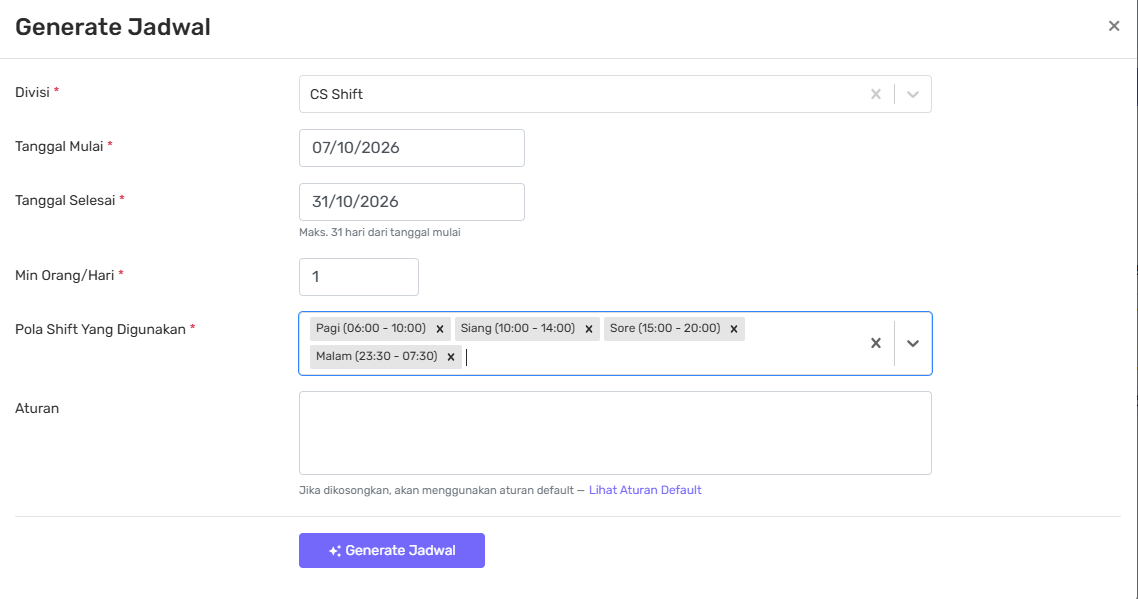
The Generate Schedule feature helps you create shift schedules for all employees in one division for a selected period without having to schedule each employee individually.
Simply select the division, schedule period, and shift patterns. You can also add specific scheduling rules if needed. The system will then generate a schedule preview based on the information provided.
Steps:
- Select the Division for which you want to create a shift schedule.
- Set the Start Date and End Date.
- The earliest available start date is today.
- A single generation process can cover a maximum of 31 days.
- Select the Shift Patterns to be used, such as Morning, Afternoon, and Night.
- Enter Min. Employees/Day if needed. This determines the minimum number of employees who must be scheduled to work each day.
- Review the Scheduling Rules section. The system already provides standard rules automatically. If you have specific requirements, you can add your own rules in a new line.
- Click Generate to create the schedule. The system will display a schedule preview — at this stage, the schedule has not been saved yet.
- Review the preview, especially:
- Applied Rules — shows how the system interpreted the additional rules you entered.
- Warnings — shows rules that could not be fulfilled or dates that need to be reviewed.
- If the schedule is correct, click Apply to save it. By default, existing schedules will not be overwritten. If you want to replace existing schedules, enable the Overwrite Schedule option.
Limit:
Each generation process supports a maximum of 25 active employees in one division.
Standard rules (always applied by the system)
You do not need to enter basic scheduling rules manually. The system automatically applies the following standard rules:
- Each employee receives one schedule per day, either one shift or a day off.
- Each employee receives one day off within every 7-day period and will not work more than 6 consecutive days.
- The number of employees taking days off is distributed evenly across days.
- The number of employees assigned to each shift pattern is distributed evenly each day.
- There is a minimum of 10 hours of rest between shifts.
- Night shifts are limited to a maximum of 2 consecutive days.
- Shift patterns rotate daily. If night shifts are involved, the system may arrange the rotation in blocks to ensure sufficient rest time.
You do not need to rewrite these standard rules. The system will continue to apply them even if you do not add any additional rules.
Writing additional rules
If your schedule requires specific rules, you can add them using everyday language. For better results:
- Write one rule per line.
- Use the employee's name as registered in the system.
- Use the shift pattern name available in the system.
- Minor spelling mistakes or nicknames can usually still be recognised by the system.
Shift patterns for specific employees
| Example | Meaning |
|---|---|
| Sari can only work the morning shift | Sari can only be assigned to the Morning shift, but she can still be scheduled for a day off. |
| Dewi should not work the night shift on the 3rd | Dewi will not be assigned to the Night shift on the 3rd. |
| Budi should not work the night shift | Budi will not be assigned to the Night shift throughout the scheduling period. |
| Budi must work the night shift on the 10th | Budi must be assigned to the Night shift on the 10th. |
| Andi requests the morning shift every Thursday | Andi must be assigned to the Morning shift every Thursday. |
Pay attention to the wording used in the rule:
- "Can only" limits the shift patterns that can be assigned. The employee can still be scheduled for a day off.
- "Requests", "must", or "required" means the employee must work the specified shift on that particular day.
Fixed days off
You can also specify particular days when an employee must have a day off.
| Example | Meaning |
|---|---|
| Rina always has Sundays off | Rina will have a day off every Sunday throughout the scheduling period. |
| Joko has days off on the 17th and 18th | Joko will have days off on the 17th and 18th. |
Number of days off
When writing rules related to days off, make sure you distinguish between the number of employees taking a day off each day and the number of days off assigned to each employee.
| Example | Meaning |
|---|---|
| 3 employees off every day | Exactly 3 employees will have a day off each day. |
| At least 2 employees off per day | At least 2 employees will have a day off each day. |
| 7 employees work every day | The system determines the number of employees off based on the total number of employees minus the 7 employees who are working. |
| 2 days off per week | Each employee receives 2 days off per week. |
| Budi has 6 days off | Budi receives exactly 6 days off during the scheduling period. |
| At least 3 days off | Each employee receives at least 3 days off during the scheduling period. |
| Maximum 5 days off | Each employee receives a maximum of 5 days off during the scheduling period. |
Things to know:
- "N days off" refers to the number of days off for each employee. If you want to specify how many employees should be off each day, use a rule such as "N employees off per day".
- If a minimum or maximum requirement is already satisfied by the standard rules, the system will not make additional changes to the schedule. The Applied Rules section will show "already satisfied by standard schedule".
- The system will continue to enforce the maximum limit of 6 consecutive working days. If the number of days off you enter is too low, the system will adjust it to the minimum safe number and display a warning.
- If the requested number of employees off per day cannot be fulfilled, the system will use the closest possible number and display a warning.
Shift rotation method
You can determine how employees' shift patterns rotate throughout the scheduling period.
| Example | Meaning |
|---|---|
| Shift patterns are arranged in blocks | Employees stay on the same shift pattern for several consecutive days before moving to another shift pattern. |
| Shift patterns change every day | Employees' shift patterns change every day. This is the default setting. |
Tips for generating a schedule
To get a schedule that better matches your requirements:
- Always review the Applied Rules section to make sure the system has correctly understood the rules you entered.
- If multiple employees have the same or similar names, use their full names. For example, if there are Dwi Mardani and Dwi Ramadhani, do not enter only "Dwi".
- If a rule cannot be recognised, it will appear under Warnings with the message "This rule could not be applied automatically". You can rewrite the rule or adjust the schedule manually.
- The more specific rules you add, the more difficult it may be for the system to distribute the schedule evenly. If you see a warning such as "Night shift is not assigned on …", consider reducing overly restrictive rules.
- You can generate the schedule again as long as it has not been applied. The preview process does not change any existing schedules.
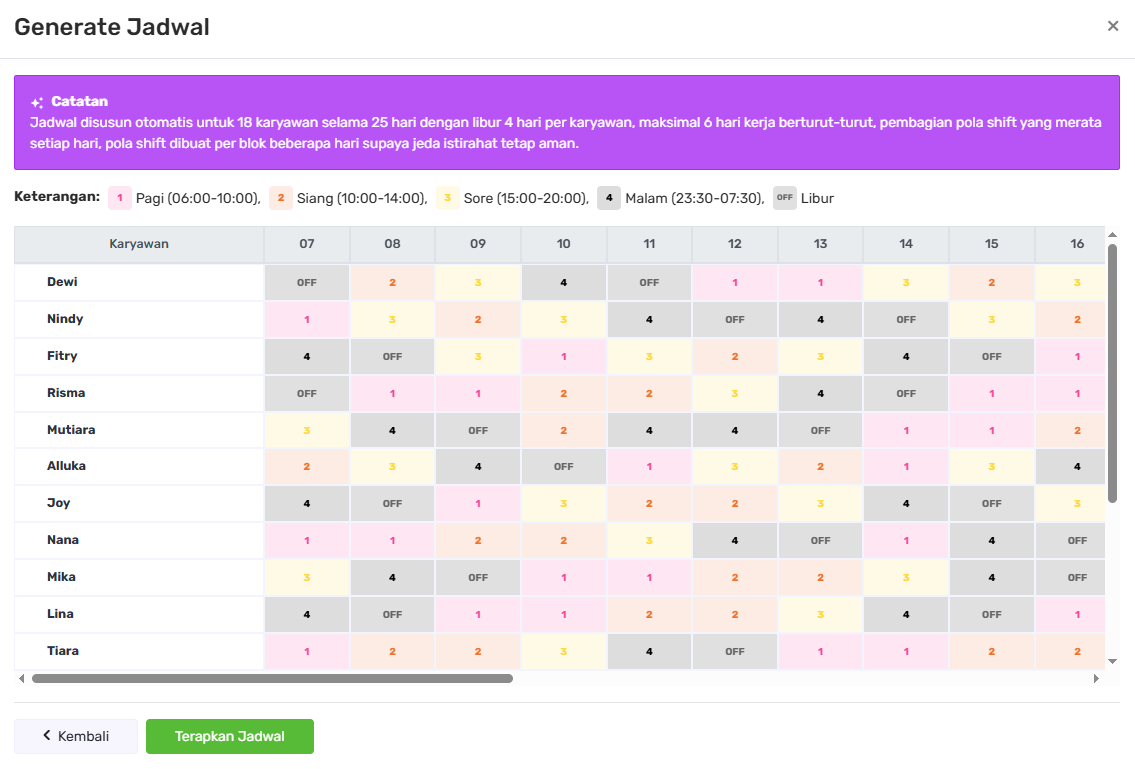
Example of Generated Schedule
The generated schedule displays the distribution of shifts and days off for employees throughout the selected period. The system aims to maintain a balanced schedule, including ensuring that employees do not work more than 6 consecutive days and taking sufficient rest time after a night shift into account.
2. Find Replacement
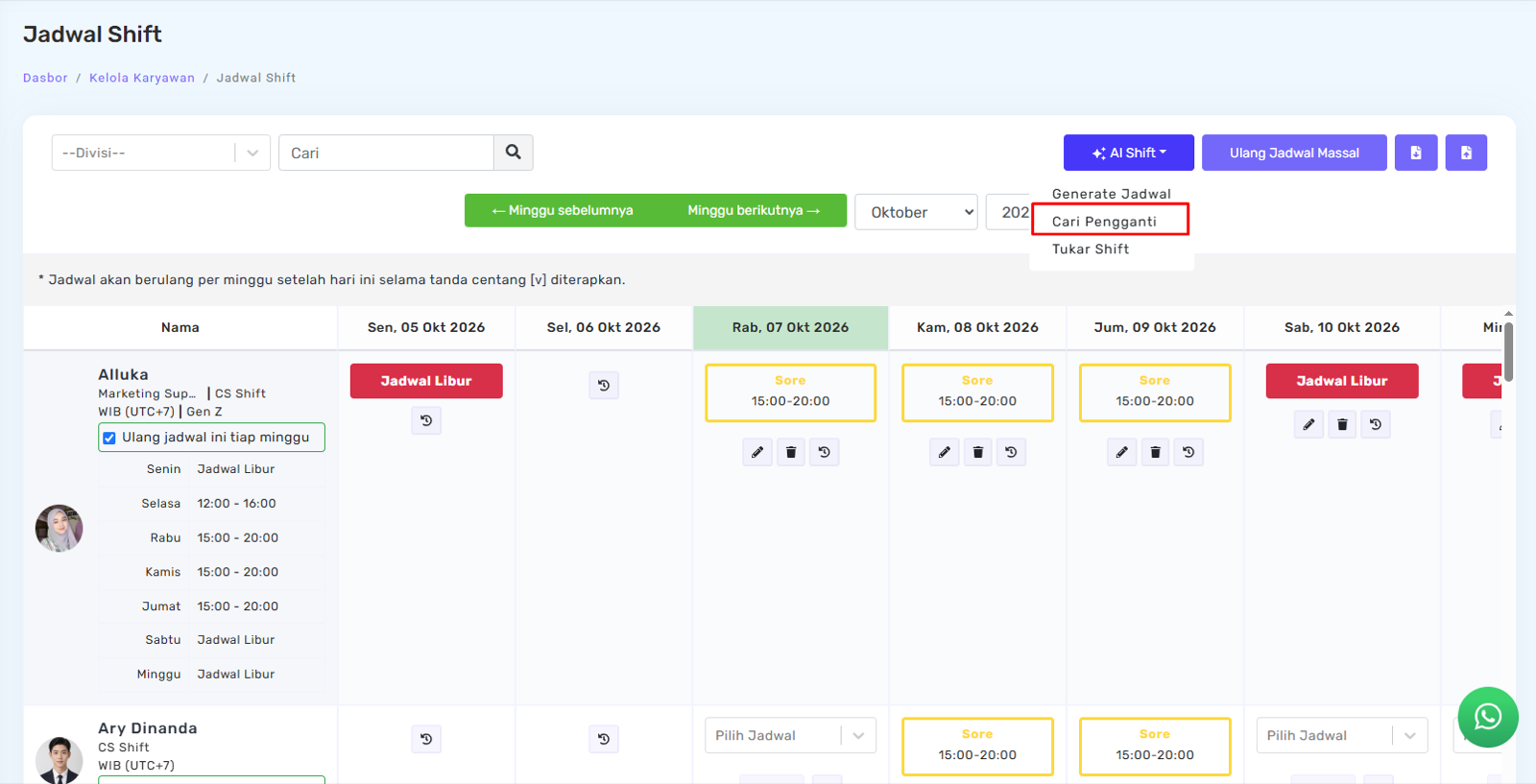
Use the Find Replacement feature when an employee is unable to work, for example due to illness or an unexpected situation. This feature helps you find a replacement candidate based on the employees' schedules and workload within the same division.
Steps:
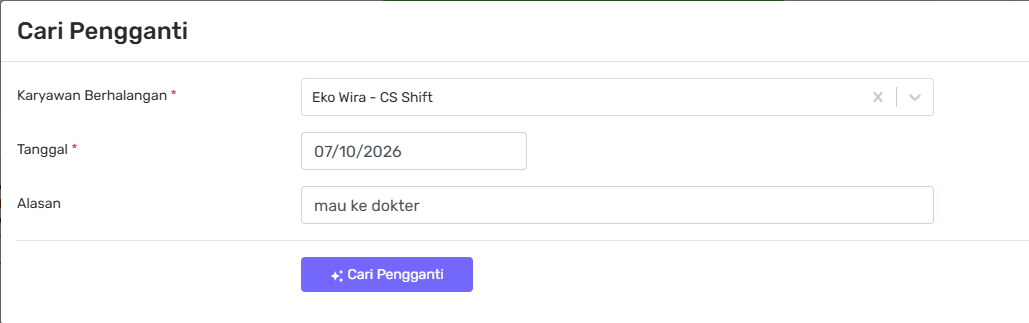
- Select the Employee who is unavailable.
- Select the Date for which you need a replacement.
- The earliest available date is today.
- The unavailable employee must already have a shift schedule on that date.
- Enter the Reason if needed, such as "Sick".
- Click Find Replacement. The system will display the shift that needs to be covered and a list of employees recommended as replacements.
- Select one of the candidates, then click Apply. After applying:
- The selected candidate will be scheduled to work the required shift.
- The unavailable employee's schedule will automatically be changed to Day Off on that date.
How recommendations are ranked
The system displays each candidate's status on the selected date, such as Day Off or their current shift, as well as the number of days they have worked during the current week.
Recommendations are ranked based on the following:
- Employees who are currently off on the selected date are prioritised.
- Next, the system prioritises employees with the fewest working days during the current week, helping distribute the workload more fairly.
For night shifts, employees who already have a work schedule the following morning will not be recommended because they would not have enough rest time. Their names may still appear in the notes along with the reason.
Tips for finding a replacement
- The recommendations provided by the system are suggestions. You can still select another candidate from the available list.
- If the recommended candidate is currently off, make sure the employee is willing to work before applying the replacement.
Example of Generated Replacement Recommendations
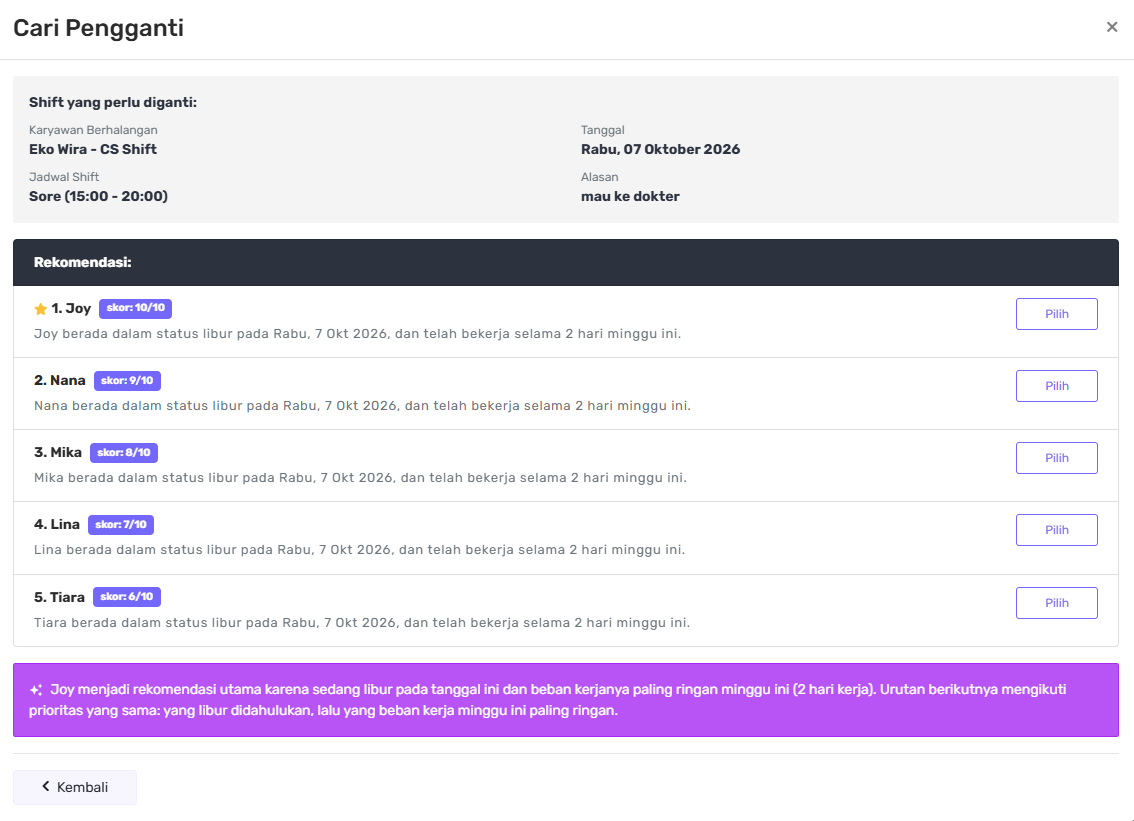
The search results display a list of replacement candidates along with the information used to generate the recommendations, allowing you to review the available options before applying a replacement.
3. Swap Shift
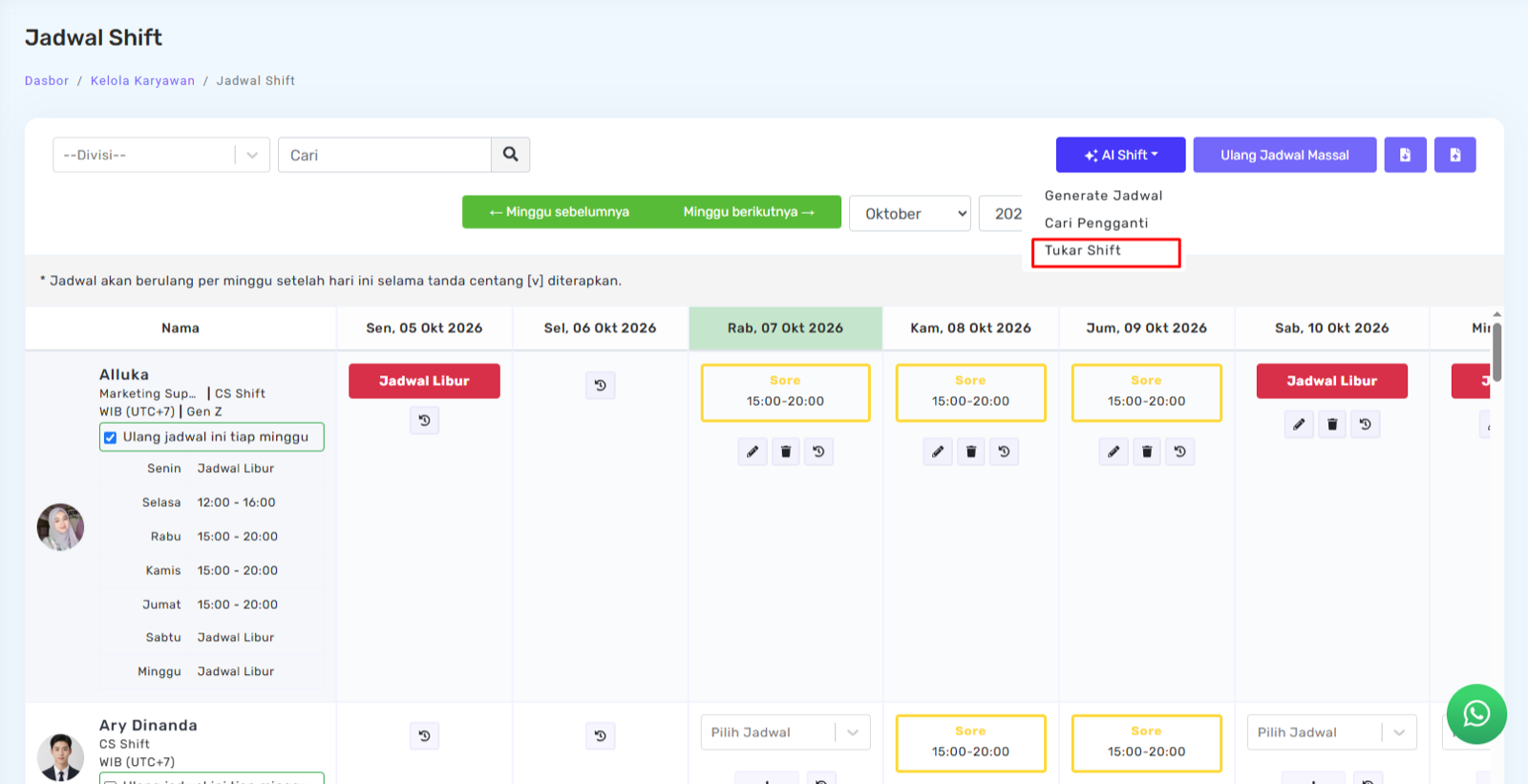
Use the Swap Shift feature when two employees want to exchange their shifts on the same date. This feature helps you check whether the swap is appropriate before submitting the request.
Steps:
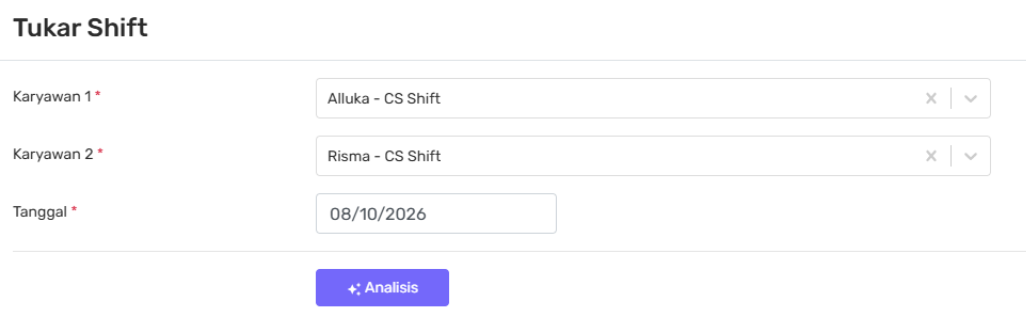
- Select Employee 1 and Employee 2.
- The two employees must be different.
- Both employees must already have a shift schedule on the selected date.
- Select the Swap Date. The earliest available date is today.
- Click Analyse. The system will display:
- Eligibility status — whether the swap is recommended or not recommended.
- Details for each employee — the previous day's schedule, current shift, new shift after the swap, following day's schedule, and rest periods before and after the swap.
- Warnings — if there are conditions that need attention.
- If you are sure about the swap, enter the Reason if needed.
- Click Submit Shift Swap. The request will be submitted with a Pending status and will follow the existing shift swap approval process.
Note:
The schedule will not change immediately. The new schedule will only be applied after the request is approved.
When is a shift swap not recommended?
A shift swap is not recommended if the swap would result in less than 10 hours of rest for either employee. For example, after the swap, an employee may finish a night shift and then be scheduled for a morning shift the following day.
The system calculates the rest period based directly on the shift start and end times, so the calculated rest period reflects the actual schedule. In addition to rest periods, AI may also provide other notes, such as information about the reasonableness of the workload.
AI Shift usage limits
AI Shift has a daily usage limit for each company.
- The minimum daily quota is 10 uses per day and may increase depending on the number of shift-based divisions.
- When the quota has been reached, the system will display the message "The daily AI Shift usage limit has been reached".
- The quota becomes available again on the following day.
Features that use the quota:
- Find Replacement
- Analyse Shift Swap
- Generate Schedule, when additional rules are added
Generating a schedule using only the standard rules does not use the AI quota. The following actions also do not use the quota:
- Applying a schedule
- Applying a replacement
- Submitting a shift swap request
Example of Generated Shift Swap
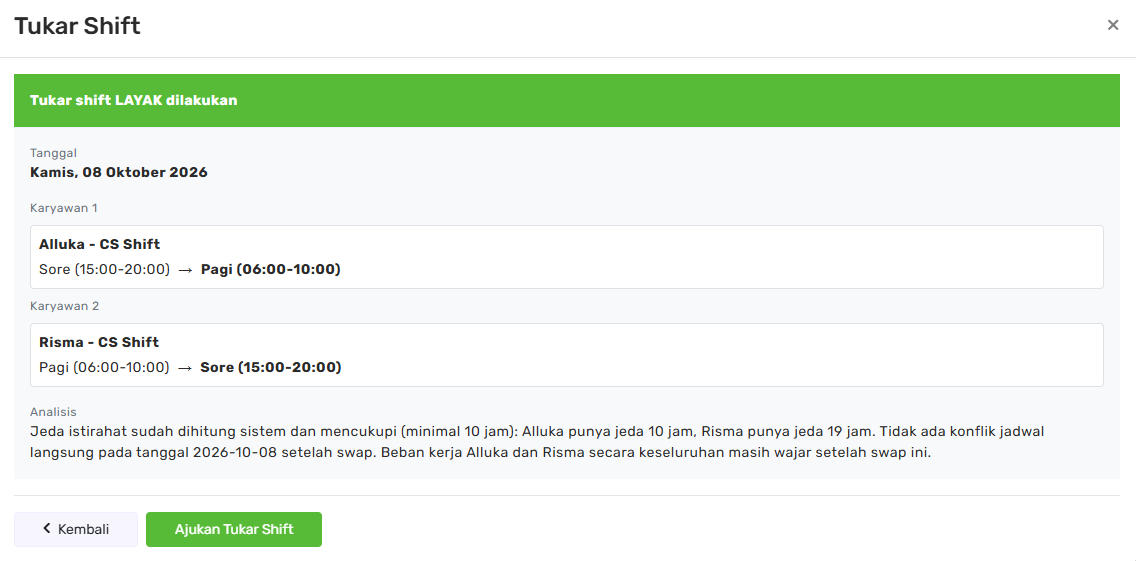
The analysis result will show whether the shift swap is eligible or not, along with details of both employees' schedules and the considerations used by the system. If the swap is considered eligible, you can proceed by clicking Submit Shift Swap.
Frequently asked questions
Does AI create the schedule?
No. The schedule is created using the system's scheduling algorithm, which ensures that the standard rules are always followed. AI is used to help understand additional rules written in everyday language and translate them into instructions that the system can use when generating the schedule.
Will my existing schedule be deleted after I apply the generated schedule?
No, as long as you do not enable the Overwrite Schedule option. If the option is not enabled, dates that already have schedules will be skipped, and the existing schedules will remain unchanged.
Why doesn't the number of days off match what I entered?
This may happen if the requested number of days off could cause an employee to work more than 6 consecutive days, or cannot be fulfilled based on the number of employees available.
In these situations, the system will adjust the schedule to maintain the required limits. The adjustment will be explained in the Warnings section.
Why are days off not evenly distributed with the rule "4 days off" for a 31-day period?
This is because "4 days off" means that each employee receives only 4 days off during the period, not that the number of employees taking a day off will be evenly distributed across every day.
For a 31-day period, the system must still ensure that employees do not work more than 6 consecutive days. As a result, days off may be concentrated on certain dates.
If you want days off to be distributed more evenly, use a more flexible number of days off or allow the system to use the standard rules.