Payroll Calculate
This menu is used to manage employee payroll, including basic salary, overtime pay, deductions, and bonuses.
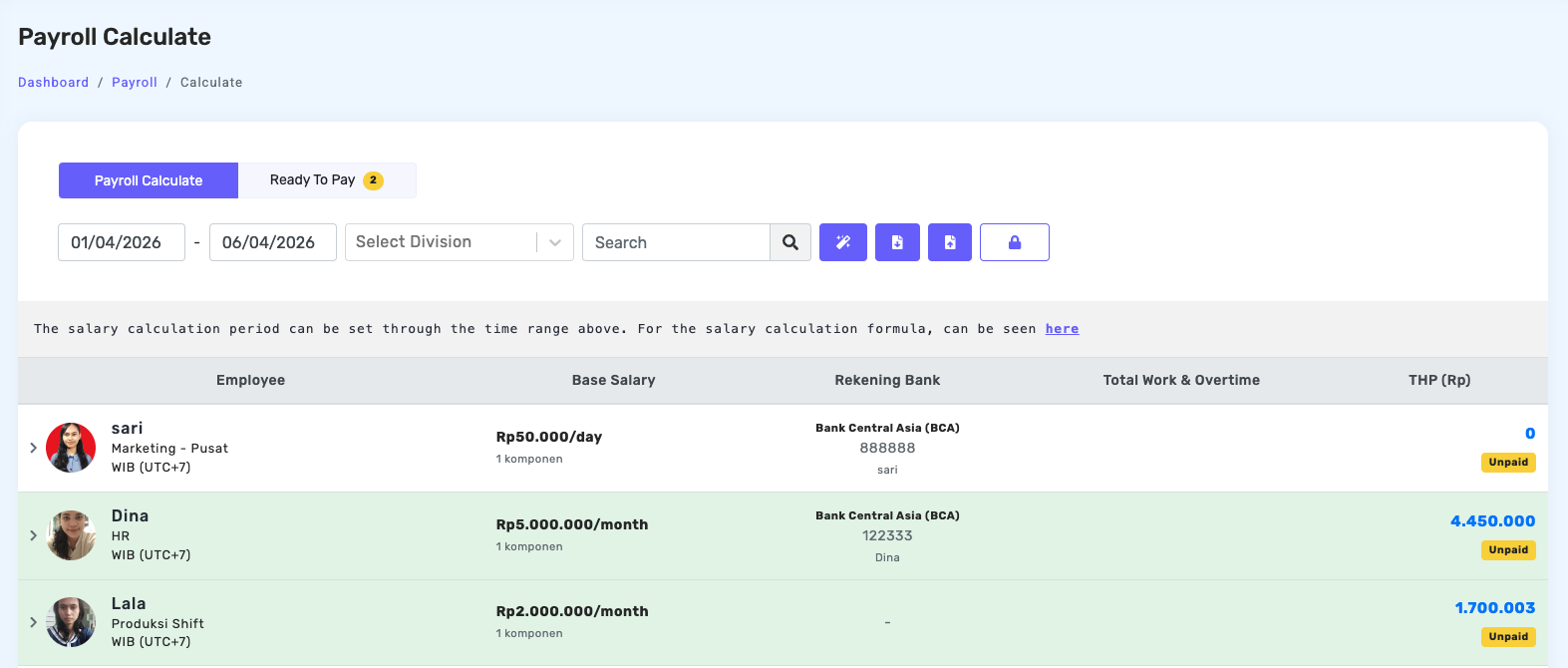
This menu is used to manage employee payroll, including basic salary, overtime pay, deductions, and bonuses. Attendance details for each payroll period are also displayed automatically.
Once the calculation is complete, click Mark as Ready to Pay to record the payment, and select Print to generate the employee payslip.
Additional features like Bulk Actions, Excel Import/Export, and Password Protection are available to simplify the payroll process and ensure data security.
Icon Description on the Payroll Calculate Menu
- Bulk Action
 — this feature helps you change some things related to the payroll calculation process at once or in specific divisions.
- Import Excel
 — this feature imports payroll data from Excel, including Base Salary, Deductions, and Bonuses. Make sure the imported Excel format is in accordance with the template.
- Export Excel
 — this feature can export employee salary data from the Kerjoo system in Excel.
- Page Password
 — usually used if there is more than one admin. It is used to minimize fraud and as a double protection so that not all admins can access this page.
Customize the Layout of the Payroll Slip
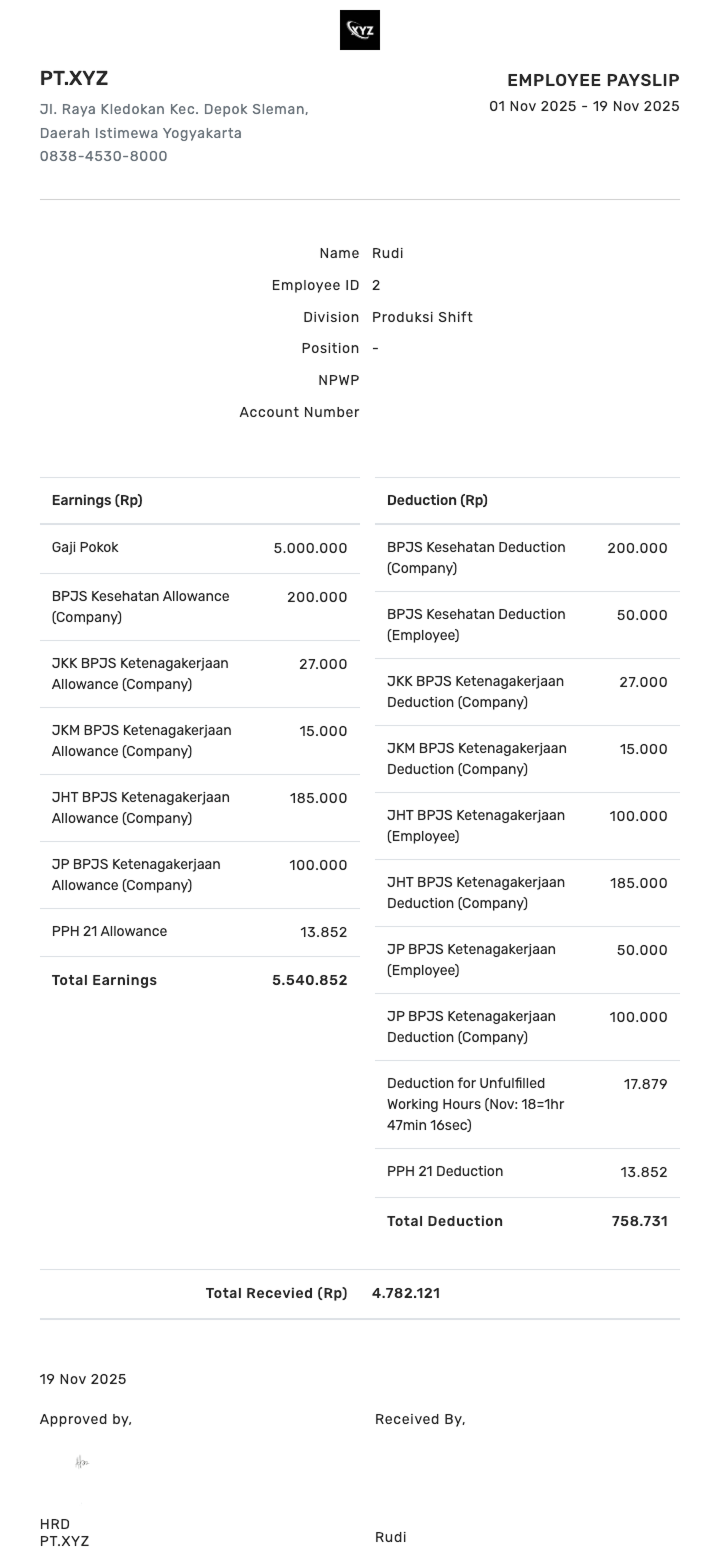
To customize the layout of the payroll slip, you can click the Print menu on one of the employee's salary calculations. This admin panel will direct you to the payroll slip page. Click the pencil icon to change and customize the payroll slip format according to your company's needs.
You can upload the approval signature for the payslip on the following page. Make sure to click Save after filling in the payslip data. The format will then be automatically applied to the payslips of all employees.
Payroll slip interface:
Payroll Calculation Settings
Used to configure salary policies for each employee with several salary types: monthly, per attendance, and hourly.

-
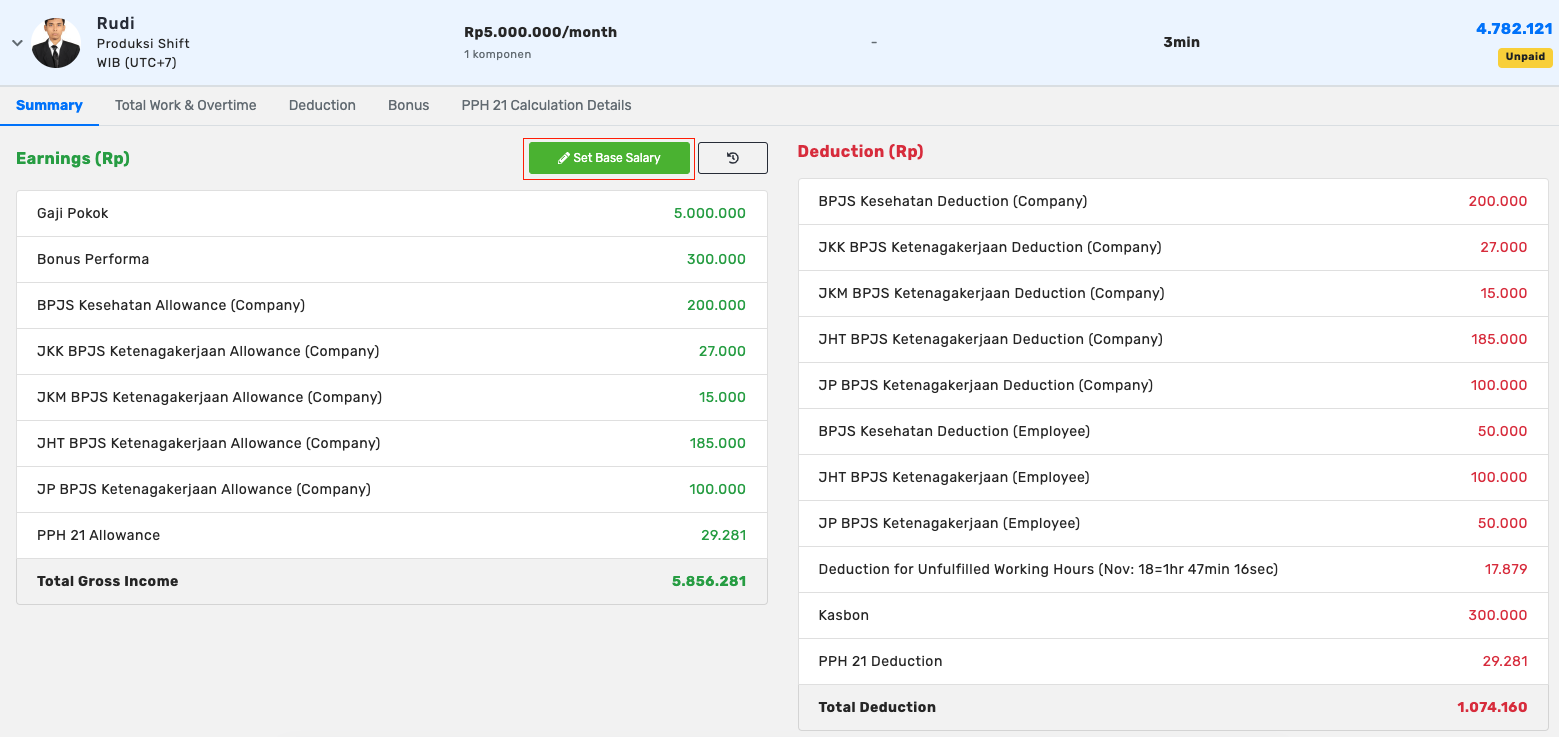
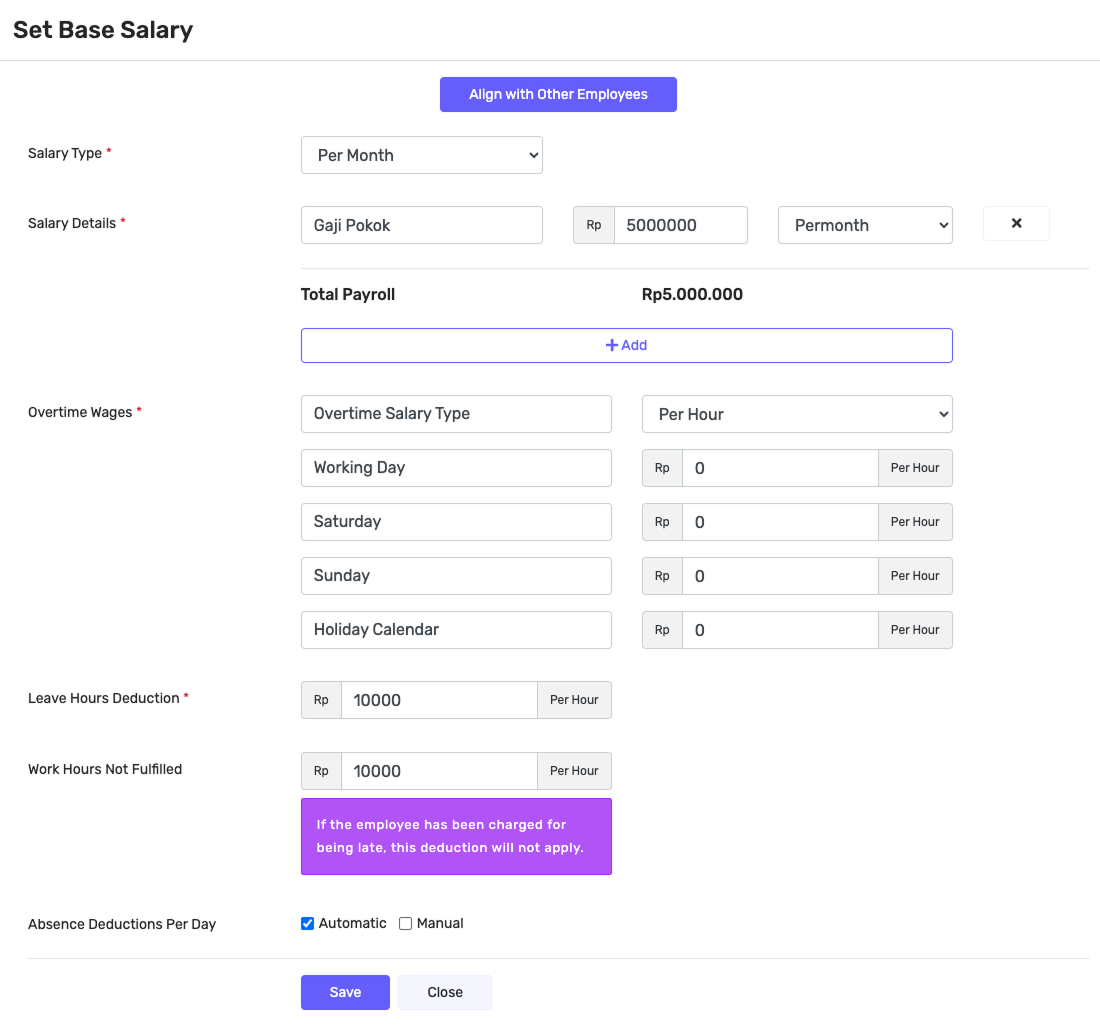
Summary — in the Summary section, the BPJS Allowance paid by the company will be displayed. In this section, the company can also set the Basic Salary, including selecting the Salary Type (hourly, daily, or monthly). In addition, settings are available for Salary Details, Overtime Pay, Leave/Hour Deductions, Unfulfilled Working Hours Deductions, and options to determine whether daily deductions are calculated automatically or manually.
-
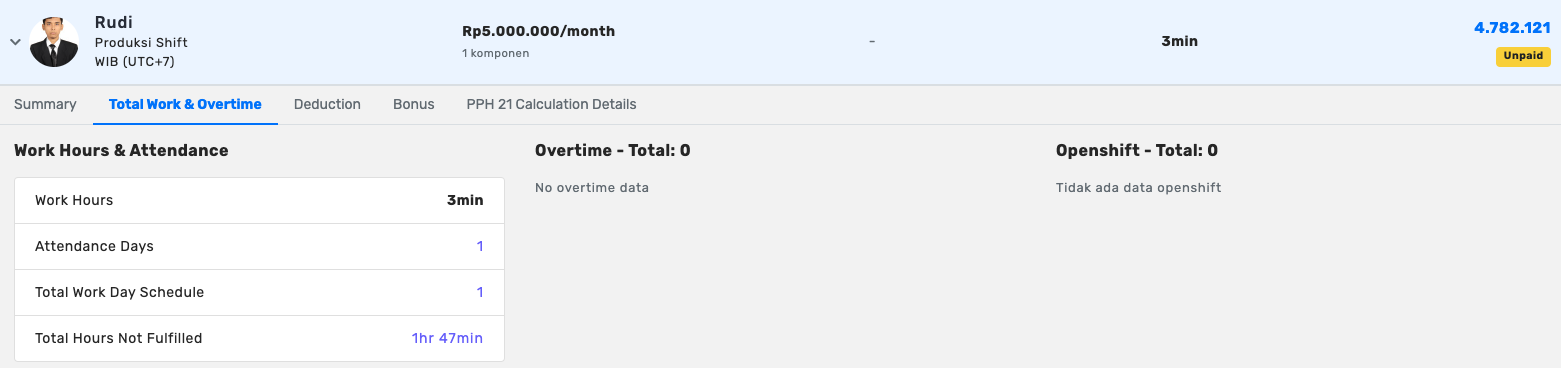
Total Working Hours & Overtime — this section displays the employee's total working hours and attendance, as well as the accumulated overtime or open-shift hours recorded during the payroll period.
-
Deductions — this section displays the employee's total deductions, which consist of automatic deductions based on company policies and manual deductions that can be added as needed.

-
Bonus — this section displays the employee's total bonuses and allows the company to add, modify, or remove bonuses manually in accordance with applicable policies.

-
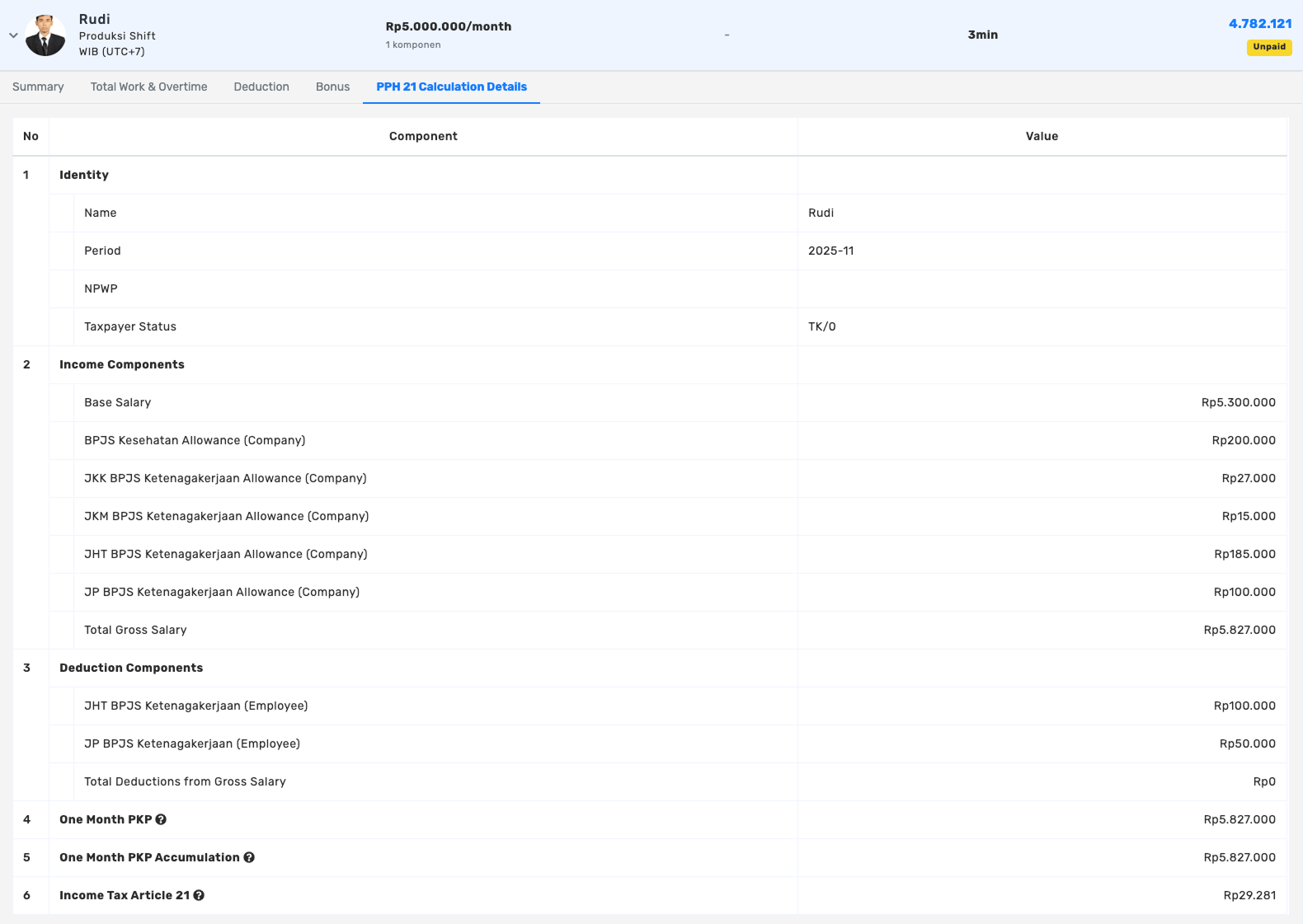
PPh 21 Tax Calculation Details — this section explains how the salary and allowances are calculated, reduced by mandatory deductions, and then used to determine the amount of PPh 21 tax the employee must pay for that period. Make sure the data in Employee Data > Payroll > PPh 21 is complete so the system can calculate it automatically in the PPh 21 Calculation menu.
-
Print — the Print button will display the employee's payslip when clicked.

-
Mark as Ready to Pay — at this stage, the administrator must ensure that all salary components are correct. If the data is correct, the administrator must first mark the employee as Ready to Pay by clicking Mark as Ready to Pay. Data marked as Ready to Pay will be transferred to and appear in the Ready to Pay tab to be processed for payment.

Ready to Pay Tab
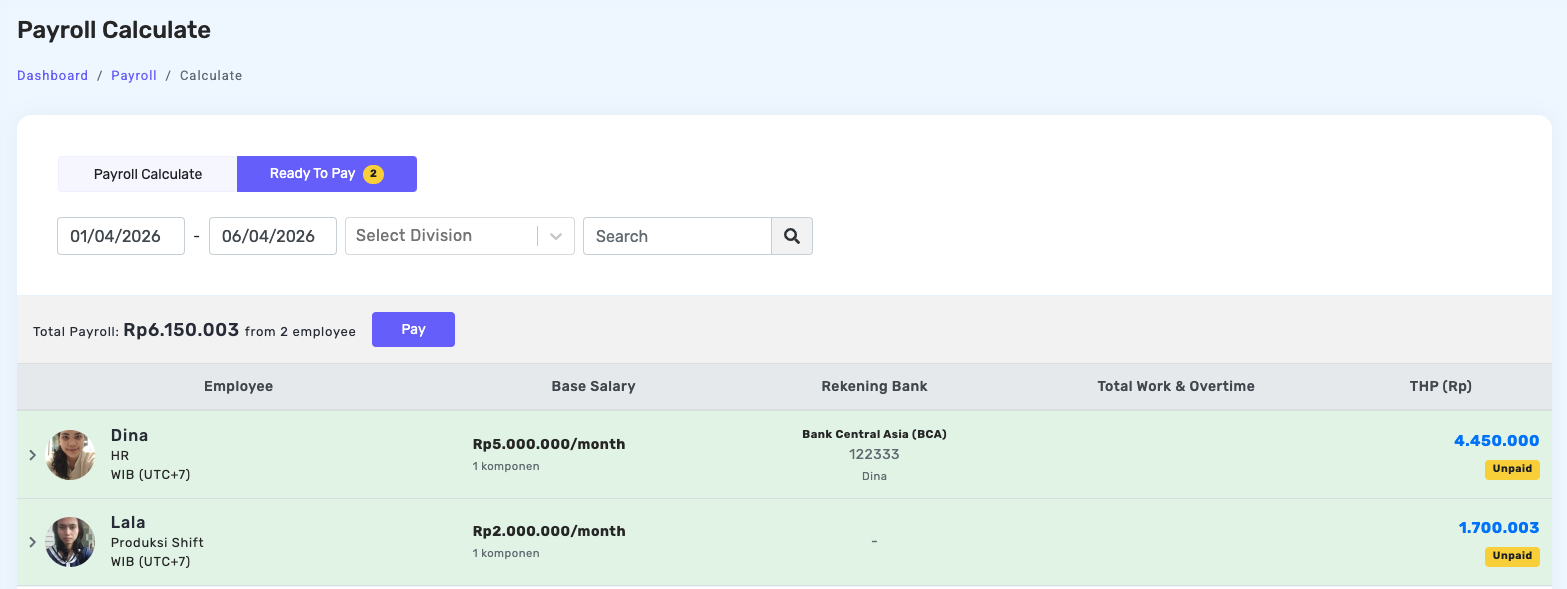
The Ready to Pay tab is used to display a list of employees whose payroll calculations have been completed and are ready to proceed to the payment stage.
Here, admins can view:
- The number of employees ready to be paid
- A summary of finalized payroll data
Data can be filtered by:
- Division
- Employee name
- All displayed data
After ensuring all data is correct, users can click the Pay button to proceed. The system will display a payment confirmation page, where users can review payroll details and verify the payment amount before processing.
This page serves as the final verification step to ensure payments are accurate and aligned with the calculated data.