Approval Rules
The multi level approval rules feature authorizes supervisors to check and approve requests for annual leave, special leave, and days off.
How to Use the Approval Feature (Approval Rules)
If the company wants to use the approval rules or multi level approval, it can be accessed by:
Click Approval Rules
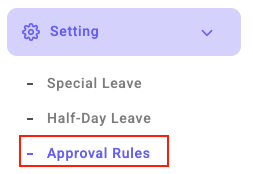
- Make sure you have logged in to the company admin portal
- Click Settings
- Choose Approval Rules
Add Approval Rules
Next, the admin can create an approval flow rule by clicking Add Approval Rules. 
Advanced Description:
- Approval Rules Name
Create a leave approval rules name, e.g., 'Leave Approval.'
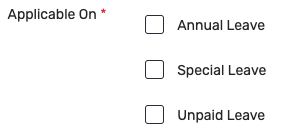
- Applicable On
The admin can apply each approval rule to any or all available features, such as annual leave, special leave, unpaid leave, or overtime schedules.
- Applicable To
This rule applies to specific positions, divisions, or employees. The admin can choose only one of them.
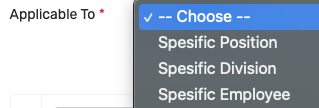
Specific Position
If the admin chooses a specific position, other previously set positions will appear. The admin can input one or more positions.Specific Division
If the option is a specific division, the options that appear are divisions in the company. Admin can input one or more divisions.Specific Employee
If the option is a specific employee, the options that appear are the names of employees in the company. Admin can input one or more employees.
- Approval Rules
This approval flow section adjusts to the company's needs. For example, the admin can freely set who wants to be the first-level Approver.
For instance,
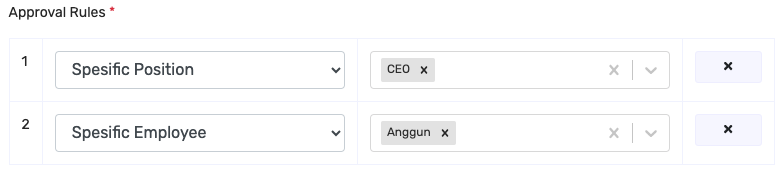
Click Add to add the next level approver. 
- Maximum Approval Due Days
The admin can choose one or skip this step.
Before or equal to D-day: The Approver can respond to employee requests before or equal to the leave or permission date.
Max. Day H+: The Approver can respond to employee requests after the leave date according to the day input.

- Save

Click Save if the approval rules have been created.
After successfully saving the approval flow rule, it will display the names of those who will be the first, second, and so on level reviewers or approvers.
Leave Request with Approval Rules
- The employee requested annual leave.
This time, an employee applies for annual leave with a multilevel approval process.
- Approval Process
Next, on the leave menu in the approval status, the approver levels 1, 2, and 3 will be listed along with the employee's name.
The display on the web admin is as follows.
a. Login as a level approver
As in the example above, at Approval Level 1 there is a Reviewer: Employee Division Supervisor (Mutiara). The first mobile approver will receive a request notification. Tap the request, and the following screen will appear.

The Approver can click agree or reject on this request. Click the agree button if you agree to this request. Notes are optional.
In the mobile application, it can be seen in the Approval Flow, which is located above the menu.
If the level 1 approver has approved, the employee's name will have a green label and a blue check icon.

On the admin web page, the approval status display at the first level will appear with a green label like this. It will show who approved it and the date.

b. Login as a second-level approver
Next is an IT Supervisor (SPV Nanda / Amilia / Sullifan / Mutiara / Meila) at Level 2 Approval.
If several employees are in 1 position, then only one person can approve or reject the request.
c. Login as a third-level approver
HRD (HR Elfariska) is at the third approval level.
- Rejected Process
When the reason for the employee's leave does not meet the requirements, the leave request can be rejected. The Process of rejecting leave starts with the first Approver.
Login as a level approver
a. After the employee submits a leave request, log in as the first-level Approver (SPV Employee Division - Mutiara).
b. In the mobile application, a notification of an employee's leave request will appear. Click on the request.
c. Click Decline on the request, while notes are optional.
d. The mobile application approval rules display is as follows.
e. The approval status displayed on the web admin is as follows.
If a paid leave request is rejected, it does not have to go through all three approvers. If the first-level Approver has rejected the employee's request, the approval process can no longer continue, and the leave request is automatically rejected.
Conclusion
This is an explanation of the Approval Rules Feature (Multilevel Approval), which authorizes employees with certain positions to check and approve specific requests made by employees.
With the Multilevel Approval Feature, the leave approval flow is more structured. This feature applies to the annual leave, special leave, and unpaid leave features.