Paid Leave
How to request full-day, half-day, and special paid leave in the Kerjoo app, and how to track your remaining quota and request status.
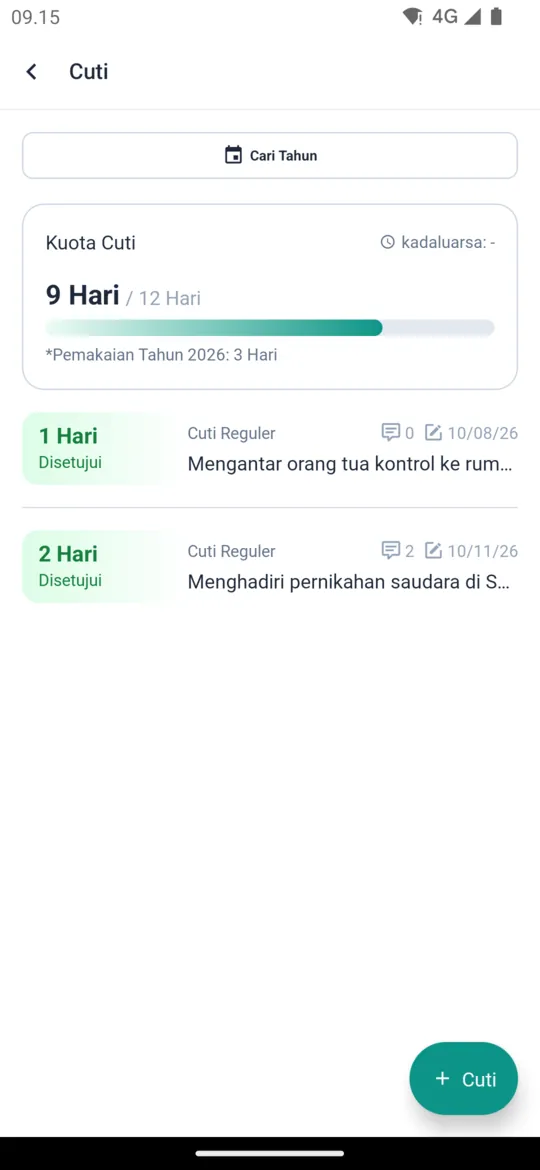
The Paid Leave menu on Home shows your Paid Leave Quota, how much you have used, when the quota expires, and your request history. The leave types you can request depend on your company's settings.
Requesting Paid Leave
Open Paid Leave
On Home, tap the Paid Leave menu. Check your remaining quota on the Paid Leave Quota card at the top.
Create a new request
Tap the + Paid Leave button at the bottom right. The button only appears if you still have a valid leave quota or your company has enabled special leave.
Choose the leave type
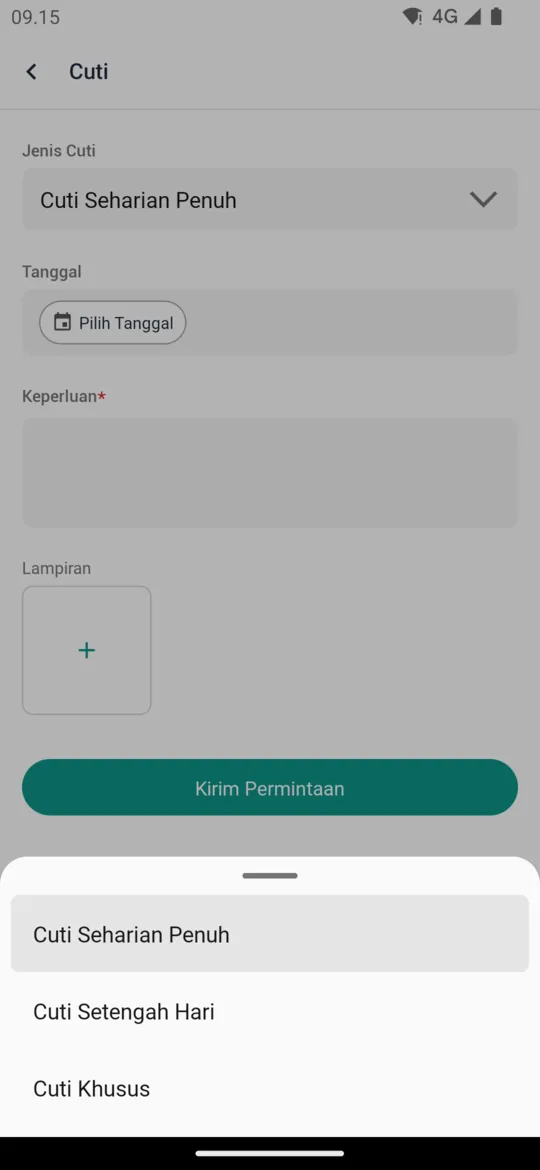
Tap the Annual Leave Type field, then choose one of the available types:
- Full Day Off: tap Select Dates and choose one or more dates.
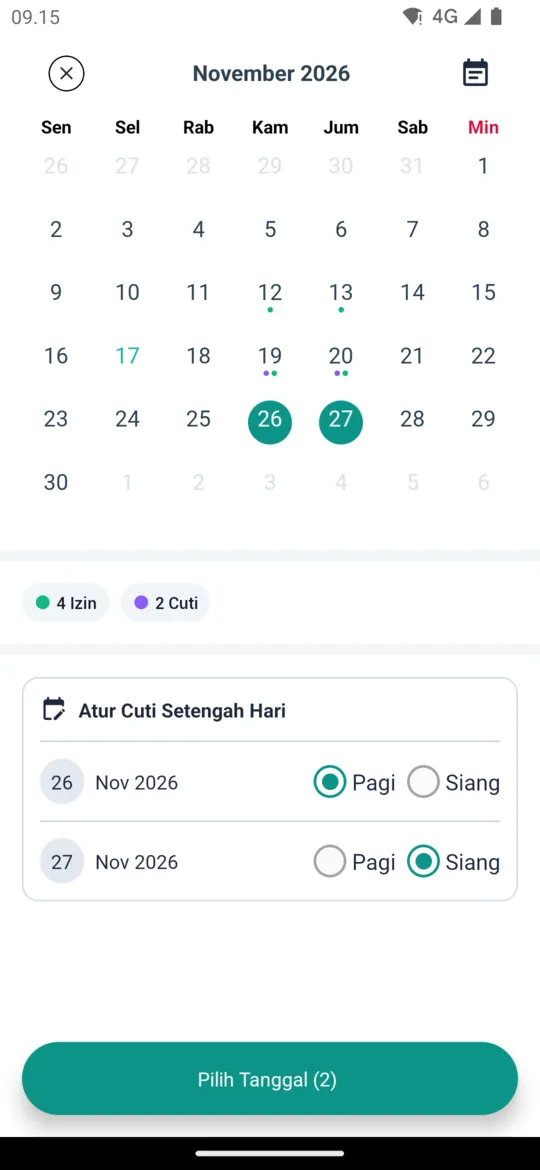
- Half Day Leave: tap Select Dates, choose the dates, then under Set Half Day Annual Leave set each date to Morning or Afternoon.
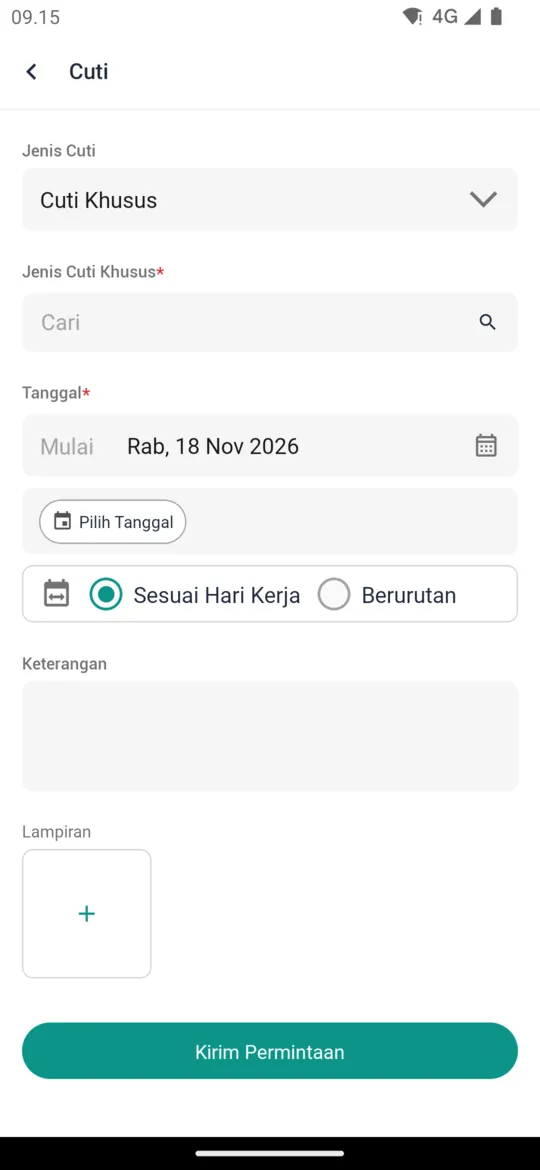
- Special Paid Leave: choose a Special Leave Type provided by your company, set the start date with Select Dates, then choose how the leave days are counted: Due to Working Days or Squential (consecutive days).
Add the details
Write the Necessity (or Description for special leave) and add Attachments if needed, such as a doctor's note or an invitation. You can attach up to 5 files.
Send the request
Tap Send Request. The request stays In Review until your supervisor or admin processes it.
Tracking and Cancelling Requests
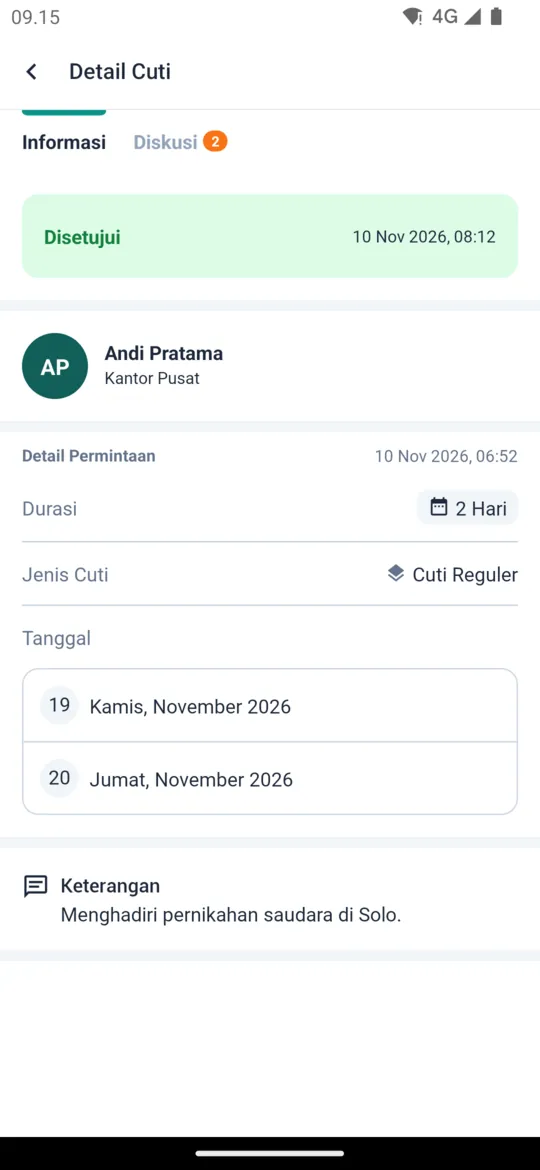
- Tap a request in the Paid Leave menu to open its details. The Information tab shows the status, duration, leave type, dates, and description, plus the approval flow if your company uses multi-level approval.
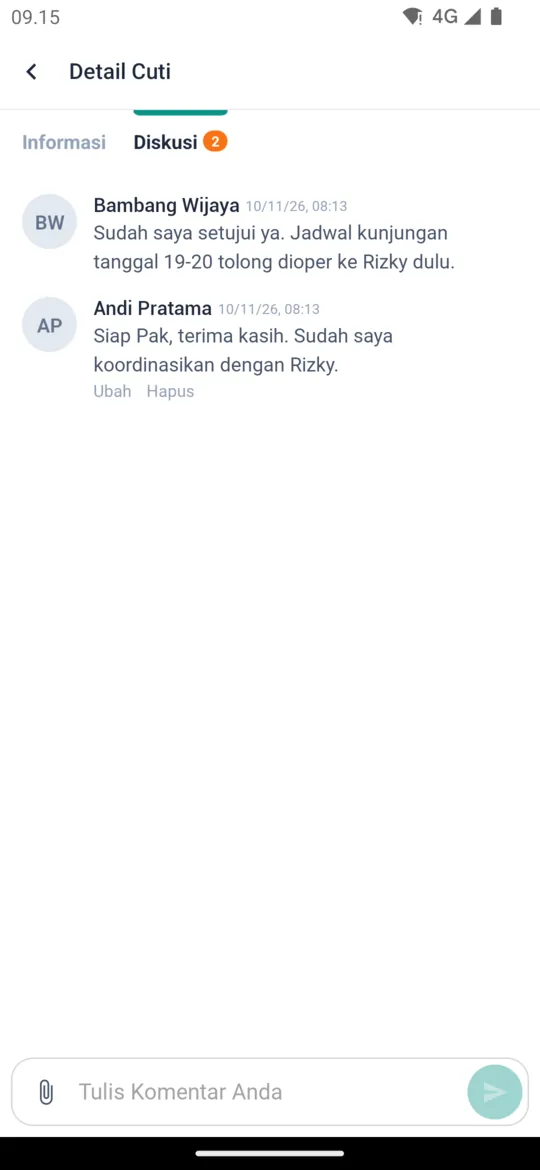
- The Discussion tab lets you talk with the reviewer. Type your message in the Write your comment field.
- The result is sent as a notification and recorded in the Message tab. When leave is approved, your quota decreases by the number of days taken.
- While a request is still In Review, you can cancel it: open the request, tap Cancel, fill in the Cancellation Reason, and confirm.
For admins:
Quotas, special leave, and half-day leave are set in Paid Leave Settings. Requests are processed in Leave Request, or with multi-level approval through Approval Rules.