Settings
The Settings menu is used to manage the company's leave policies.
The Settings menu is used to manage the company's leave policies. On this page, admins or HR personnel can define leave quotas, set leave application rules, and configure special leave types that apply within the company.
This menu can be accessed through

Within this menu, there are four main options:
- Annual Leave Quota
- Division
- Special Leave
- Half-Day Leave
Annual Leave Quota
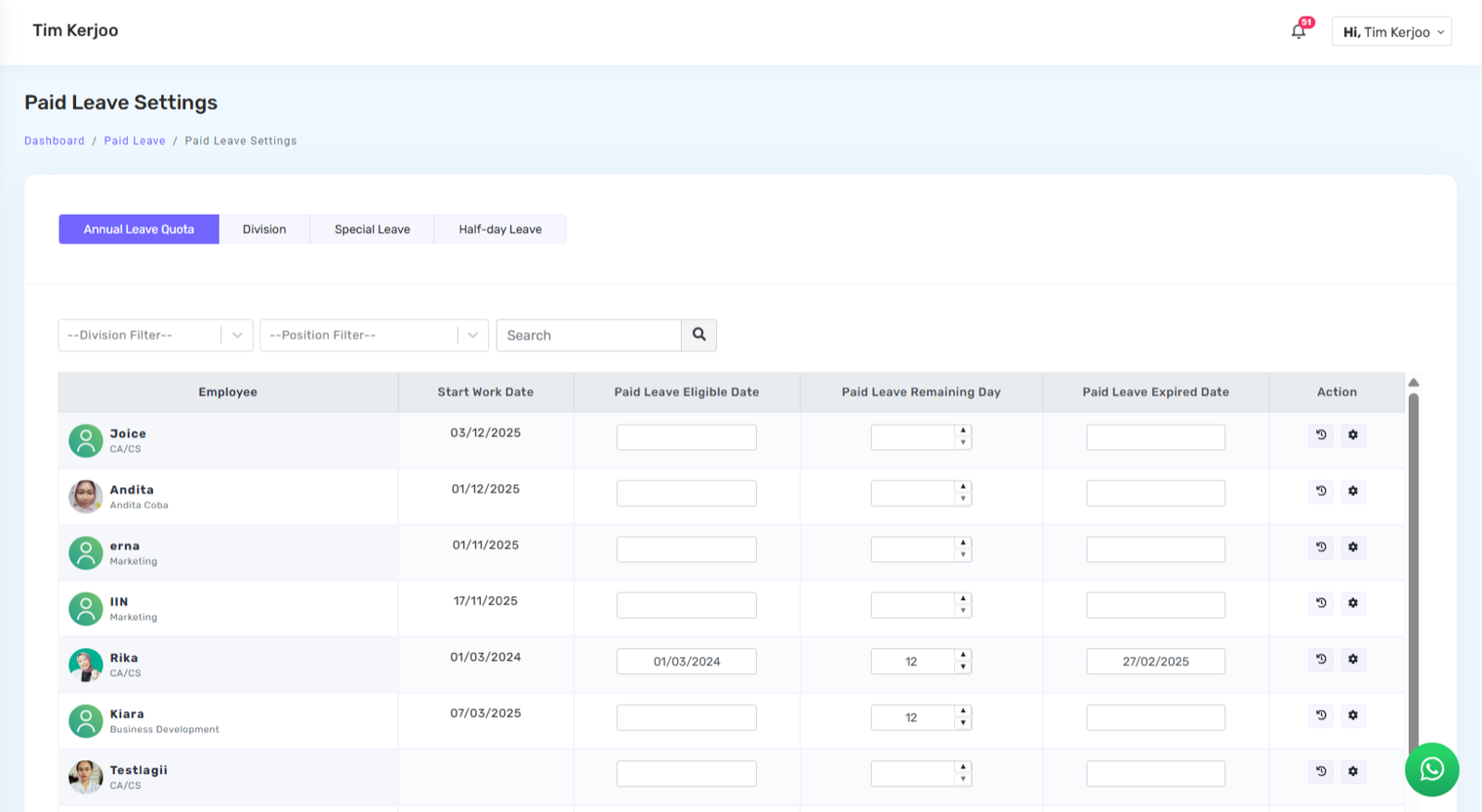
This menu is used to manage the annual leave entitlement of each employee individually.
- Leave Entitlement Start Date — determines when the employee begins to receive their leave entitlement. This usually follows a certain length of employment according to the company's policy.
- Remaining Leave — shows the number of remaining annual leave days an employee has. This number can be adjusted if there are manual additions or deductions.
- Leave Expiration Date — determines the end date of the leave period. If the company applies an expiration policy for unused leave within a certain period, this date becomes important.
- Leave Transaction History — the history icon can be used to view detailed records of an employee's leave usage.
- Filters & Search — division filters, position filters, and a search field are available to make it easier to find employee data.
Division
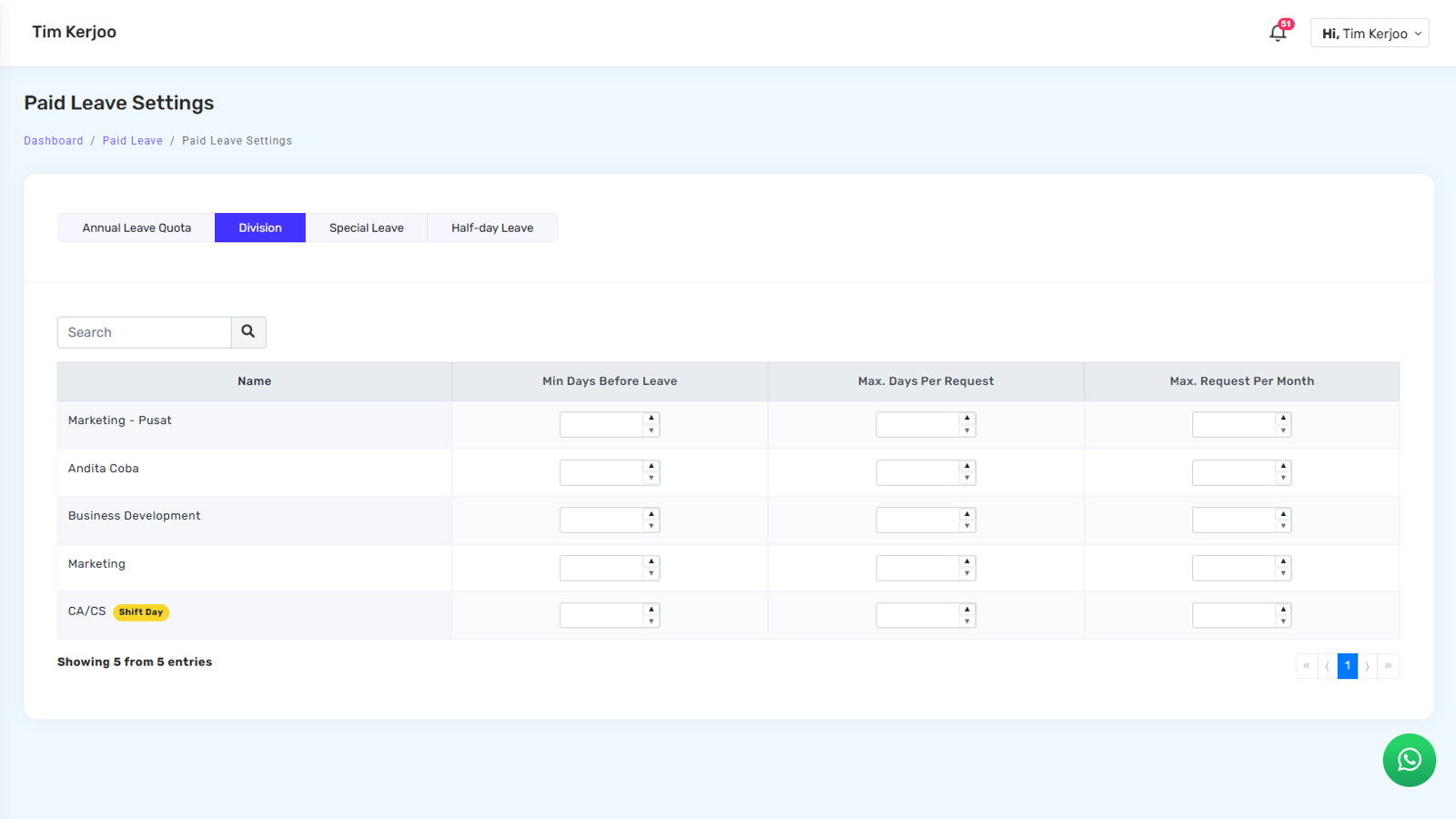
This menu is used to manage leave policies based on division or department. This means each division can have different leave rules if needed.
Available columns
- Minimum Days Before Leave — determines how many days in advance employees must submit a leave request. For example, if it is set to 3, employees must submit their leave request at least 3 days before the leave date.
- Maximum Days per Request — determines the maximum number of leave days that can be requested in a single submission.
- Maximum Requests per Month — determines how many times employees in that division are allowed to submit leave requests within one month.
Special Leave
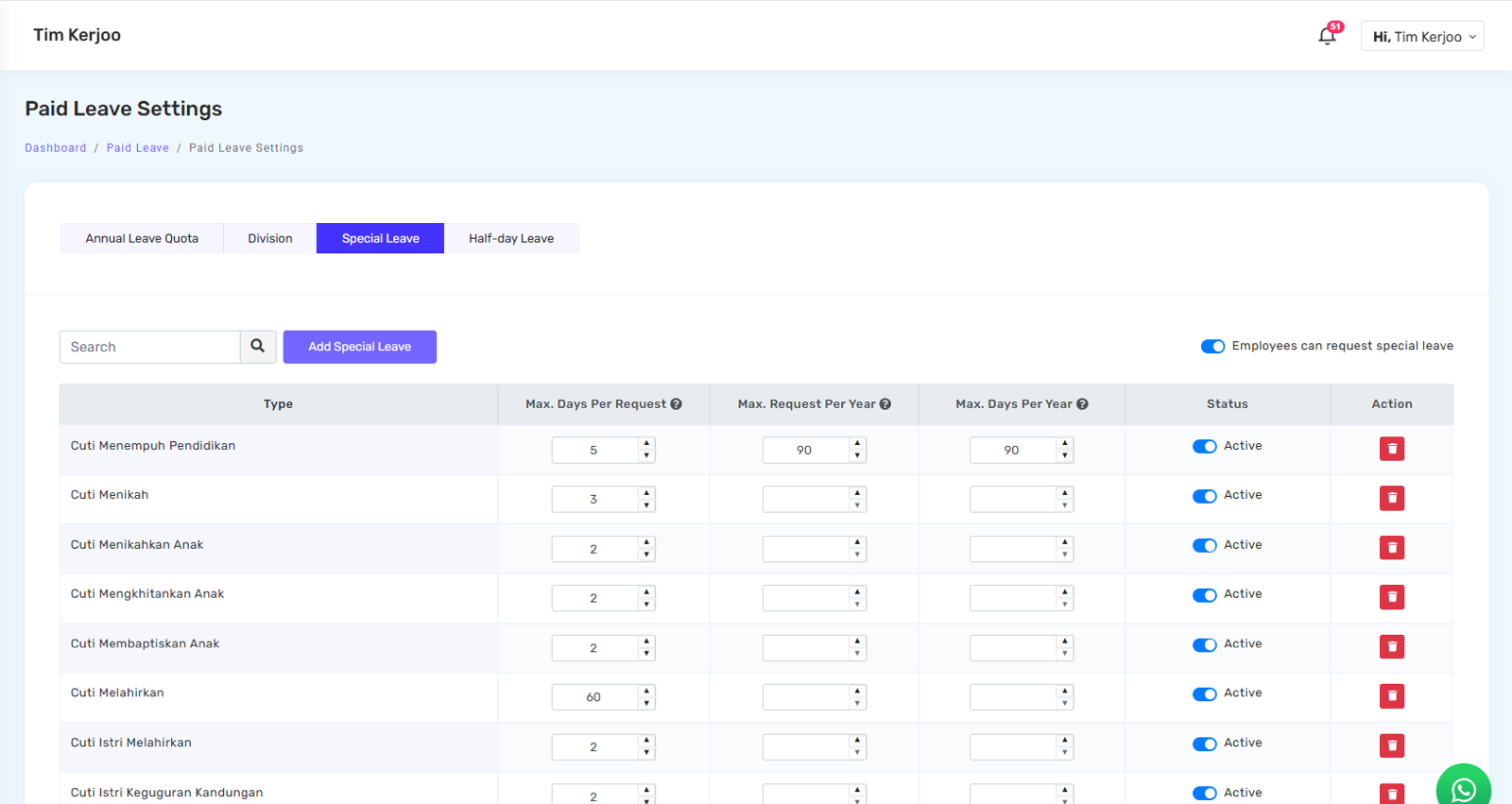
This menu is used to manage leave types outside of annual leave, such as:
- Marriage leave
- Maternity leave
- Bereavement leave
- Educational leave
- And other leave types based on company policies
Available features
-
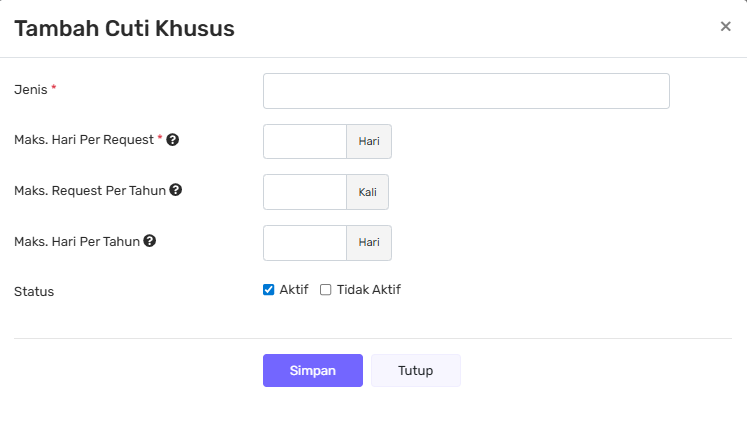
Add Special Leave
 — admins can add new leave types according to the company's needs.
-
Maximum Days per Request — determines the maximum number of leave days allowed in a single request.
-
Maximum Requests per Year — determines how many times this type of leave can be requested within a year.
-
Maximum Days per Year — determines the total maximum number of leave days allowed for this leave type within a year.
-
Active / Inactive Status — used to enable or disable a specific leave type.
-
Toggle "Employees Can Request Special Leave" — if this option is enabled, employees will be able to select special leave when submitting a leave request.

Half-Day Leave
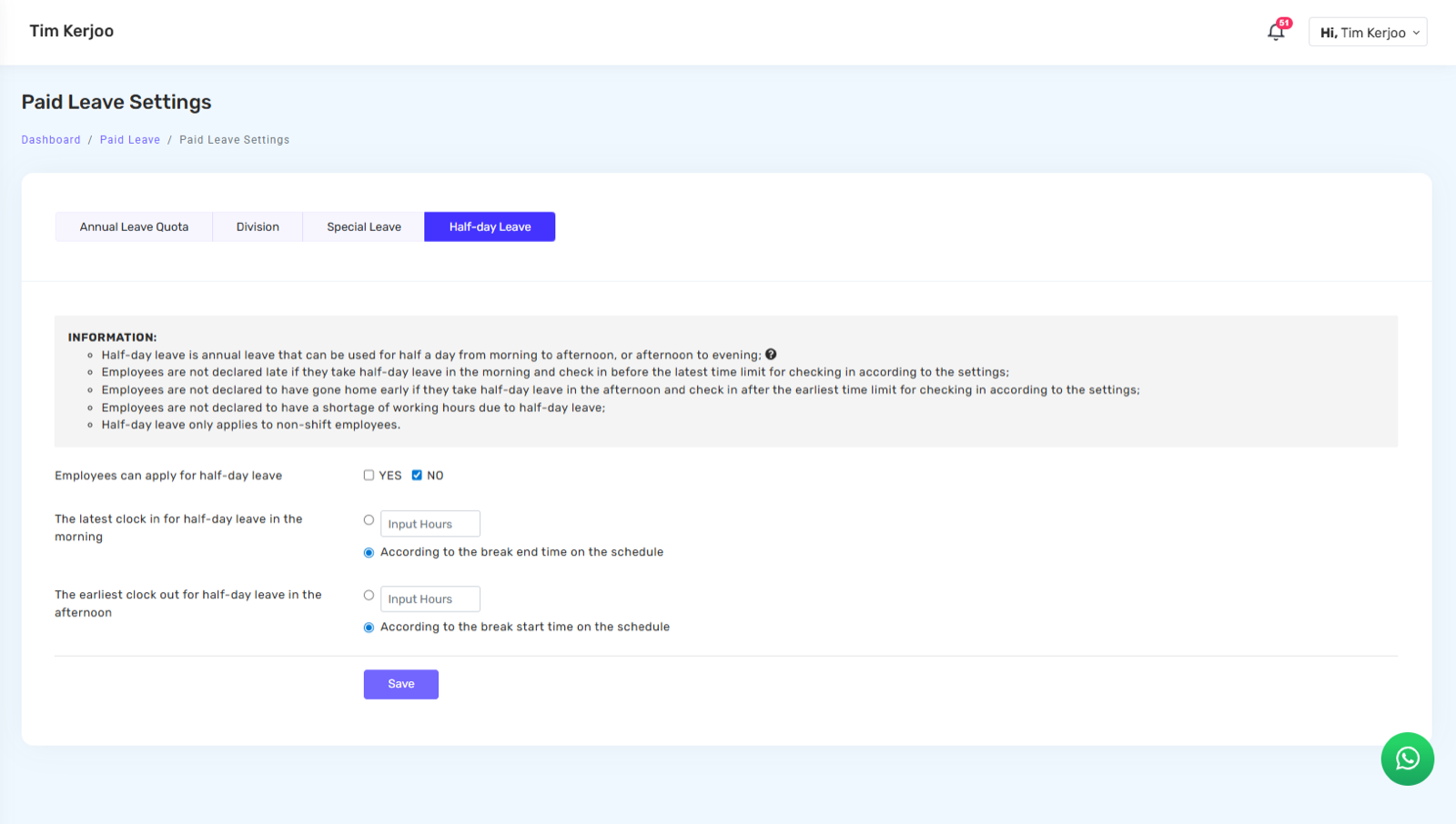
This tab is used to manage the Half-Day Leave policy. It is typically used when a company allows employees to take leave for only half of a working day.
What can be set
- Whether the Half-Day Leave feature is enabled or disabled
- Leave request rules (if available in the system)
This feature helps provide flexibility for employees, allowing them to take time off without needing to use a full day of leave.
Admin has two options for managing the attendance of employees taking half-day leave:
- Manual, by inputting:
- Attendance In for half-day morning leave
- Check-out for half-day leave in the afternoon
- Automatic (using break time)
For convenience, admins can use the break time in the work schedule as the midpoint of the day. With this setting, the system automatically splits half-day leave based on the configured break time.
Full guide:
A complete explanation of half-day leave, including case examples and the effect of break time, is available on the Half-Day Leave page.