Company
1. Profile
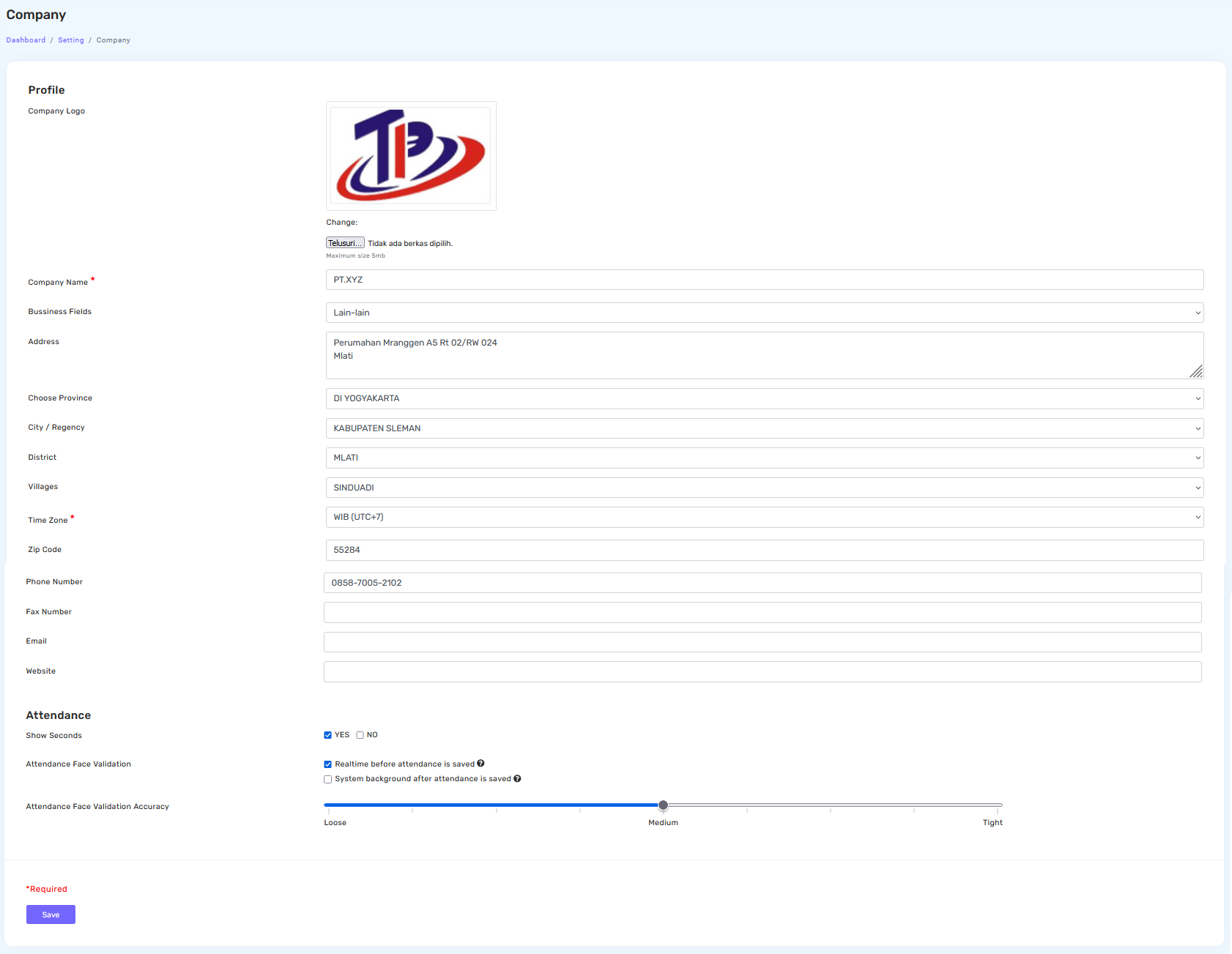
Used to set or change company data related to the company name, logo, and address.
Fill in the data as needed.
2. Attendance
Used to employee attendance settings, include show seconds on the attendance times, recognition validation, and accuracy level. The admin also can adjust settings to ensure the attendance process aligns with company needs.
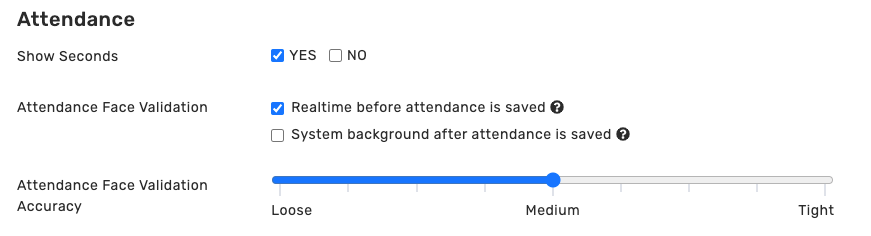
Show Seconds
Choose YES to display seconds in the attendance times. Choose NO if you don't want to display seconds.
Attendance Face Validation
- Check Realtime before attendance is saved to make sure that face verification is performed before the attendance is recorded.
- Check System background after attendance is saved if you prefer the system to verify the face in the background after the attendance is recorded.
Attendance Face Validation Accuracy
Adjust the face recognition accuracy level as needed:
- Loose: Flexible verification
- Medium: Standard system validation
- Tight: Higher accuracy and more sensitive to differences face
3. Click the Save button to apply and save all changes. 
Additional Notes:
If the employee fails to clock in because the profile photo doesn’t match, the system will automatically send a notification email so the employee can update the profile photo.