Schedule & Shift Swap
How to check your work and overtime schedules in the Kerjoo app, request overtime, and swap shifts with a coworker.
The Schedule tab contains the Work Schedule, Overtime Schedule, and Open Shift tabs. Which tabs appear depends on the features your company uses.
Work Schedule
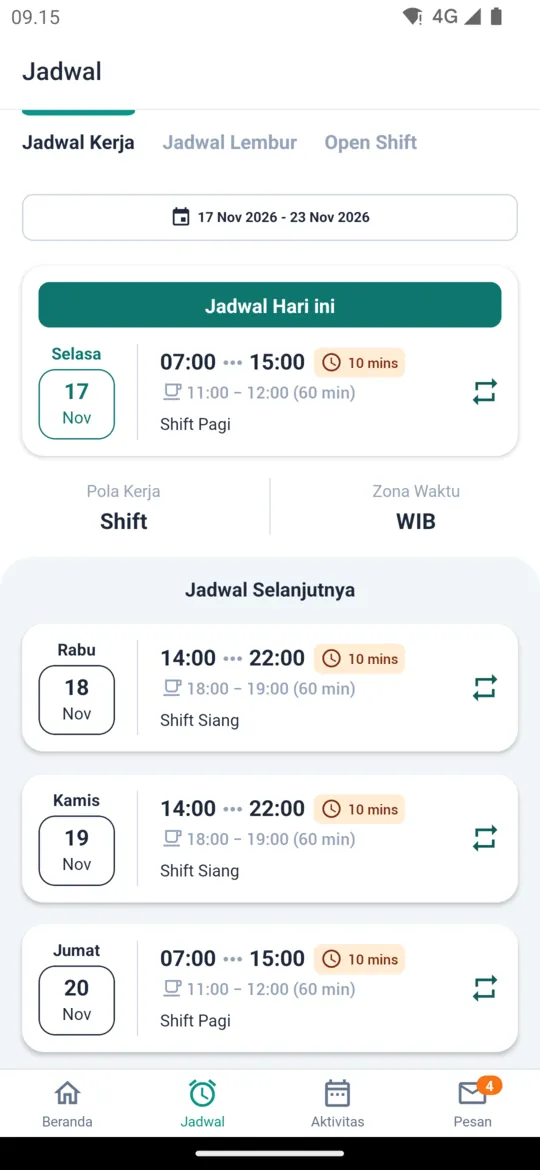
The Work Schedule tab shows Today Schedule, Next Schedule, your work pattern, and your timezone. Schedules are created by admins in Workday Schedule or Shift Schedule.
Overtime Schedule
The Overtime Schedule tab shows your overtime schedule. If your company allows it, you can request overtime with the + Overtime button: fill in the Date Start, Start Time, Date End, End Time, and Description, then tap Send Request. For clocking in during overtime, see Attendance > Overtime.
Shift Swap
Employees in shift divisions can swap a shift with a coworker on the same date, if the admin has enabled Allow employees to exchange shifts in the Divisions settings.
Choose the shift to swap
In the Work Schedule tab, tap the swap icon on the right side of a schedule card (today's or an upcoming schedule).
Find a coworker
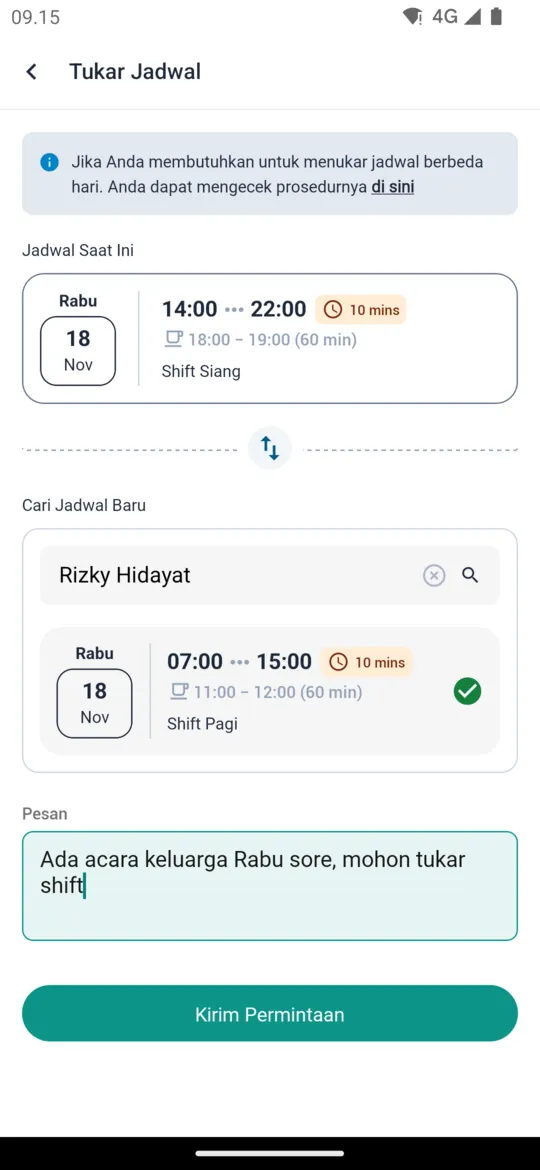
On the Switch Schedule page, Current Schedule shows your shift. Under Search New Schedules, search for and select the coworker you want to swap with. Their schedule on the same date appears.
Write a message and send
Write a Message to your coworker, then tap Send Request and confirm.
Wait for your coworker's approval
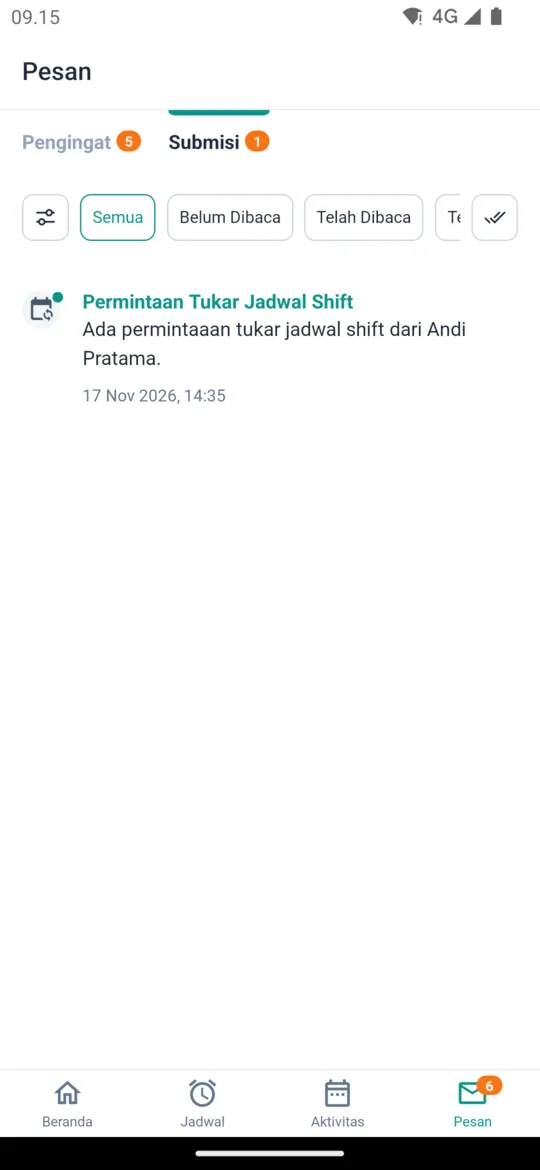
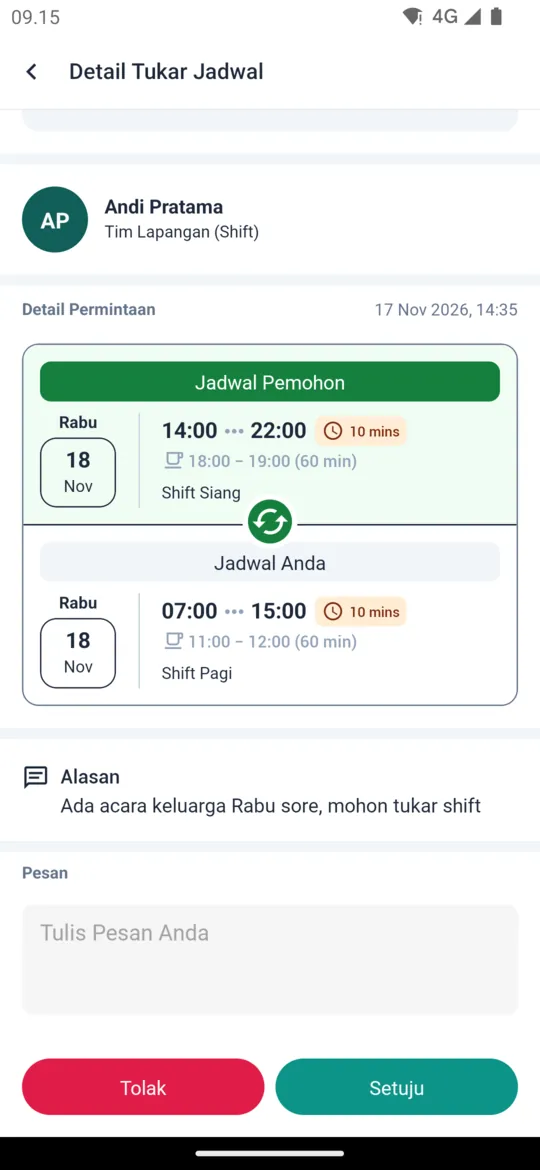
Your coworker receives a swap request notice in Message > Submission. They open the Switch Schedule Detail, which shows the Requester Schedule, Your Schedule, and your reason, write a reply if needed, and choose Approve or Reject.
To swap shifts on different days, follow the procedure linked in the note at the top of the Switch Schedule page. Admins can see swap history in Switch Shift Schedule Recap.
Open Shift
If your company uses open shifts, the Open Shift tab lists open schedules you can show interest in or book. Setup is explained in Openshift.