Employee App
A guide to the Kerjoo app for employees, from downloading the app and logging in for the first time to attendance, leave, and client visits.
Employees use the Kerjoo app to clock in with a face photo and location, request leave, check their schedule, and record client visits. The app is free for Android and iOS.
Download the Kerjoo App
- Android: Get it on Google Play
- iPhone (iOS): Download on the App Store
Employee accounts are created by your company admin. You do not need to sign up yourself; ask your admin or HR for your email and password.
For admins:
This guide is for employees. If you are an admin who has just signed up, start with Getting Started.
First Login
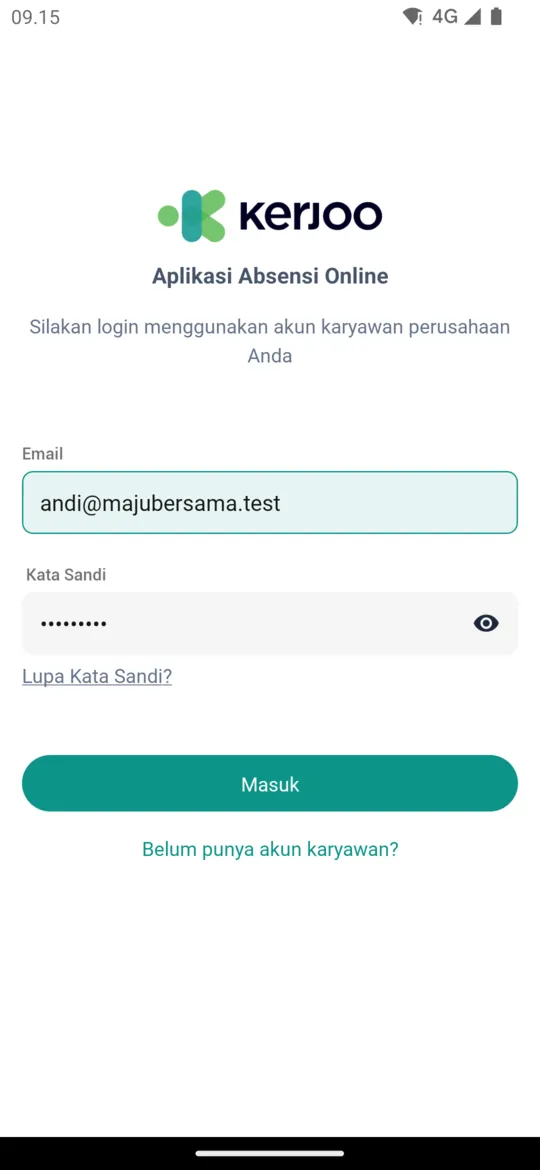
- Open the Kerjoo app.
- Enter the employee account Email and Password given by your company admin.
- Tap Login.
You then land on the Home screen. If a Start Quick Guide banner appears, tap it for a short tour of the Home features.
App permissions
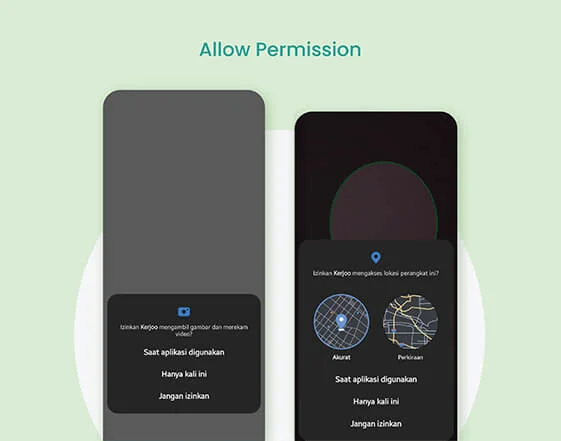
The Kerjoo app asks for a few permissions on your phone. Choose allow so every feature works:
- Notifications: asked after login, for attendance reminders and updates on your requests.
- Camera: asked when you clock in, for the face photo.
- Location: asked when you clock in, to confirm you are at an attendance location. Also make sure your phone's location service (GPS) is on.
- Files/gallery: asked when you attach a file, for example to a leave request.
If you denied a permission, turn it back on in your phone settings under the Kerjoo app.
Forgot Password
- On the login screen, tap Forgot Password?.
- Enter your employee account email, then tap Send Verification.
- Open the email from Kerjoo and follow the link to reset your password.
You can also change your password at any time from the Profile page: tap your profile summary on Home, then choose Change Password under Settings.
Getting to Know the App
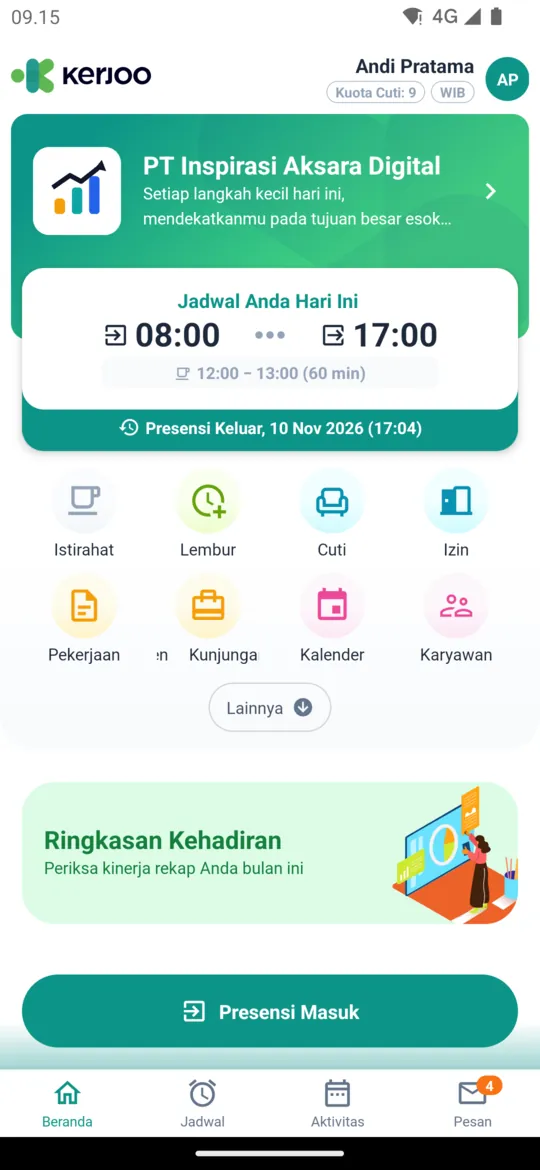
Home is the first screen after login. It shows:
- Your company name and Your Schedule Today, with your last attendance.
- Your profile summary at the top right. Tap it to open Profile and your account settings.
- Feature menus. Tap More to show the ones not yet visible.
- The Attendance Summary card.
- The attendance button at the bottom of the screen, for example Clock In.
Menus can differ between companies, because admins can hide unused features in Setting > Mobile Application. Menus that may appear: Break, Overtime, Paid Leave, Unpaid Leave, To-do List, Client Visit, Calendar, Employee, Payroll, Claim, and Performance Review.
The bottom of the app has four tabs:
| Tab | Contents |
|---|---|
| Home | Today's schedule, your profile summary, feature menus, notices, and your attendance summary. The attendance button sits at the bottom of the screen. |
| Schedule | Work schedule, overtime schedule, and open shift. See Schedule & Shift Swap. |
| Activity | Your attendance history. See Attendance. |
| Message | Notifications, split into the Reminder and Submission tabs. |
Guides
| Guide | Contents |
|---|---|
| Attendance | Clocking in and out, breaks, overtime, attendance notes, replacing leave hours, history, and common issues. |
| Unpaid Leave | Requesting leave days and leave hours. |
| Paid Leave | Requesting full-day, half-day, and special paid leave. |
| Attendance Revision | Requesting a correction to an attendance time. |
| Schedule & Shift Swap | Checking your schedule and swapping shifts with a coworker. |
| Client Visit | Recording when you arrive at and leave a client location. |
| Approvals for Supervisors | Approving or rejecting employee requests from the app. |
Other features with their own guides:
- Change profile picture: see Profile Picture Approval.
- Performance Review: see Performance Review.